

Help Center/ CodeArts/ Best Practices/ Developing an E-mall Project with CodeArts/ Implementation Procedure/ Preparations
Updated on 2026-08-31 GMT+08:00
Preparations
Before starting the practice, complete the following preparations. In this practice, project administrator Sarah performs the preparations.
Creating a Project
- Go to the CodeArts homepage.
- Log in to the CodeArts console, click
 , and select a region where you have enabled CodeArts.
 - Click Go to Workspace.
If your account uses the old billing mode (see Old Billing Modes), click Access Service.
- Log in to the CodeArts console, click
- Click Create > Create Project, and select DevOps Full-Process.
If you have not joined any project yet, the message "Start by creating a project or program." is displayed. Select a template on the Project tab.
- Enter the project name Phoenix Mall and click OK.
A success message is displayed, indicating that the project is created.
Adding Project Members
- Create three IAM users: Maggie, Chris, and Billy. For details, see Creating an IAM User.
- Return to CodeArts homepage, go to the Phoenix Mall project, and choose Settings > Members from the left navigation pane.
- On the Member View tab, click Add Members, and then click From My Account.
- In the displayed dialog box, select Maggie, Chris, and Billy, and click Next.
- Click the Role drop-down list in each row, select Project manager for Maggie, Developer for Chris, and Tester for Billy, and then click Save.
The added members are displayed.
- In the navigation pane, choose Settings > Permissions.
- Select Developer from the role list, and click Edit. Enable Create Environment under CodeArts Deploy > Applications, and click Save. Figure 1 Updating permissions
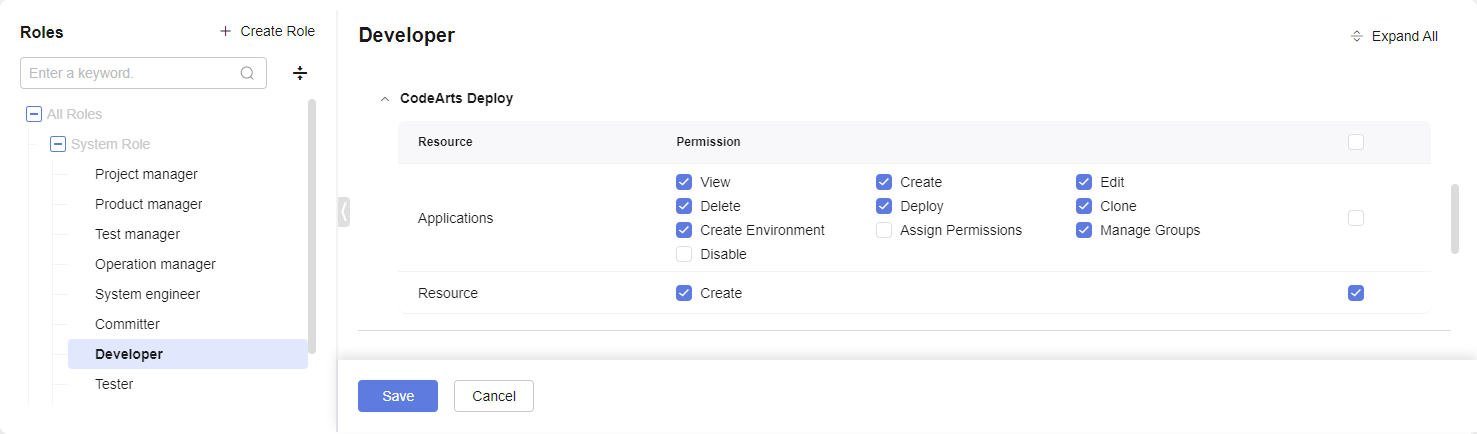
The modified permissions are displayed.
Parent topic: Implementation Procedure
What is your overall rating for this page?
0
1
2
3
4
5
6
7
8
9
10
Very dissatisfiedVery satisfied
Thank you very much for your feedback. We will continue working to improve the documentation.See the reply and handling status in My Cloud VOC.
The system is busy. Please try again later.
For any further questions, feel free to contact us through the chatbot.
Chatbot


