

Monitoring GPU Metrics Using DCGM-Exporter
Applications
If a cluster contains GPU nodes, you need to learn about the GPU resources used by GPU applications, such as the GPU usage, memory usage, running temperature, and power. You can configure auto scaling policies or alarm rules based on the obtained GPU metrics. This section walks you through how to observe GPU resource usage based on open-source Prometheus and DCGM-Exporter. For more details about DCGM-Exporter, see DCGM-Exporter.

DCGM-Exporter is an open-source component that specifically applies to the native GPUs (nvidia.com/gpu) within the Kubernetes community. It is important to note that GPU virtualization resources provided by CCE cannot be monitored.
Prerequisites
- A cluster is available. There are GPU nodes and GPU related services in the cluster.
- The CCE AI Suite (NVIDIA GPU) and Cloud Native Cluster Monitoring add-ons have been installed in the cluster.
- CCE AI Suite (NVIDIA GPU) is a device management add-on that supports GPUs in containers. To use GPU nodes in the cluster, this add-on must be installed. Select and install the corresponding GPU driver based on the GPU type and CUDA version.
- Cloud Native Cluster Monitoring monitors the cluster metrics. During the installation, you can interconnect this add-on with Grafana to gain a better observability of your cluster.

- The deployment mode of the add-on should be Local Data Storage.
- Interconnection with Grafana is supported by the Cloud Native Cluster Monitoring add-on of a version earlier than 3.9.0. For the add-on of version 3.9.0 or later, if Grafana is required, install the Grafana add-on separately.
Enabling DCGM-Exporter Using CCE AI Suite (NVIDIA GPU)
- Enable DCGM-Exporter using CCE AI Suite (NVIDIA GPU).
- Log in to the CCE console and click the cluster name to access the cluster console. In the navigation pane, choose Add-ons, locate CCE AI Suite (NVIDIA GPU) on the right, and click Install.
- Enable Use DCGM-Exporter to Observe DCGM Metrics. Then, DCGM-Exporter will be deployed on the GPU nodes.
If the add-on version is 2.7.40 or later, DCGM-Exporter can be deployed.
After DCGM-Exporter is enabled, if you want to report GPU monitoring data to AOM, enable Report Monitoring Data to AOM in the Cloud Native Cluster Monitoring add-on. GPU metrics reported to AOM are custom metrics and you will be billed on a pay-per-use basis for them. For details, see Pricing Details.
- Configure other parameters and click Install. For details about parameter settings, see CCE AI Suite (NVIDIA GPU).
- Monitor the GPU metrics of an application.
- Check whether DCGM-Exporter is running properly.
kubectl get pod -n kube-system -owide
Information similar to the following is displayed:
NAME                                        READY   STATUS    RESTARTS   AGE   IP             NODE           NOMINATED NODE   READINESS GATES
dcgm-exporter-hkr77                         1/1     Running   0          17m   172.16.0.11    192.168.0.73   <none>           <none>
...
- Call the DCGM-Exporter API and verify the collected GPU information. 172.16.0.11 indicates the pod IP address of DCGM-Exporter.
curl 172.16.0.11:9400/metrics | grep DCGM_FI_DEV_GPU_UTIL

- Check whether DCGM-Exporter is running properly.
- Enable Custom Metric Collection in the Cloud Native Cluster Monitoring add-on.
- Log in to the CCE console and click the cluster name to access the cluster console.
- In the navigation pane, choose Add-ons, locate the Cloud Native Cluster Monitoring add-on, and click Edit.
- In the Parameters area, enable Custom Metric Collection.

- Click OK.
- Enable metric collection for DCGM-Exporter.
- Log in to the CCE console and click the cluster name to access the cluster console.
- In the navigation pane, choose Settings. Then, click the Monitoring tab.
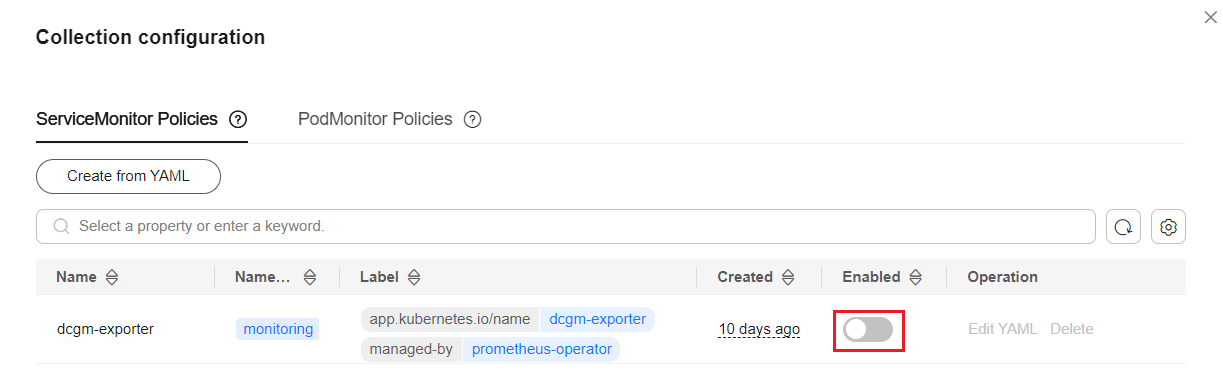
- In the Collection Settings area, click the ServiceMonitor Policies tab and click Manage.
- Find the ServiceMonitor policy of DCGM-Exporter and enable it.
- View the metric monitoring information on Prometheus.
After Prometheus and the related add-on are installed, Prometheus creates a ClusterIP Service by default. To expose Prometheus to external systems, create a NodePort or LoadBalancer Service for it. For details, see Monitoring Custom Metrics Using Cloud Native Cluster Monitoring.
You can view the GPU utilization and other metrics on a GPU node, as shown in the figure below. For more GPU metrics, see Observable Metrics.

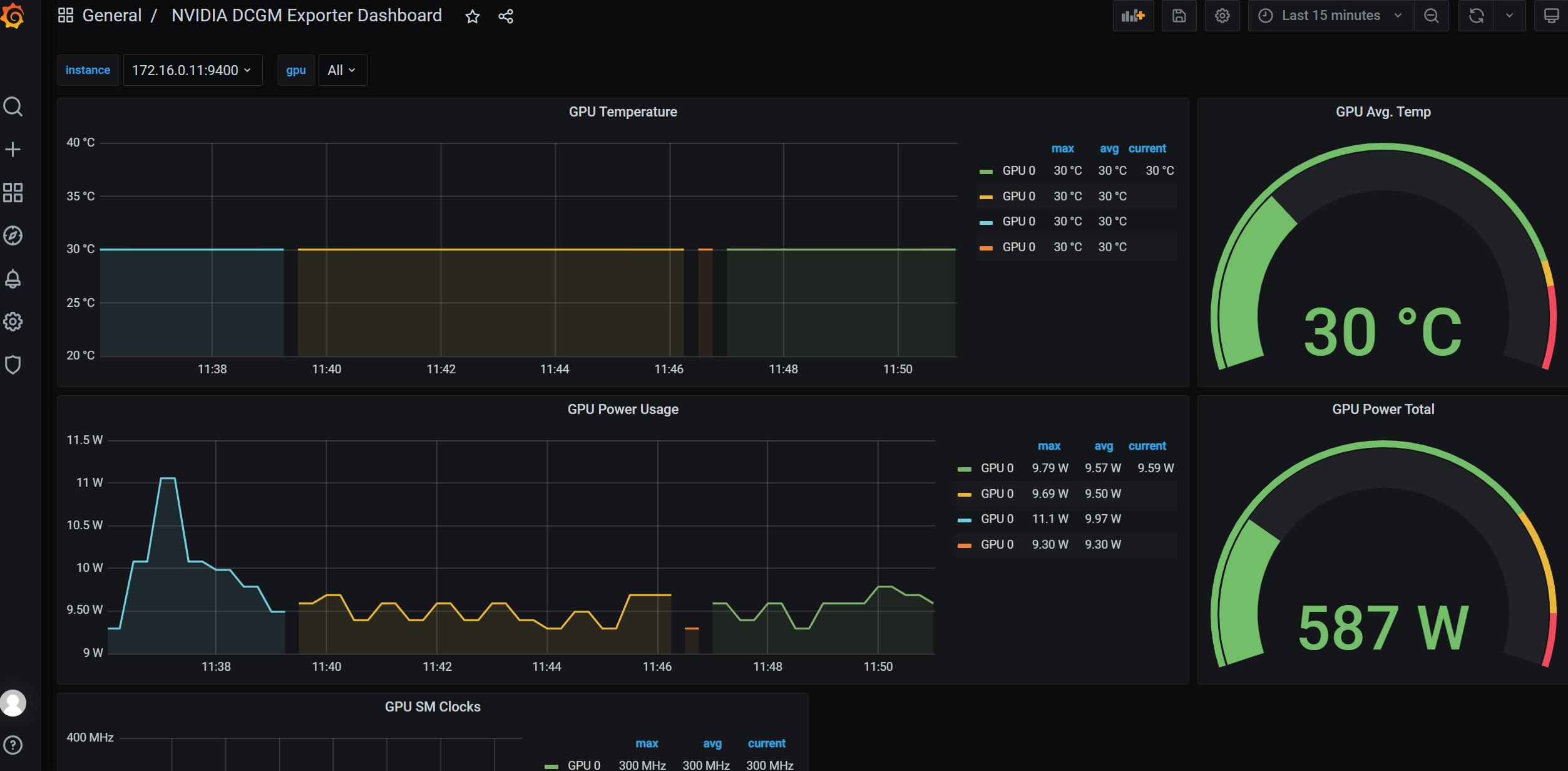
- Log in to Grafana and view the GPU information.
If you have installed Grafana, you can import the NVIDIA DCGM Exporter Dashboard to show GPU metrics.
For details about how to import dashboards to Grafana, see Manage dashboards.
Manually Deploying DCGM-Exporter
This section describes how to deploy DCGM-Exporter in a cluster to collect GPU metrics and expose GPU metrics through port 9400.
- Log in to a node with an EIP bound and that uses the Docker container runtime.
- Pull the DCGM-Exporter image to the local host. The image address comes from the DCGM official example. For details, see https://github.com/NVIDIA/dcgm-exporter/blob/main/dcgm-exporter.yaml.
docker pull nvcr.io/nvidia/k8s/dcgm-exporter:3.0.4-3.0.0-ubuntu20.04
- Push the DCGM-Exporter image to SWR.
- (Optional) Log in to the SWR console, choose Organizations in the navigation pane, and click Create Organization in the upper right corner.
Skip this step if you already have an organization.
- In the navigation pane, choose My Images and then click Upload Through Client. In the dialog box displayed, click Generate Login Command and click
 to copy the command.
 - Run the copied login command on the node. If the login is successful, the message "Login Succeeded" is displayed.
- Tag the DCGM-Exporter image.
docker tag {Image name 1:Tag 1}/{Image repository address}/{Organization name}/{Image name 2:Tag 2}
- {Image name 1:Tag 1}: name and tag of the local image to be pushed
- {Image repository address}: The domain name at the end of the login command in 3.b is the image repository address, which can be obtained on the SWR console.
- {Organization name}: name of the organization created in 3.a
- {Image name 2:Tag 2}: target image name and tag to be displayed on the SWR console
The following is an example:
docker tag nvcr.io/nvidia/k8s/dcgm-exporter:3.0.4-3.0.0-ubuntu20.04 swr.cn-east-3.myhuaweicloud.com/container/dcgm-exporter:3.0.4-3.0.0-ubuntu20.04
- Push the image to the image repository.
docker push {Image repository address}/{Organization name}/{Image name 2:Tag 2}
The following is an example:
docker push swr.cn-east-3.myhuaweicloud.com/container/dcgm-exporter:3.0.4-3.0.0-ubuntu20.04
The following information will be returned upon a successful push:
489a396b91d1: Pushed
...
c3f11d77a5de: Pushed
3.0.4-3.0.0-ubuntu20.04: digest: sha256:bd2b1a73025*** size: 2414
- To view the pushed image, go to the SWR console and refresh the My Images page.
- (Optional) Log in to the SWR console, choose Organizations in the navigation pane, and click Create Organization in the upper right corner.
- Deploy the core component DCGM-Exporter. When deploying DCGM-Exporter on CCE, add some specific configurations to monitor GPU information. A detailed YAML file is shown below. The information in red is important.
After Cloud Native Cluster Monitoring is connected to AOM, metrics will be reported to the AOM instance you select. Basic metrics of containers can be monitored for free. Custom metrics are billed based on the standard pricing of AOM. For details, see Pricing Details.
apiVersion: apps/v1 kind: DaemonSet metadata: name: "dcgm-exporter" namespace: "monitoring" # Select a namespace as required. labels: app.kubernetes.io/name: "dcgm-exporter" app.kubernetes.io/version: "3.0.0" spec: updateStrategy: type: RollingUpdate selector: matchLabels: app.kubernetes.io/name: "dcgm-exporter" app.kubernetes.io/version: "3.0.0" template: metadata: labels: app.kubernetes.io/name: "dcgm-exporter" app.kubernetes.io/version: "3.0.0" name: "dcgm-exporter" spec: containers: - image: "swr.cn-east-3.myhuaweicloud.com/container/dcgm-exporter:3.0.4-3.0.0-ubuntu20.04" # The SWR image address of DCGM-Exporter. The address is the image address in 3.e. env: - name: "DCGM_EXPORTER_LISTEN" # Service port number value: ":9400" - name: "DCGM_EXPORTER_KUBERNETES" # Supports mapping of Kubernetes metrics to pods. value: "true" - name: "DCGM_EXPORTER_KUBERNETES_GPU_ID_TYPE" # GPU ID type. The value can be uid or device-name. value: "device-name" name: "dcgm-exporter" ports: - name: "metrics" containerPort: 9400 resources: # Configure resource requests and limits as required. limits: cpu: '200m' memory: '256Mi' requests: cpu: 100m memory: 128Mi securityContext: # Enable the privilege container for the DCGM-Exporter container. privileged: true runAsNonRoot: false runAsUser: 0 volumeMounts: - name: "pod-gpu-resources" readOnly: true mountPath: "/var/lib/kubelet/pod-resources" - name: "nvidia-install-dir-host" # The environment variables configured in the DCGM-Exporter image depend on the file in the /usr/local/nvidia directory of the container. readOnly: true mountPath: "/usr/local/nvidia" imagePullSecrets: - name: default-secret volumes: - name: "pod-gpu-resources" hostPath: path: "/var/lib/kubelet/pod-resources" - name: "nvidia-install-dir-host" # The directory where the GPU driver is installed. hostPath: path: "/opt/cloud/cce/nvidia" #If the CCE AI Suite (NVIDIA GPU) add-on version is 2.0.0 or later, replace the driver installation directory with /usr/local/nvidia. affinity: # Label generated when CCE creates GPU nodes. You can configure node affinity for this component based on this label. nodeAffinity: requiredDuringSchedulingIgnoredDuringExecution: nodeSelectorTerms: - matchExpressions: - key: accelerator operator: Exists --- kind: Service apiVersion: v1 metadata: name: "dcgm-exporter" namespace: "monitoring" # Select a namespace as required. labels: app.kubernetes.io/name: "dcgm-exporter" app.kubernetes.io/version: "3.0.0" spec: selector: app.kubernetes.io/name: "dcgm-exporter" app.kubernetes.io/version: "3.0.0" ports: - name: "metrics" port: 9400 --- apiVersion: monitoring.coreos.com/v1 kind: ServiceMonitor metadata: labels: app.kubernetes.io/name: "dcgm-exporter" app.kubernetes.io/version: "3.0.0" name: dcgm-exporter namespace: monitoring # Select a namespace as required. spec: endpoints: - honorLabels: true interval: 15s path: /metrics port: metrics relabelings: - action: labelmap regex: __meta_kubernetes_service_label_(.+) - action: replace sourceLabels: - __meta_kubernetes_namespace targetLabel: kubernetes_namespace - action: replace sourceLabels: - __meta_kubernetes_service_name targetLabel: kubernetes_service scheme: http namespaceSelector: matchNames: - monitoring # Select a namespace as required. selector: matchLabels: app.kubernetes.io/name: "dcgm-exporter" - Monitor the GPU metrics of an application.
- Check whether DCGM-Exporter is running properly.
kubectl get po -n monitoring -owide
Information similar to the following is displayed:
# kubectl get po -n monitoring -owide
NAME                                        READY   STATUS    RESTARTS   AGE   IP             NODE           NOMINATED NODE   READINESS GATES
dcgm-exporter-hkr77                         1/1     Running   0          17m   172.16.0.11    192.168.0.73   <none>           <none>
...
- Call the DCGM-Exporter API and verify the collected GPU information. 172.16.0.11 indicates the pod IP address of DCGM-Exporter.
curl 172.16.0.11:9400/metrics | grep DCGM_FI_DEV_GPU_UTIL

- Check whether DCGM-Exporter is running properly.
- View the metric monitoring information on Prometheus.
After Prometheus and the related add-on are installed, Prometheus creates a ClusterIP Service by default. To expose Prometheus to external systems, create a NodePort or LoadBalancer Service for it. For details, see Monitoring Custom Metrics Using Cloud Native Cluster Monitoring.
You can view the GPU utilization and other metrics on a GPU node, as shown in the figure below. For more GPU metrics, see Observable Metrics.

- Log in to Grafana and view the GPU information.
If you have installed Grafana, you can import the NVIDIA DCGM Exporter Dashboard to show GPU metrics.
For details about how to import dashboards to Grafana, see Manage dashboards.

Observable Metrics
The table below lists some observable GPU metrics. For details about more metrics, see Field Identifiers.
| Metric Name | Metric Type | Unit | Description |
|---|---|---|---|
| DCGM_FI_DEV_GPU_UTIL | Gauge | % | GPU usage |
| DCGM_FI_DEV_MEM_COPY_UTIL | Gauge | % | Memory usage |
| DCGM_FI_DEV_ENC_UTIL | Gauge | % | Encoder usage |
| DCGM_FI_DEV_DEC_UTIL | Gauge | % | Decoder usage |
| Metric Name | Metric Type | Unit | Description |
|---|---|---|---|
| DCGM_FI_DEV_FB_FREE | Gauge | MB | The number of remaining frame buffers. The frame buffer is called VRAM. |
| DCGM_FI_DEV_FB_USED | Gauge | MB | The number of used frame buffers. The value is the same as the value of memory-usage in the nvidia-smi command. |
| Metric Name | Metric Type | Unit | Description |
|---|---|---|---|
| DCGM_FI_DEV_GPU_TEMP | Gauge | °C | Current GPU temperature of a device |
| DCGM_FI_DEV_POWER_USAGE | Gauge | W | Power usage of a device |
What is your overall rating for this page?
Thank you very much for your feedback. We will continue working to improve the documentation.See the reply and handling status in My Cloud VOC.
For any further questions, feel free to contact us through the chatbot.
Chatbot


