

Updated on 2025-12-11 GMT+08:00
Verifying Log Collection
Scenarios
This topic describes how to verify that non-Huawei Cloud logs can be forwarded to SecMaster.
| Scenario | Verification Method |
|---|---|
| Enabling SecMaster to collect logs on Huawei Cloud | Go to the page on the SecMaster console and check whether there are logs of cloud services with log access enabled. |
| Transferring logs from SecMaster to a third-party system or product | Go to the third-party system or product and check whether forwarded logs have been received successfully. |
| Ingesting third-party (non-Huawei Cloud) logs into SecMaster | Verify the log access by referring to this section. |
Verifying Log Collection
- View data in the collection channel on the SecMaster console.
- Log in to the SecMaster console.
- Click
 in the upper left corner of the management console and select a region or project.
 - Click
 in the upper left corner of the page and choose Security & Compliance > SecMaster.
 - In the navigation pane on the left, choose Workspaces > Management. In the workspace list, click the name of the target workspace. Figure 1 Workspace management page

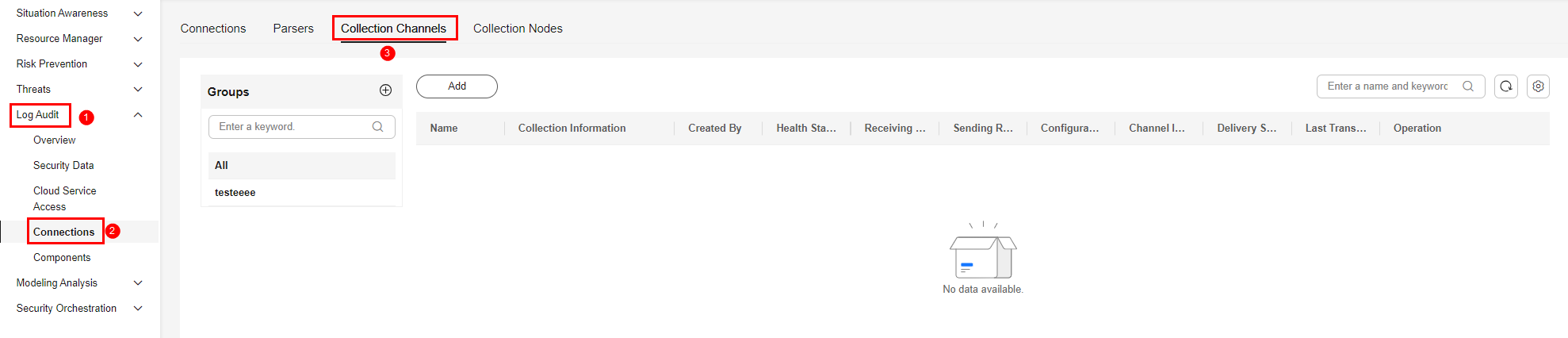
- In the navigation pane on the left, choose . Then, select the Collection Channels tab. Figure 2 Accessing the Collection Channels tab
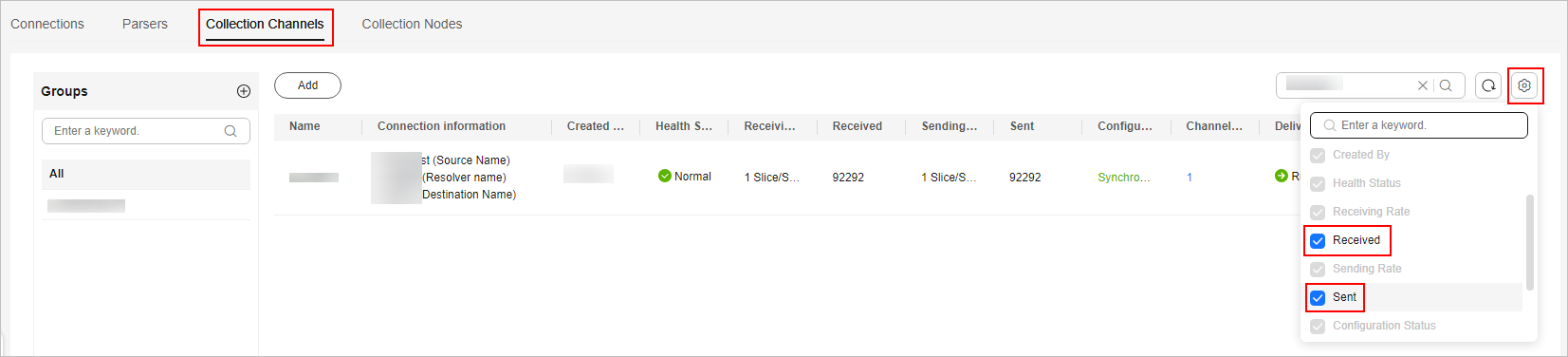
- On the Collection Channels tab, click the setting button in the upper right corner of the table and select Received and Sent. Figure 3 Table parameters
- In the table, view the monitoring information of the corresponding collection channel. If there is data in the Received and Sent columns, the log access is successful. Figure 4 Viewing the log access status

- Check data in the security analysis log pipeline on the SecMaster console.
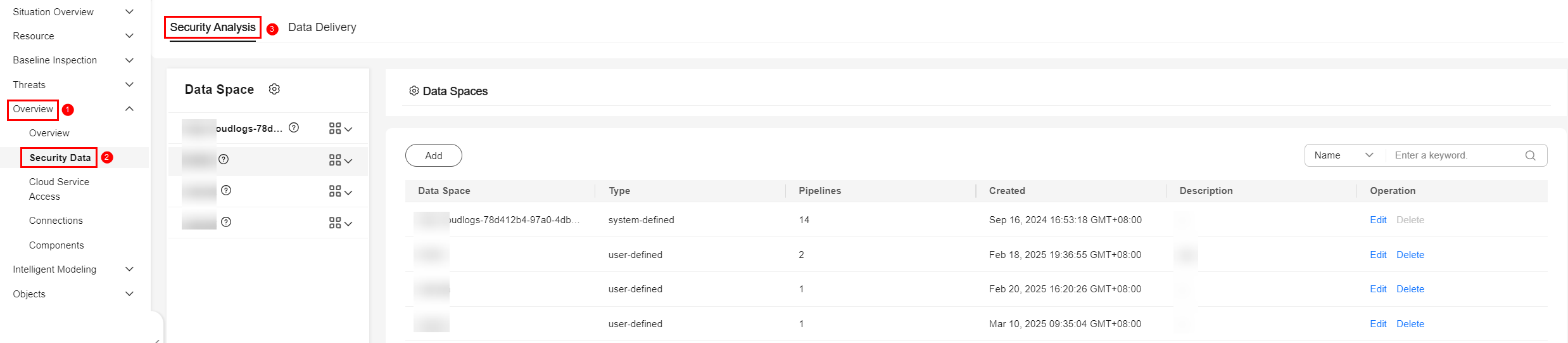
- In the navigation pane on the left, choose . Figure 5 Accessing the Security Analysis tab
- In the data space navigation tree on the left, click a data space name to show the pipeline list. Click the name of the target pipeline. The pipeline data search page is displayed on the right. Figure 6 Pipeline data page
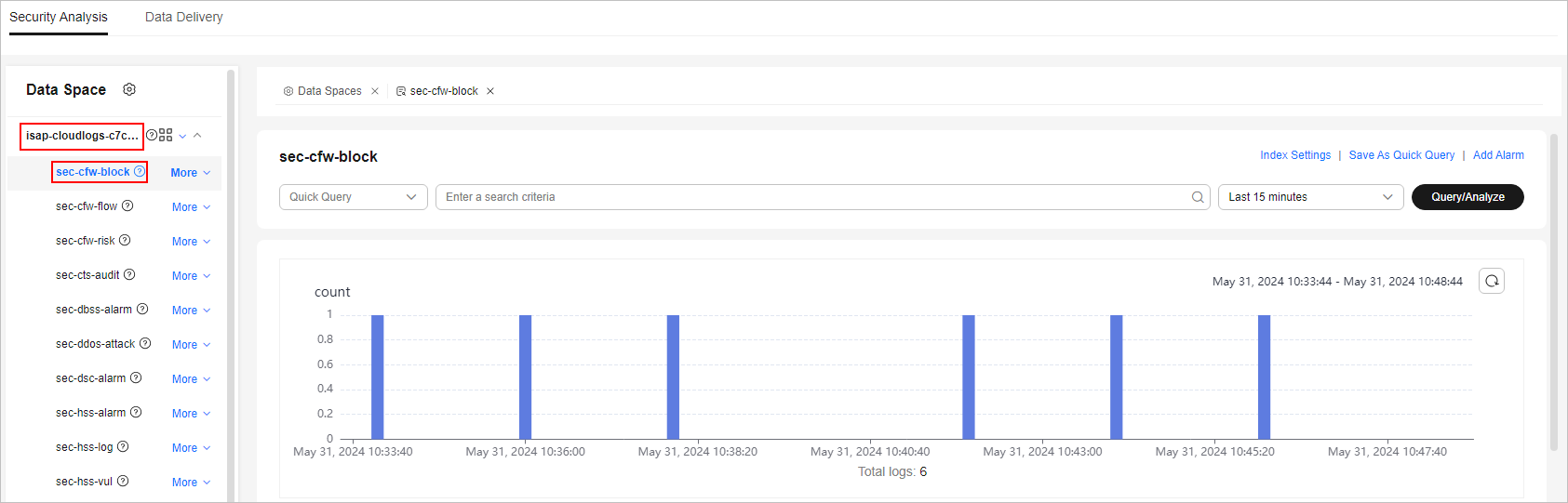
- If data is displayed in the log pipeline, the log access is successful.
- In the navigation pane on the left, choose .
- View data in the security data table on the SecMaster console.
- In the navigation pane on the left, choose . Figure 7 Data Tables
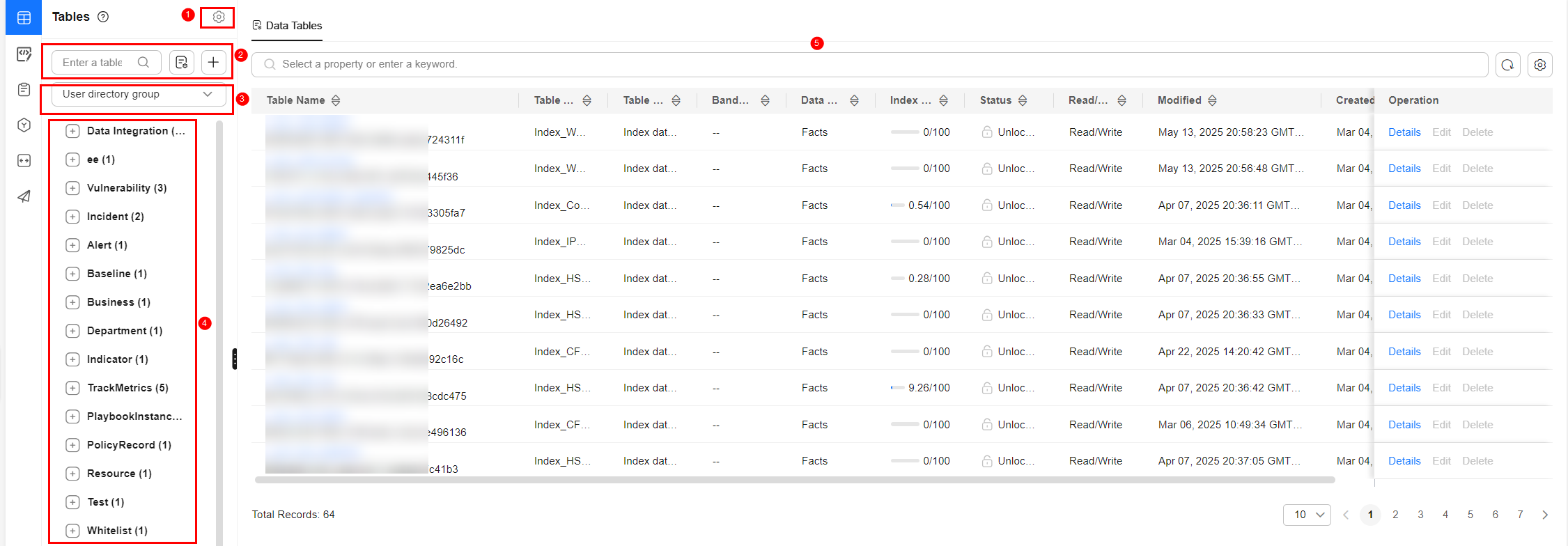
- On the Tables page, click the name of the target index data table to go to the query and analysis page.
- If data is displayed on the data table query and analysis page, the log access is successful.
- In the navigation pane on the left, choose .
Parent topic: Log Data Collection
What is your overall rating for this page?
0
1
2
3
4
5
6
7
8
9
10
Very dissatisfiedVery satisfied
Thank you very much for your feedback. We will continue working to improve the documentation.
The system is busy. Please try again later.


