

Creating an MRS Cluster Data Backup Task
Data loss or corruption can disrupt big data cluster operations and impair services. To protect your data, system administrators must periodically back up cluster metadata and service data. MRS Manager provides a visual interface for you to create scheduled or manual backup tasks based on your business needs. This section explains how to create data backup tasks on MRS Manager to ensure quick data recovery if a failure occurs.
Creating a Data Backup Task (MRS 3.x and Later)
- Log in to FusionInsight Manager of the MRS cluster.
For details about how to log in to FusionInsight Manager, see Accessing MRS Manager.
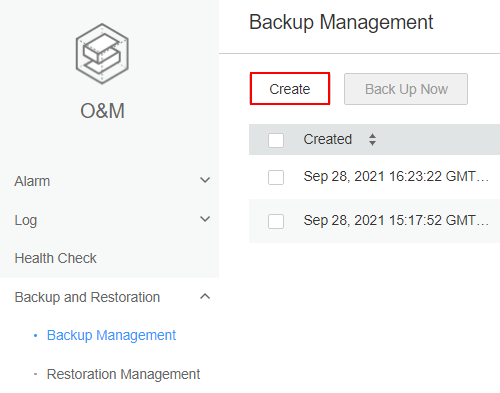
- Choose O&M > Backup and Restoration > Backup Management. On the page that is displayed, click Create. Figure 1 Creating a backup task.
- Set Backup Object to OMS (to protect cluster management configurations and metadata) or select the specific cluster you want to back up.
- Enter a task name in the Name text box.
- Set Mode to Periodic or Manual as required.
Table 1 Backup types Type
Parameter
Example Value
Description
Periodic backup
Start Time
2024/11/22 10:29:11
Indicates the time when a periodic backup task is started for the first time.
Period
1 day
Task execution interval. Value options are Hours and Days.
Backup Policy
Full backup at the first time and incremental backup subsequently
The following policies can be selected:
- Full backup at the first time and incremental backup subsequently
Use this policy when managing large data volumes with minimal changes, as it saves storage space and reduces backup time.
- Full backup every time
Use this policy when handling small data volumes or when strict data integrity is required.
- Full backup once every n times
We recommend setting n to a value from 3 to 7 to balance backup efficiency and data security.
Manual backup
N/A
-
You need to manually execute the task to back up data.
- Full backup at the first time and incremental backup subsequently
- Set required parameters in the Configuration area.
- Metadata and service data can be backed up.
- For details about how to back up data of different components, see MRS Cluster Data Backup and Restoration.
- Click OK to save the configurations.
- In the backup task list, you can view the created backup task.
Locate the row that contains the target backup task, choose More > Back Up Now in the Operation column to execute the task immediately.
Return to the Backup Management page and verify that the created task appears in the task list and is running properly. For manual backup tasks, click Back Up Now and check the task progress column to confirm the execution percentage. When the task completes, the backup is successful.
Creating a Metadata Backup Task (MRS 2.x and Earlier)
- Create a backup task.
- Log in to FusionInsight Manager of the MRS cluster.
For details about how to log in to FusionInsight Manager, see Accessing MRS Manager.
- Choose System > Back Up Data.
- Click Create Backup Task.
- Log in to FusionInsight Manager of the MRS cluster.
- Configure a backup policy.
- Set Name to the name of the backup task.
- Set Backup Mode to the type of the backup task. Periodic indicates that the backup task is periodically executed. Manual indicates that the backup task is manually executed.
To create a periodic backup task, set the following parameters:
- Started: indicates the time when the task is started for the first time.
- Period: indicates the task execution interval. The options include Hours and Days.
- Backup Policy: indicates the volume of data to be backed up in each task execution. The options include Full backup at the first time and incremental backup later, Full backup every time, and Full backup once every n times. If you select Full backup once every n times, you need to specify the value of n.
- Select backup sources.
On the Configuration page, select the metadata option and set backup parameters. For details, see Backing Up Manager Data (MRS 2.x and Earlier).
- Click OK.
- In the Operation column of the created task in the backup task list, click Back Up Now if Backup Mode is set to Periodic or click Start if Backup Mode is set to Manual to execute the backup task.
Return to the Backup Management page and verify that the created task appears in the task list and is running properly. For manual backup tasks, click Back Up Now and check the task progress column to confirm the execution percentage. When the task completes, the backup is successful.
Helpful Links
- For details about how to modify a backup task or view a restoration task, see Managing MRS Cluster Backup and Restoration Tasks.
- For details about how to back up and restore data for specific components, see MRS Cluster Data Backup and Restoration.
- For details about how to access Manager of an MRS cluster, see Accessing MRS Manager.


