

Collecting MRS Cluster Service Stack Information
When a cluster service encounters issues such as frame freezing, slow response, or memory leaks, cluster administrators can collect service stack information in MRS Manager to help locate faults. Stack information provides a snapshot of the Java Virtual Machine (JVM) runtime status. By analyzing stack information, administrators can identify the root causes of issues such as thread blocking and memory exhaustion. In MRS Manager, administrators can collect stack information for a specified role or instance, save it to a local directory, and download it for further analysis.
Concepts
The following types of information can be collected. The application scenarios for each type are as follows:
- jstack stack information: jstack is a thread stack dump tool provided by the JDK. It generates a snapshot of the current status of all threads in the JVM and helps identify thread-level issues such as deadlocks, thread blocking, and high CPU usage.
- jmap -histo heap statistics: jmap is a memory analysis tool provided by the JDK. The -histo option collects statistics on the number and memory usage of different object types in the JVM heap. It helps identify memory-related issues such as abnormal memory consumption and excessive objects.
- jmap -dump heap snapshot: The -dump option of jmap generates a complete snapshot of the JVM heap, which can be analyzed offline to understand object reference relationships and identify memory leaks. It is suitable for scenarios that require in-depth memory leak analysis.
jstack and jmap -histo information can be collected at different time points to compare changes and identify trends.
Notes and Constraints
- This section applies only to MRS 3.x or later.
- When jmap -dump is used to collect heap snapshots, JVM triggers full garbage collection, which may cause service exceptions. Therefore, you are not recommended to use jmap -dump during peak hours.
Collecting Stack Information
- Log in to FusionInsight Manager of the MRS cluster.
For details about how to log in to FusionInsight Manager, see Accessing MRS Manager.
- Choose Cluster > Services > Name of the service whose stack information is to be collected.
- On the displayed page, choose More > Collect Stack Information.
- To collect stack information of multiple instances, go to the instance list, select the desired instances, and choose More > Collect Stack Information.
- To collect stack information of a single instance, click the desired instance and choose More > Collect Stack Information.
- In the displayed dialog box, select the desired role and content, configure advanced options (retain the default settings if there is no special requirement), and click OK. Figure 1 Collecting stack information
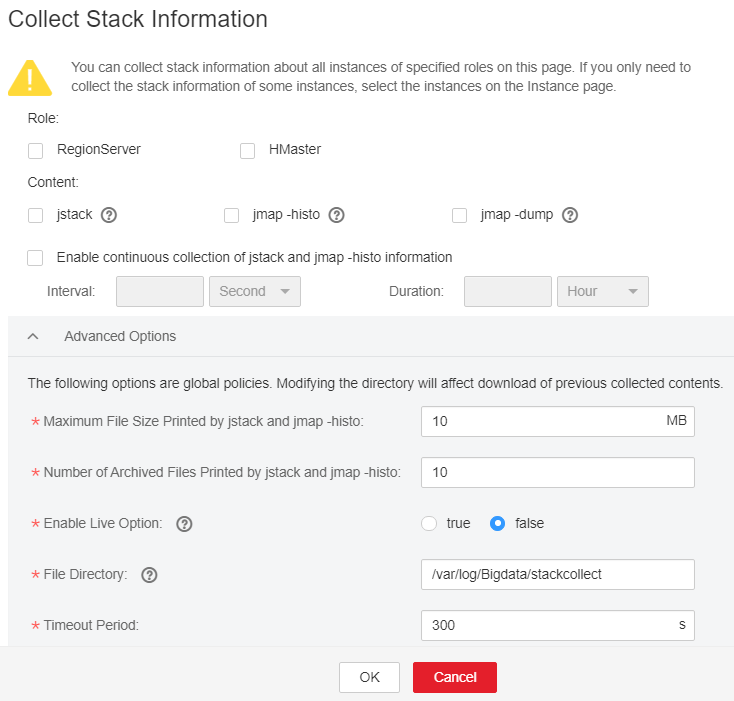
- After the collection is successful, click Download.
After the collection is complete, check whether it is successful on MRS Manager. Check that stack files can be downloaded and the files contain valid stack information.
Downloading Stack Information
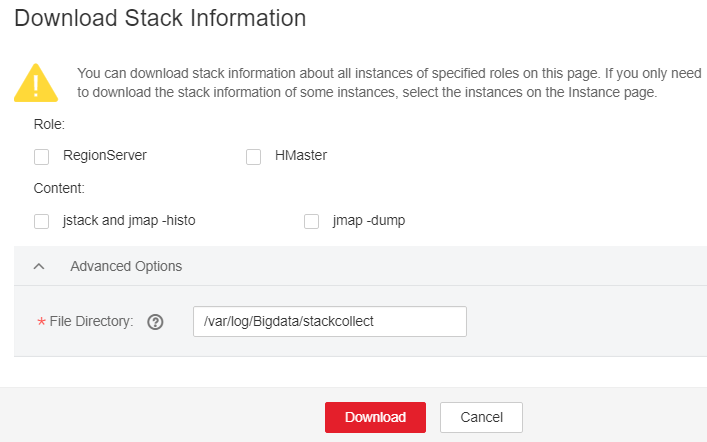
- Click Cluster, click the name of the desired cluster, click Services, and click the target service. Choose More > Download Stack Information in the upper right corner.
- Select the desired role and content and click Download to download the stack information to the local PC. Figure 2 Downloading stack information
Clearing Stack Information
Clearing stack information deletes the collected stack files, and the deleted files cannot be restored. Ensure that you have downloaded and analyzed the required files before performing this operation. You are advised to back up important stack files before clearing them.
- Choose Cluster > Services > Name of the service whose stack information is to be collected.
- Choose More > Clear Stack Information in the upper right corner.
- Select the role and content to clear, then specify the directory containing the stack files to be cleared. All stack files in the specified directory will be deleted. Click OK. Figure 3 Clearing stack information
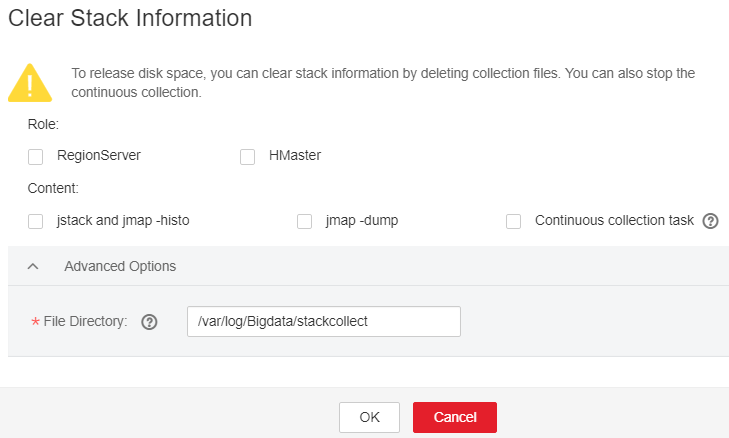
After the cleanup is complete, verify that the stack information list on the MRS Manager page is empty. Check whether the downloaded stack files have been backed up or analyzed.
FAQs
Q: What can I do if stack files occupy a large amount of disk space?
A: You are advised to periodically clear analyzed stack files to prevent them from occupying too much disk space. The heap snapshot file generated by jmap -dump is usually large (equivalent to the JVM heap size). Ensure that the disk has sufficient available space.
Helpful Links
- For details about how to access Manager of an MRS cluster, see Accessing MRS Manager.
- For details about how to check cluster alarms for associated stack analysis, see Viewing Alarms of an MRS Cluster.
- For details about how to optimize JVM and analyze memory, see the optimization guide of each component.


