

Managing MRS Role Instance Groups
With MRS, you can easily manage instance groups by grouping multiple instances based on a specified principle, such as nodes with the same hardware configuration.
Any changes made to the configuration parameters of an instance group will apply to all instances within that group.
Notes and Constraints
This section applies to MRS 3.x or later.
Managing MRS Role Instance Groups
- Log in to FusionInsight Manager of the MRS cluster.
For details about how to log in to FusionInsight Manager, see Accessing MRS Manager.
- On Manager, choose Cluster > Services.
- Click the specified service name on the service management page.
- On the displayed page, click Instance Groups.
Click
 and configure parameters as prompted.Figure 1 Creating an instance group
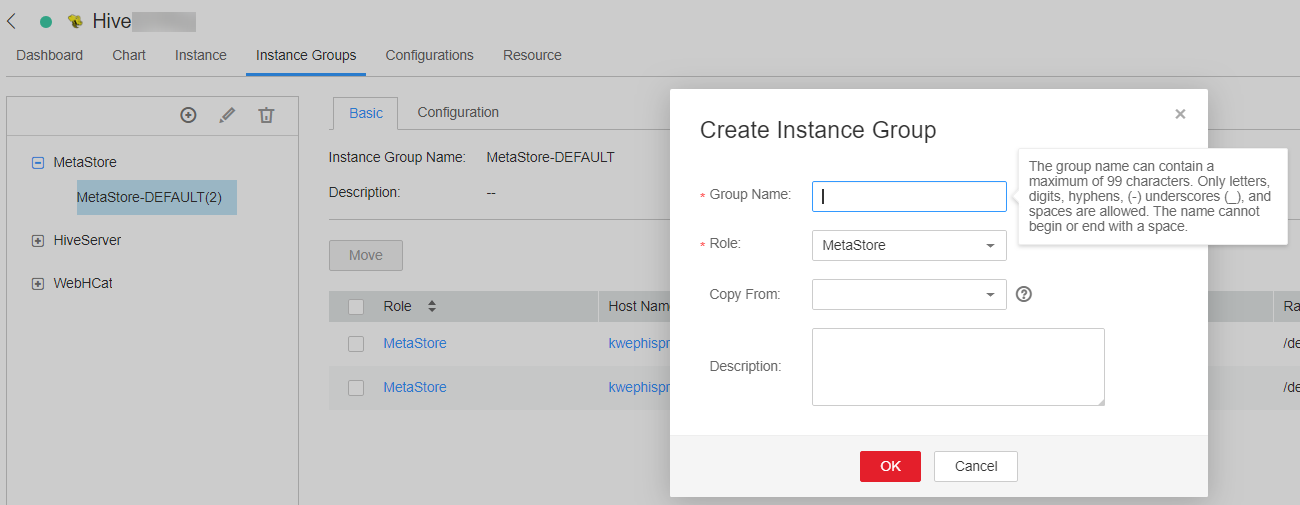
Table 1 Instance group configuration parameters Parameter
Description
Group Name
Instance group name. The name can contain only letters, digits, underscores (_), hyphens (-), and spaces. It must start with a letter, digit, underscore (_), or hyphen (-), cannot end with a space, and can contain a maximum of 99 characters.
Role
Role to which an instance group belongs.
Copy From
Instance group where the configuration parameter values are copied from. If the value is null, default values are used.
Description
Instance group description. It can contain only letters, digits, commas (,), periods (.), underscores (_), spaces, and line breaks, and can contain a maximum of 200 characters.
Each instance must belong to only one instance group. By default, when an instance is installed for the first time, it belongs to the instance group Role name-DEFAULT.
- Click OK.
- You can perform the following operations on an instance group as needed.
- Modifying an instance group: On the Instance Group page, locate the target instance group, click
 , and modify parameters as prompted. The default instance group cannot be modified.
 - Deleting an instance group: Click Instance Groups. On the Instance Groups page, locate the row that contains the target instance group. Click
 . In the displayed dialog box, click OK. The default instance group cannot be deleted.
 You can delete unnecessary or unused instance groups. Before deleting an instance group, migrate all instances in the group to other instance groups. The default instance group cannot be deleted.
- Viewing instance group information: On the Instance Groups page, select a role. On the Basic page, view all instances of the instance group.
To move an instance from an instance group to another, perform the following operations:
- Select the instance to be moved and click Move.
- In the displayed dialog box, select the instance group to which the instance will be moved.
During migration, the configuration of the target instance group is automatically inherited. If the instance configuration is modified before migration, the modified instance configuration will be applied.
- Click OK.
Restart any service or instance with expired configurations to make the new settings take effect.
- Configuring instance group parameters: On the Instance Groups page, select a role in the navigation pane, click Configuration, adjust the configuration parameters, and click Save. The configuration will take effect on all instances in the instance group.
- Modifying an instance group: On the Instance Group page, locate the target instance group, click


