

Managing MRS Cluster User Groups
Administrators can create and manage different user groups based on service scenarios on Manager. A user group is bound to a role to obtain operation permissions. After a user is added to a user group, the user can obtain the operation permissions of the user group. A user group can be used to classify users and manage multiple users.
In MRS 3.x or later clusters, MRS Manager supports up to 5000 user groups, including built-in groups.
In MRS 2.x or earlier clusters, MRS Manager supports up to 100 user groups, including built-in groups.
Prerequisites
- You have learned service requirements and created roles required by service scenarios.
- You have logged in to Manager.
Creating a User Group
For MRS 3.x and later versions:
- Log in to FusionInsight Manager of the MRS cluster.
For details about how to log in to FusionInsight Manager, see Accessing MRS Manager.
- Choose System > Permission > User Group.
- Above the user group list, click Create User Group. Figure 1 Creating a user group
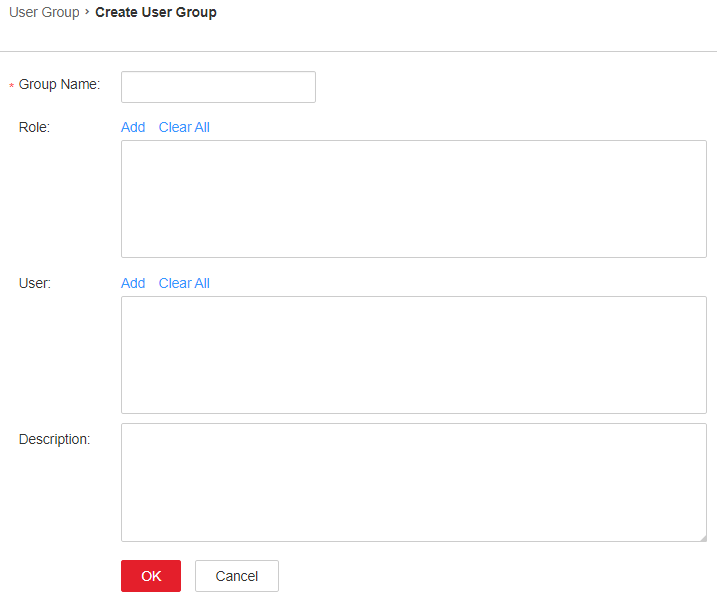
- Set Group Name and Description.
The group name contains 1 to 64 characters, including case-insensitive letters, digits, underscores (_), hyphens (-), and spaces. It cannot be the same as an existing user group name in the system.
- In the Role area, click Add to select a role and add it.
- For components (except HDFS and YARN) with Ranger authorization enabled, the permissions of non-default roles on MRS Manager do not take effect. You need to configure Ranger policies to assign permissions to user groups.
- When HDFS or YARN resource requests go beyond the scope of Ranger policies, the access control list (ACL) rules defined within the components continue to take effect.
- In the User area, click Add to select a user and add it.
- Click OK.
The user group is created.
For MRS 2.x and earlier:
- Log in to FusionInsight Manager of the MRS cluster.
For details about how to log in to FusionInsight Manager, see Accessing MRS Manager.
- Click System.
- In the Permission area, click Manage User Group.
- Above the user group list, click Create User Group.
- Set Group Name and Description.
Group Name is mandatory and contains 3 to 20 characters. Only digits, letters, and underscores (_) are allowed. Description is optional.
- In Role, click Select and Add Role to select and add specified roles.
If you do not add the roles, the user group you are creating now does not have the permission to use MRS clusters.
- Click OK.
Managing User Groups
- Log in to FusionInsight Manager of the MRS cluster.
For details about how to log in to FusionInsight Manager, see Accessing MRS Manager.
- Go to the user group management page.
- For MRS 3.x and later versions, choose .
- For MRS 2.x and earlier versions, Click System. In the Permission area, click Manage User Group.
- In the user group list, perform the following operations on a user group as you need.
- Viewing user group information: By default, all user groups are displayed in the user group list. You can click the arrow on the left of a user group name to view details about the user group, including the user quantity, specific users, and bound roles of the user group.
- Modifying user group information: Locate the row that contains the user group to be modified and click Modify.
- Exporting user group information: Click Export All to export all user group information at a time in TXT or CSV format.
Exporting user group information is supported only in MRS 3.x or later.
The user group information contains the user group name, description, user list, and role list.
- Deleting a user group: Locate the row that contains the target user group and click Delete. To delete multiple user groups in batches, select the target user groups and click Delete above the user group list. A user group that contains users cannot be deleted. To delete such a user group, delete all its users by modifying the user group first.


