

Creating a Function by Running Terraform Commands
This section describes how to create a function using Terraform.
The Terraform configuration language is based on the HCL syntax. It is easy to configure and readable, and is compatible with the JSON syntax. For details, see Terraform.
Prerequisites
You have obtained an access key.
For details about how to obtain an access key, see Access Keys. Use temporary access keys, which are more secure. For details, see .
An access key comprises an access key ID (AK) and secret access key (SK), and is your long-term credential for accessing Huawei Cloud APIs.
View the AK in the access key list and the SK in the downloaded CSV file.
Installing Terraform
Terraform provides installation packages for different environments. For details, see https://developer.hashicorp.com/terraform/downloads.
The following uses Linux CentOS (public access required) as an example to describe how to install Terraform.
Log in to the system as the root user, create the /home/Terraform directory, run the cd command to go to this directory, and then run the following commands:
sudo yum install -y yum-utils
sudo yum-config-manager --add-repo https://rpm.releases.hashicorp.com/RHEL/hashicorp.repo
sudo yum -y install terraform
Basic Terraform Commands
Run Terraform to view the command details.
Terraform
Usage: terraform [global options] <subcommand> [args]

The available commands for execution are listed below.
The primary workflow commands are given first, followed by
less common or more advanced commands.

Main commands:
  init          Prepare your working directory for other commands
  validate      Check whether the configuration is valid
  plan          Show changes required by the current configuration
  apply         Create or update infrastructure
  destroy       Destroy previously-created infrastructure

All other commands:
  console       Try Terraform expressions at an interactive command prompt
  fmt           Reformat your configuration in the standard style
  force-unlock  Release a stuck lock on the current workspace
  get           Install or upgrade remote Terraform modules
  graph         Generate a Graphviz graph of the steps in an operation
  import        Associate existing infrastructure with a Terraform resource
  login         Obtain and save credentials for a remote host
  logout        Remove locally-stored credentials for a remote host
  metadata      Metadata related commands
  output        Show output values from your root module
  providers     Show the providers required for this configuration
  refresh       Update the state to match remote systems
  show          Show the current state or a saved plan
  state         Advanced state management
  taint         Mark a resource instance as not fully functional
  untaint       Remove the 'tainted' state from a resource instance
  version       Show the current Terraform version
  workspace     Workspace management

Global options (use these before the subcommand, if any):
  -chdir=DIR    Switch to a different working directory before executing the
                given subcommand.
  -help         Show this help output, or the help for a specified subcommand.
  -version      An alias for the "version" subcommand.
For more commands, see Terraform CLI.
Writing a Function Resource Script
Huawei Cloud has registered with Terraform as a provider. You can mount your functions to the provider as resources. For details, see https://registry.terraform.io/providers/huaweicloud/huaweicloud/latest/docs/resources/fgs_function.
The following is an example.
Create a main.tf file on the server, copy the following script to the file, and save it.
terraform {
  required_providers {
    huaweicloud = {
      source  = "huaweicloud/huaweicloud"
      version = ">= 1.40.0"
    }
  }
}

provider "huaweicloud" {
region = "cn-east-3" # Actual region
access_key = "*******" # Obtained key
secret_key = "*******" # Obtained key
}

resource "huaweicloud_fgs_function" "fgs_function" {
  name        = "test_func_rf"
  app         = "default"
  agency      = "function-admin"
  description = "function test"
  handler     = "index.handler"
  memory_size = 128
  timeout     = 3
  runtime     = "Python3.6"
  code_type   = "inline"
  func_code   = "aW1wb3J0IGpzb24KZGVmIGhhbmRsZXIgKGV2ZW50LCBjb250ZXh0KToKICAgIG91dHB1dCA9ICdIZWxsbyBtZXNzYWdlOiAnICsganNvbi5kdW1wcyhldmVudCkKICAgIHJldHVybiBvdXRwdXQ="
}
Replace access_key and secret_key with the AK/SK generated in Prerequisites.
Executing a Function by Running Terraform Commands
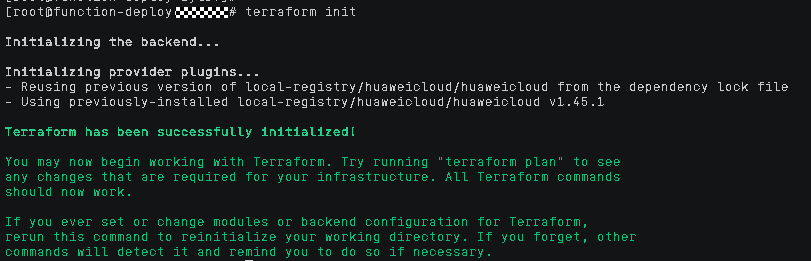
Go to the file path and run the terraform init command to initialize a working directory that contains the Terraform code.
Run the terraform apply command and enter yes after Enter a value:.
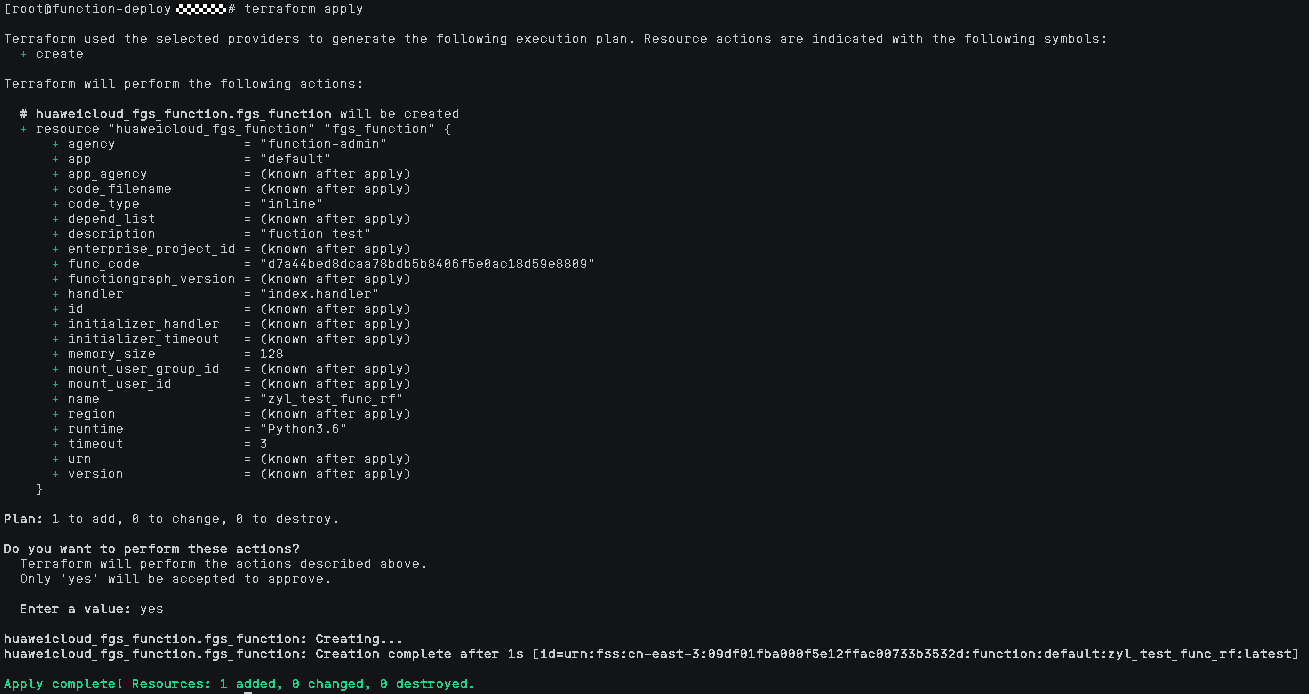
If the execution is successful, the function has been created.


