

Help Center/ Document Database Service/ User Guide/ Instance Modifications/ Configuring the Maintenance Window
Updated on 2026-05-14 GMT+08:00
Configuring the Maintenance Window
Scenarios
A maintenance window is a scheduled time period during which Huawei Cloud O&M personnel are authorized to perform maintenance tasks. To prevent unexpected interruptions during maintenance, set the maintenance window to off-peak hours. The default maintenance window is 02:00–06:00 and you can adjust it as required.
Precautions
- Before maintenance is performed, DDS will send SMS and email notifications to the contact person you specified in the Huawei account.
- During the maintenance window, the DB instance may be intermittently disconnected once or twice. Ensure that your applications can reconnect to the database if the connection is interrupted.
- During DB instance maintenance, operations for service changes (such as upgrade and restart) are unavailable except account management, database management, and security group adding. When a DB instance is in maintenance, data access and query operations on the database are not affected.
- Changing the maintenance window does not affect the execution of tasks that have been scheduled.
- You can configure a maintenance window only for restarting a DB instance, changing an instance class, or upgrading the minor version of a DB instance.
- You can cancel a scheduled task to be executed on the Task Center page.
- The maintenance window cannot overlap the time window configured for backups. Otherwise, scheduled tasks may fail.
- Tasks delivered near the end of the maintenance window may fail to be scanned. In this case, the execution is canceled.
Changing a Maintenance Window
- Log in to the management console.
- Click
 in the upper left corner and select a region and a project.
 - Click
 in the upper left corner of the page and choose Databases > Document Database Service.
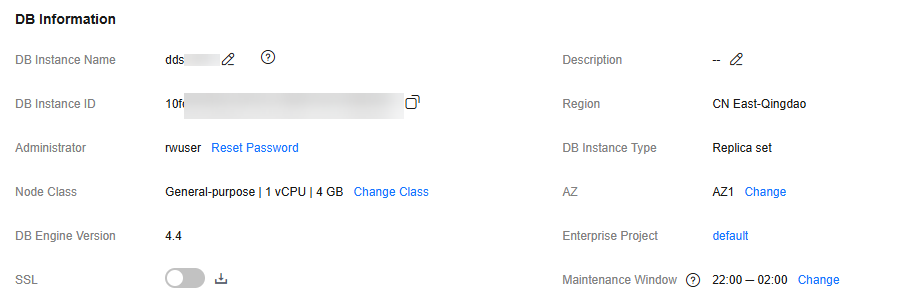
 - On the Instances page, click the instance name. In the DB Information area on the Basic Information page, click Change in the Maintenance Window field. Figure 1 Changing the maintenance window
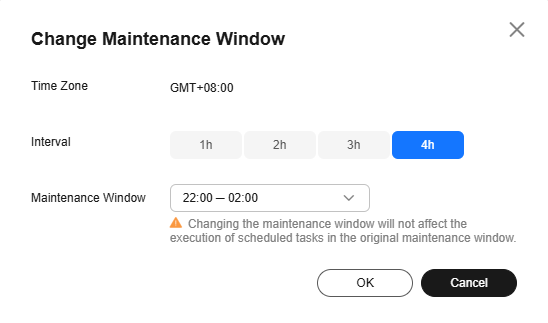
- In the displayed dialog box, select an interval and a maintenance window, and click OK. Figure 2 Changing the maintenance window
Canceling a Scheduled Task
- Log in to the management console.
- Click
 in the upper left corner and select a region and a project.
 - Click
 in the upper left corner of the page and choose Databases > Document Database Service.
 - Click the Scheduled Tasks tab on the Task Center page, locate a scheduled task, and click Cancel in the Operation column. Figure 3 Canceling a task

- View the result.
You can view the result on the Task Center > Scheduled Tasks page. When the task is cancelled, its status changes to Cancelled.
Parent topic: Instance Modifications
What is your overall rating for this page?
0
1
2
3
4
5
6
7
8
9
10
Very dissatisfiedVery satisfied
Thank you very much for your feedback. We will continue working to improve the documentation.
The system is busy. Please try again later.


