

Help Center/ Migration Center/ MgC Agent Usage Guide/ FAQs/ What Can I Do If AK/SK Verification Fails?
Updated on 2025-11-04 GMT+08:00
What Can I Do If AK/SK Verification Fails?
Symptom
When you tried to register the MgC Agent with MgC, a message was displayed indicating that the AK/SK authentication failed.
Possible Causes
Possible causes are:
- The entered AK or SK is incorrect.
- The AK/SK pair has been deleted or disabled.
- The programmatic access mode is not enabled for the account that owns the AK/SK pair.
- The time on the server where the MgC Agent was installed is inconsistent with the local standard time.
Solutions
- The entered AK or SK is incorrect.
Check whether the entered AK/SK pair of the Huawei Cloud account is correct, especially whether any spaces or characters are missed during the copy. Enter the AK/SK pair for authentication again.
- The AK/SK pair has been deleted or disabled. Choose My Credentials > Access Keys to check whether the AK is in the list.
- If it is not, use an AK/SK pair in the list for authentication or create an AK/SK pair.
- If it is, check whether it is disabled. If the AK is disabled, enable it.
- The programmatic access mode is not enabled for the account that owns the AK/SK pair.
- Sign in to the management console.
- Click the username in the upper right corner and choose Identity and Access Management.
- In the navigation pane on the left, choose Users and click the username you used for migration.
- Check whether Programmatic access is selected for Access Type. If it is nor, click
 next to Access Type, select Programmatic Access, and click Yes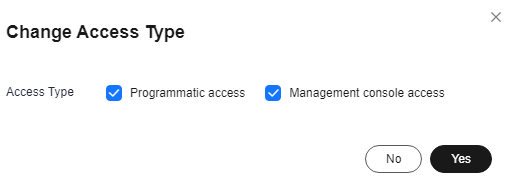
- The time on the server where the MgC Agent was installed is inconsistent with the local standard time.
- On the Windows server where the MgC Agent was installed, open Date and Time.
- On the Date and Time page, enable Set time automatically and click Sync now to trigger time synchronization.
- Ensure that the time zone and time are the same as the local standard time, return to the MgC Agent console, and query MgC migration projects again.
What is your overall rating for this page?
0
1
2
3
4
5
6
7
8
9
10
Very dissatisfiedVery satisfied
Thank you very much for your feedback. We will continue working to improve the documentation.
The system is busy. Please try again later.


