

Help Center/ Elastic Cloud Server/ FAQs/ Remote Login/ Remote Logins/ How Can I Change a Remote Login Port?
Updated on 2026-04-21 GMT+08:00
How Can I Change a Remote Login Port?
Scenarios
This section describes how to change a port for remote logins.
Linux
The following procedure uses an ECS running CentOS 7.3 as an example. The default login port of a Linux ECS is 22. To change it to port 2020, for example, do as follows:
- Modify the security group rule.
- Log in to the ECS console and access the ECS list page.
- On the ECS list, click the name of an ECS for which you want to modify the security group rule.
- On the ECS details page, click the security group in the Security Groups area to go to the security group details page.
- On the Inbound Rules tab, click Add Rule. In the displayed dialog box, set Protocol & Port as follows:
- Protocols: TCP (Custom ports)
- Port: 2020
For details, see Adding a Security Group Rule.
- Log in to the ECS.
- Run the following command to edit the sshd configuration file:
- Delete the comment tag (#) from the #port 22 line and change 22 to 2020. Figure 1 Changing the port number to 2020
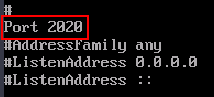
- Press Esc to exit Insert mode and enter :wq! to save the settings and exit.
- Run either of the following commands to restart sshd:
Or
systemctl restart sshd
- (Optional) Configure the firewall. If the firewall is disabled, skip this step.
The firewall varies depending on the CentOS version. CentOS 7 uses firewalld, and CentOS 6 uses iptables. The following operations use CentOS 7 as an example.
Run the firewall-cmd --state command to check the firewall status.
- (Recommended) Method 1: Add a new port to firewalld.
- Method 2: Disable the firewall and the function of automatically enabling the firewall upon ECS startup.
systemctl disable firewalld
- Run the following command to check whether the port is open:
For example: telnet xx.xx.xx.xx 2020
Parent topic: Remote Logins
What is your overall rating for this page?
0
1
2
3
4
5
6
7
8
9
10
Very dissatisfiedVery satisfied
Thank you very much for your feedback. We will continue working to improve the documentation.
The system is busy. Please try again later.


