

Help Center/ CodeArts Build/ Getting Started/ Building with CMake and Uploading the Package to a Release Repo (Arm, Preset Image, GUI)
Updated on 2024-11-18 GMT+08:00
Building with CMake and Uploading the Package to a Release Repo (Arm, Preset Image, GUI)
In this section, you use CodeArts Build to build a project with CMake in an Arm environment and upload the resulting software package to a release repo.
Prerequisites
- You have registered with Huawei Cloud and completed real-name authentication. If you do not have a HUAWEI ID yet, follow these steps to create one:
- Visit Huawei Cloud official website.
- Click Sign Up and create your account as instructed.
Once your account is created, the system automatically redirects you to your personal information page.
- Complete individual or enterprise real-name authentication. For details, see Real-Name Authentication.
- You have enabled CodeArts Free Edition. If not, enable it by referring to Purchasing a CodeArts Package.
Creating a CodeArts Repo Repository
- Log in to the Huawei Cloud console with your Huawei Cloud account.
- Click
 in the upper left corner and choose from the service list.
 - Click Access Service. The homepage of CodeArts Build is displayed. On the navigation bar, click Homepage.
- Click Create Project, and select the Scrum template. Set the project name to Scrum01 and keep the default values for other parameters. Click OK to access the project.
- In the navigation pane, choose .
- On the displayed page, click New Repository. Select Template, and click Next.
- You will then be redirected to the Create Template Repository page. In the Select Repository Template stage, search for Cpp Demo and select the template. Click Next.
- Set Repository Name to Repo01 and keep the default values for other parameters. Click OK.
Creating a Build Task
- In the navigation pane, choose .
- Click Create Task. The Basic Information page is displayed.
- Configure the following parameters and click Next.
Table 1 Basic information Parameter
Description
Name
Assign a custom name to the build task, for example, BuildTask01.
Code Source
Select Repo.
Repository
Select Repo01, the code repository created in section "Creating a CodeArts Repo Repository".
Default Branch
Keep the default value master.
Description
Optional. Enter additional information to describe the build task.
- Select the CMake template.
- Click OK. On the displayed Build Actions page, set Environment to Kunpeng (Arm), retain default settings for other build actions, and click Save.
Running the Build Task

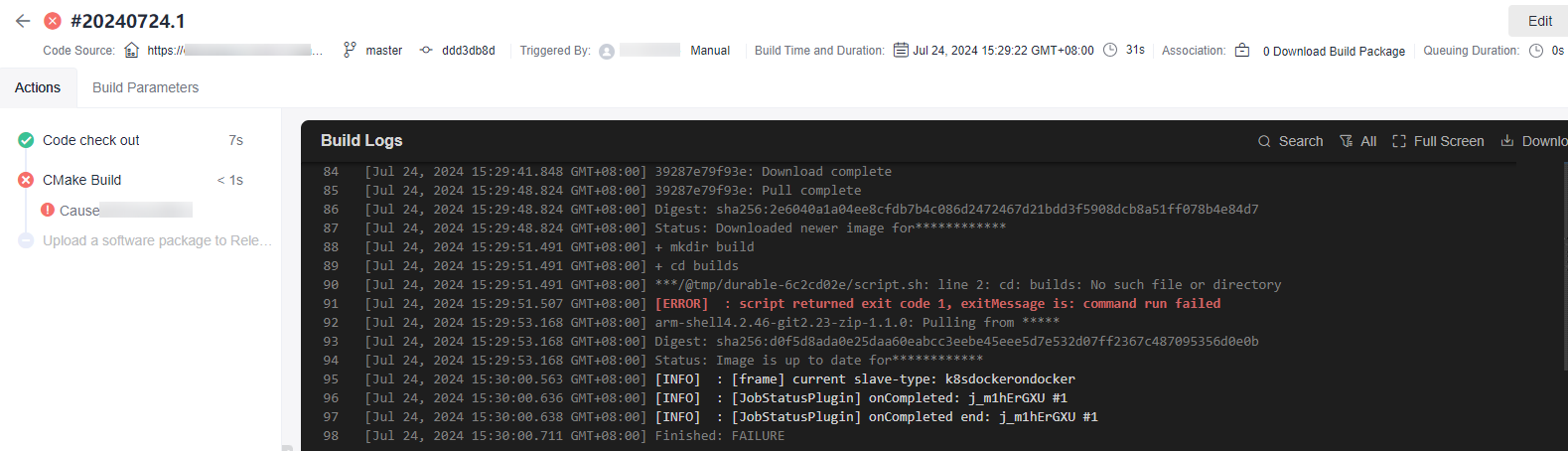
Viewing Build Results
- In the navigation pane, choose .
- On the displayed page, find the folder that shares the same name as the build task (the name you specify when creating a build task). The software package can be found within this folder.
What is your overall rating for this page?
0
1
2
3
4
5
6
7
8
9
10
Very dissatisfiedVery satisfied
Thank you very much for your feedback. We will continue working to improve the documentation.
The system is busy. Please try again later.


