

Help Center/ Simple Message Notification/ User Guide/ Topic Management/ Adding, Modifying, or Deleting a Topic Tag
Updated on 2025-04-02 GMT+08:00
Adding, Modifying, or Deleting a Topic Tag
Scenarios
Tags consist of keys and values. They identify cloud resources so that you can easily categorize and search for your resources.
- A tag key can have multiple values.
- Tag keys for the same resource must be unique.
Adding Tags to a Topic
- Select Simple Message Notification under Application.
The SMN console is displayed.
- In the navigation pane on the left, choose Topic Management > Topics.
The Topics page is displayed.
- Click the topic name.
- Click the Tags tab.
- Click Add Tag and specify tag keys and values. Figure 1 Add Tag
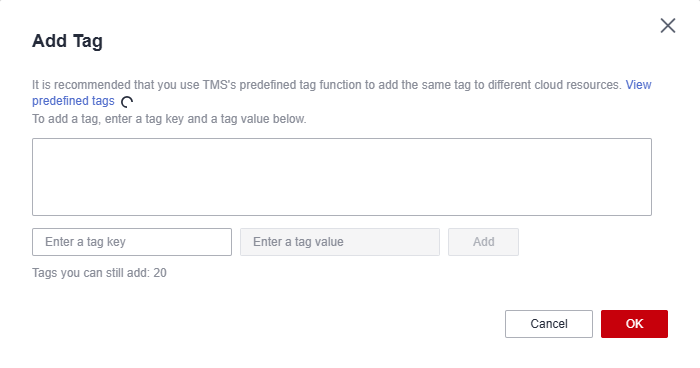

- A key can contain up to 128 characters, and a value can contain up to 255 characters.
- You can add up to 20 tags for each topic.
- Click OK.
The tags you added are displayed in the list.
Modifying a Topic Tag
- Select Simple Message Notification under Application.
The SMN console is displayed.
- In the navigation pane on the left, choose Topic Management > Topics.
The Topics page is displayed.
- Click the topic name.
- Click the Tags tab.
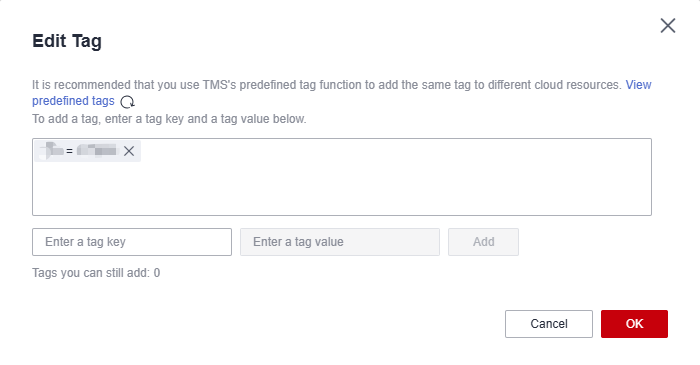
- Click Edit under Operation to modify the tag value. Figure 2 Edit Tag
- Click OK.
Deleting a Topic Tag
- Select Simple Message Notification under Application.
The SMN console is displayed.
- In the navigation pane on the left, choose Topic Management > Topics.
The Topics page is displayed.
- Click the topic name.
- Click the Tags tab.
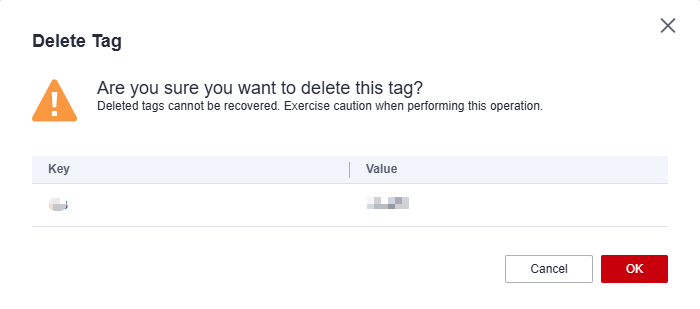
- Click Delete in the Operation column and click OK in the confirmation dialog box. Figure 3 Delete Tag
Parent topic: Topic Management
What is your overall rating for this page?
0
1
2
3
4
5
6
7
8
9
10
Very dissatisfiedVery satisfied
Thank you very much for your feedback. We will continue working to improve the documentation.
The system is busy. Please try again later.


