Installing an Agent (Windows OS)
You can enable database audit only after the agent is installed. This topic describes how to install the agent on a node running a Windows OS. For details about how to install an agent on the Linux OS, see Installing an Agent (Linux OS).
Prerequisites
- The Windows OS version of the target node is supported by the agent. For details about the supported Windows versions, see On What Windows OSs Can I Install the Agent?
Scenarios
You can install the agent on the database or application side, depending on your database type and deployment scenario. Common database scenarios are as follows:
- Deploy DBSS for databases built on ECS/BMS. For details, see Figure 1 and Figure 2.
- Deploy DBSS for RDS databases. For details, see Figure 3 and Figure 4.


Table 1 describes where to install the agent in the preceding scenarios.

If your applications and databases (databases built on ECS/BMS) are deployed on the same node, install the agent on the database side.
| Scenario | Node | Audit Scope | Precautions |
|---|---|---|---|
| Self-built database on ECS/BMS | Database | All access records of applications that have accessed the database |
|
| RDS database | Application side (if applications are deployed on the cloud) | Access records of all the databases connected to the application |
|
| RDS database | Proxy side (if applications are deployed off the cloud) | Only the access records between the proxy and database. Those between the applications and database cannot be audited. | Install the agent on the proxy side. |
Installing an Agent
- For details about how to add an agent, see Step 2.
- Install Npcap on the Windows server.
- If Npcap has been installed on the Windows OS, go to 4.
- If the Npcap has not been installed on the Windows server, perform the following steps:
- Download Npcap to obtain the latest software installation package. Figure 5 Downloading Npcap

- Upload the npcap-xxxx.exe software installation package to the VM where the agent is to be installed.
- Double-click the Npcap installation package.
- In the displayed dialog box, click I Agree, as shown in Figure 6.
- In the displayed dialog box, leave all the check boxes unselected and click Install, as shown in Figure 7.
- In the displayed dialog box, click Next.

- Click Finish.

- Download Npcap to obtain the latest software installation package.
- For details about how to obtain the agent installation package of the Windows, see Downloading an Agent.
- Log in to the Windows host as the Administrator user and copy the downloaded agent installation package xxx.zip to any directory on the host. Figure 8 Agent installation package

- Decompress the package.
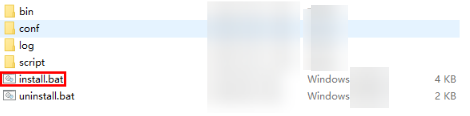
- Double-click the install.bat file in the package directory. Figure 9 Double-click install.bat
- Press any key to complete installation after the output shown in Figure 10 is displayed.
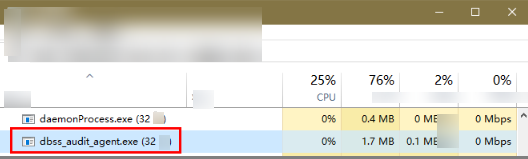
- Check the installation result. If the dbss_audit_agent process can be found in the Windows Task Manager, the installation succeeded, as shown in the Figure 11.
If it is not found, install the agent again.