

Adding an MRS Tenant Resource Pool
The MRS tenant resource pool feature is designed for cluster administrators and O&M engineers who need to logically isolate and allocate compute resources on demand.
Typical applications include:
- Multi-tenant resource isolation: When multiple departments share an MRS cluster, allocate nodes to different departments through resource pools to prevent resource contention.
- Service priority-based allocation: Bind compute tasks for high-priority services to resource pools with abundant resources, and assign low-priority services to remaining resources to guarantee core service performance.
- Hybrid workload management: Schedule real-time analysis tasks and offline batch tasks to separate resource pools to prevent offline workloads from impacting real-time task latency.
Design your resource pool strategy during cluster planning. Adjusting resource pools while services are running can disrupt task scheduling.
In an MRS cluster, users can logically divide Yarn cluster nodes to combine multiple NodeManagers into a Yarn resource pool. Each NodeManager belongs to one resource pool only. The system contains a default resource pool by default. All NodeManagers that are not added to customized resource pools belong to this resource pool.
You can create a customized resource pool on MRS and add hosts that have not been added to other customized resource pools to it.
Basic Concepts
- YARN (Yet Another Resource Negotiator): The resource management and job scheduling framework for Hadoop clusters. It manages cluster compute resources (CPUs and memory) and allocates them to running applications.
- NodeManager: An agent process running on each node in YARN. It manages a single node's resources (such as CPUs and memory) and container lifecycles, and reports node status to the ResourceManager.
- Resource pool: A logical unit that partitions YARN nodes in an MRS cluster. Combining multiple NodeManagers into a resource pool enforces node-level resource isolation. Tasks use a resource pool's nodes only when scheduled directly to that pool.
- Resource label: An identifier assigned to a resource pool. YARN schedulers use label expressions to match tasks with target resource pools for precise resource allocation. For example, scheduling high-priority tasks to a resource pool labeled high_priority.
Prerequisites
- The IAM users have been synchronized in advance. You can do this by clicking Synchronize next to IAM User Sync on the Dashboard page of the cluster details.
- You have logged in to MRS Manager. For how to log in, see Accessing MRS Manager.
Creating a Resource Pool on the MRS Console
- Log in to the MRS console.
- On the Active Clusters page, select a running target cluster and click its name to go to the cluster details page.
- On the cluster details page, click Tenants.
- Click the Resource Pools tab.
- Click Create Resource Pool.
- In Create Resource Pool, set the properties of the resource pool.
Table 1 Resource pool parameters Parameter
Description
Name
The name of the resource pool. The name cannot be default. It can contain only letters, digits, and underscores (_), and must not start with an underscore (_).
Resource Label
The label assigned to a resource pool, which YARN scheduling uses to match target resource pools. The label must be 1 to 50 characters long, can contain only letters, digits, underscores (_), and hyphens (-), and must start with a letter or digit.
Available Hosts
Select target hosts from the left list to add them to the resource pool. You can select only hosts within the cluster. A resource pool can remain empty, and you can add hosts to it later.
- Click OK.
- After a resource pool is created, users can view the Name, Members, Type, vCore and Memory in the resource pool list. Hosts that are added to the customized resource pool are no longer members of the default resource pool.
Moving hosts from the default resource pool to a custom resource pool can affect tasks running on those hosts. Adjust resource pools during off-peak hours to minimize service impact.
Creating a Resource Pool on MRS Manager
- Log in to FusionInsight Manager of the MRS cluster.
For details about how to log in to FusionInsight Manager, see Accessing MRS Manager.
- Choose Tenant Resources.
- Click Resource Pool in the navigation pane, and click Add Resource Pool.
- Set resource pool properties. Figure 1 Adding resources
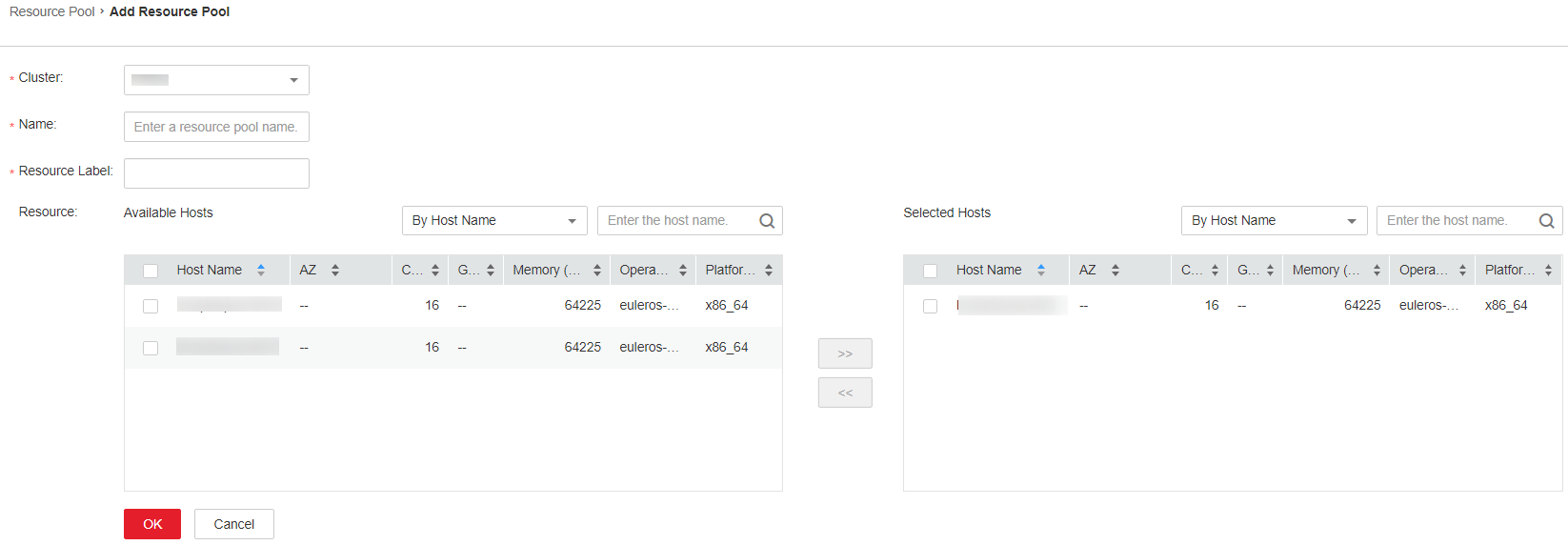
Table 2 Resource pool parameters Parameter
Description
Cluster
Select the cluster where you want to add the resource pool. (This parameter is not available for MRS 3.3.0 or later.)
Name
The name of the resource pool. The name cannot be default. It can contain only letters, digits, and underscores (_), and must not start with an underscore (_).
Resource Label
The label assigned to a resource pool, which YARN scheduling uses to match target resource pools. The label must be 1 to 50 characters long, can contain only letters, digits, underscores (_), and hyphens (-), and must start with a letter or digit.
Resource
Select target hosts from the left list and click >> to move them to the selected list. You can select only hosts within the cluster. A resource pool host list can remain empty. You can filter hosts by host name, CPU core, memory size, operating system, or platform type.
- Click OK.
After creating the resource pool, you can view its details, such as the name, members, and mode, in the resource pool list. Hosts that are added to the customized resource pool are no longer members of the default resource pool.
After creating a resource pool, verify its configuration and operational status:
- On the resource pool page of the console or MRS Manager, confirm that the new resource pool appears in the list.
- Check the resource pool members to confirm all selected hosts were added correctly.
- Review the virtual cores (vCores) and total memory in the resource pool list to ensure accurate node resource aggregation.
- Submit a test job assigned to the new resource pool, and verify that it executes on the pool's designated nodes.
FAQs
Q: Can I modify or delete a resource pool after creation?
A: Yes. Go to the resource pool page, select the target resource pool, and modify or delete it. Before deleting a resource pool, remove all hosts from it and ensure that no queues are bound to its label.
Q: Will moving a host between resource pools affect running jobs?
A: Yes. Running containers on the host continue executing until completion. However, the system will not schedule new tasks to the host unless the target job matches the new resource pool's label. Adjust host resource pools during off-peak hours to minimize scheduling disruptions.
Q: What is the difference between resource pools and YARN queues?
A: Resource pools isolate physical node resources by assigning specific hosts to designated resource pools. YARN queues logically allocate resource quotas and route tasks to corresponding resource pools using label expressions. They work together. You can create a resource pool to assign nodes, and then configure label expressions in a YARN queue to route tasks to the corresponding resource pool.
Helpful Links
- Learn how to create tenants and configure YARN queues to allocate resource quotas and manage task scheduling. For details, see Configuring the MRS Tenant Queue.
- Learn how to edit or delete resource pools and adjust host assignments. For details, see Managing MRS Tenant Resource Pools.
- Learn how to log in to MRS Manager to manage clusters. For details, see Accessing MRS Manager.


