

Help Center/ FunctionGraph/ User Guide/ Managing Functions/ Replacing the Temporary AK/SK/ Using Permanent AK/SK
Updated on 2026-01-13 GMT+08:00
Using Permanent AK/SK
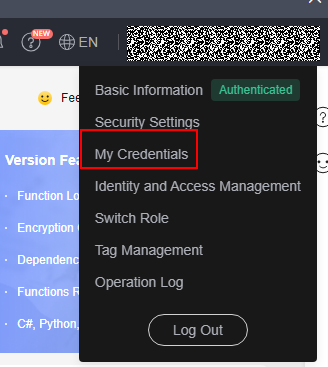
- Log in to the and choose My Credentials. Figure 1 My credentials
- Choose Access Keys and click Create Access Key. For details, see . Figure 2 Creating an access key

- Return to the FunctionGraph console, choose Functions > Function List, and click a function name to go to the function details page. Figure 3 Viewing function details

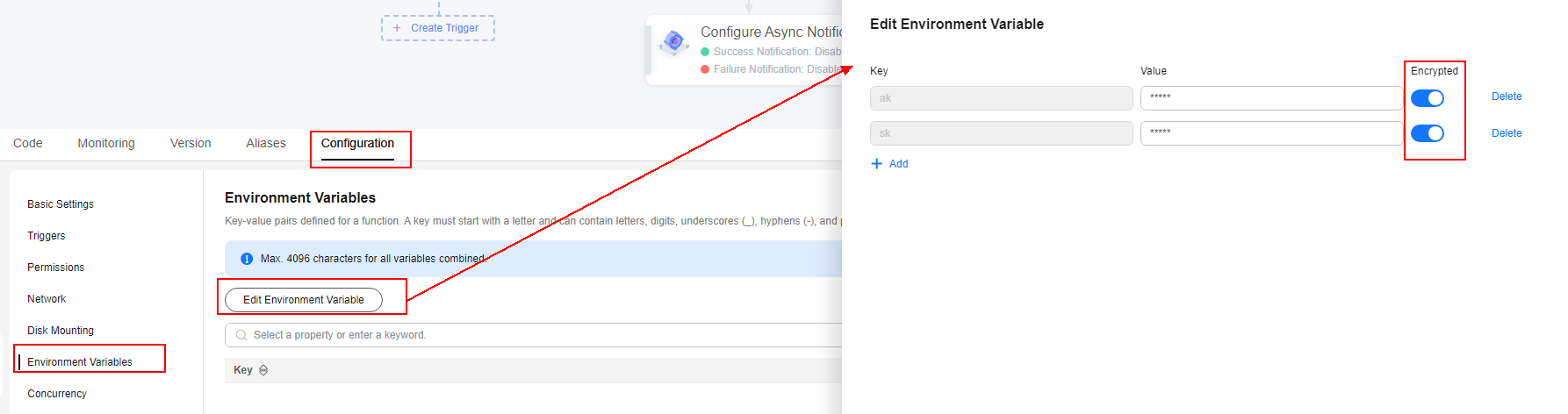
- Choose Configuration > Environment Variables, click Edit Environment Variable, add the AK/SK environment variables, enable Encrypted, and click OK. Figure 4 Adding AK/SK environment variables
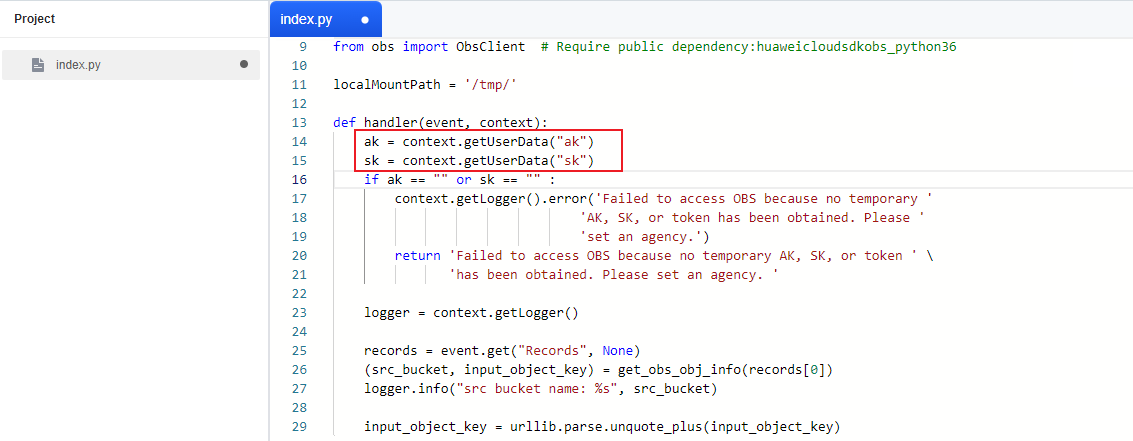
- Click the Code tab and replace context.getAccessKey() and context.getSecretKey() in the original code with context.getUserData("ak") and context.getUserData("sk"), respectively. (Python is used as an example.) Figure 5 Modifying the code for obtaining AK/SK
- Click Deploy to refresh the code.
Parent topic: Replacing the Temporary AK/SK
What is your overall rating for this page?
0
1
2
3
4
5
6
7
8
9
10
Very dissatisfiedVery satisfied
Thank you very much for your feedback. We will continue working to improve the documentation.
The system is busy. Please try again later.


