

Using a Web Browser to Log In to Application Resources for Operations
After you log in to an application resource using a web browser, the cooperation, file management, and file transfer functions are available for you. A bastion host can log all activities performed on an application resource. The logs can be used for audits.
- Cooperation: This function allows the session initiator to invite other system users to participate in the ongoing session by sharing the session link with them.
- File management: This function allows session participants to manage files or folders on managed hosts and their attached net disks after they obtain operation permissions. They can:
- Create new folders.
- Change the name of a file or folder.
- Delete files or folders in batches.
- File transfer: This function allows session participants to download or upload files or folders on the host or host net disk after they obtain the operation permissions. They can:
- Upload and download files.
- Upload folders.
- Upload multiple files or a folder to a host net disk or download multiple files from a host net disk to a local host, if Netdisk is selected as the destination address.
This topic describes how to log in to application resources and perform operations through a web browser.
Precautions
During O&M, bastion hosts automatically record videos for audit. To prevent sensitive information leakage, do not enter sensitive information that is displayed in plaintext during O&M.
Constraints
- Only web browsers can be used to log in to application resources for operations.
- Although using a web browser for operations allows you to copy and paste a large number of characters without garbled bytes, a maximum of 1024 KB can be copied.
Prerequisites
- You have the management permissions for the App Operation module.
- You have obtained the access permissions for the resources.
- The network connection between the application server and the system is normal, and the account username and password for logging in to the application server are correct.
Logging In to an Application Using a Web Browser
- Log in to your bastion host system.
- In the navigation pane on the left, choose Operation > App Operations to go to the App Operations page.
- Quickly search for the target application.
- Expand Resource Group on the left to check the resource group view.
In the Personal Resource Group or Public Resource Group area on the left of the content pane, click a resource group name. Then only the application resources in the selected resource group will be displayed in the list. If no resource group is selected, all application resources are displayed by default.
- Above the application list, enter a keyword in the search box to quickly search for resources by application name or address.
- Expand Resource Group on the left to check the resource group view.
- Click Login in the Operation column of the target application to log in to the session. Figure 1 App operation session
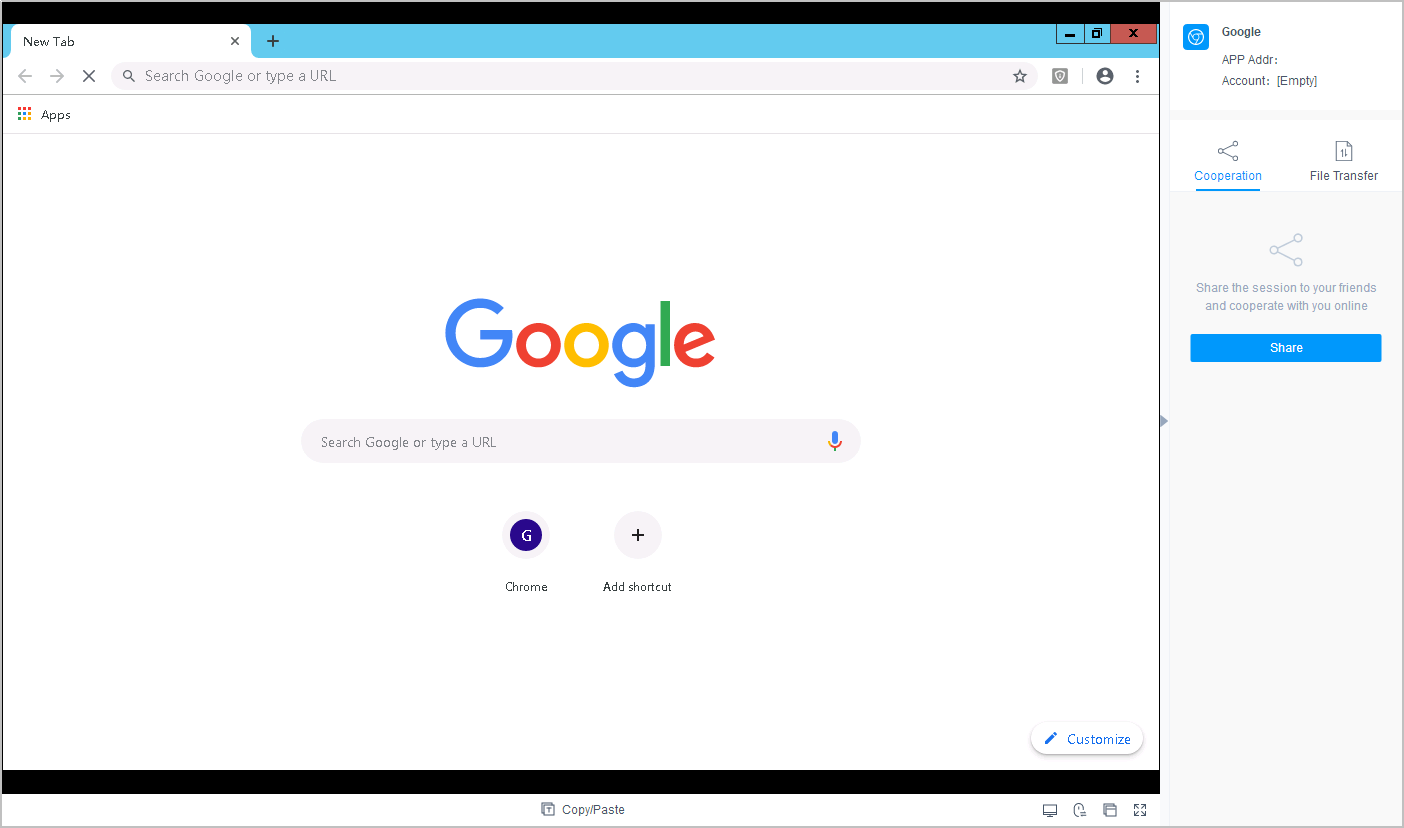
Table 1 Parameters for session operation No.
Parameter
Description
①
Cooperation
You can invite colleagues to participate in the session and perform operations together. For details, see Common O&M Operation: Collaborative Sharing.
②
File Transfer
You can upload or download files to or from the host web disk, and manage files and folders. For details, see Common O&M Operations: File Transfer and Common O&M Operations: File Management.
③
Copy/Paste/Switch Input Method
- Copy: Use Ctrl+C to copy.
- Paste: Use Ctrl+V to paste pure text to the remote host, and Ctrl+G to paste internal text or files within the asset.
- Switch Input Method: Only Linux application operation supports input method switch.
- Ctrl+Shift+Space: Switch the input method in the sequence of English > Pinyin.
- Alt+Shift: Switch the input method in the sequence of English > Pinyin > French > Arabic.
④
Resolution
You can switch the resolution of the current operation interface. During the switching, a new connection is created.
⑤
Demonstration
In demonstration mode, you can switch to the previous page, next page, or close the current page.
⑥
Full screen
Displays the window in full screen.
⑦
Copy window
You can copy the current session window.
Notes and Constraints
- Web-based O&M allows you to download one or more files but not folders.
- By default, the system supports the upload of a single file with a maximum size of 1 GB. However, the size of a single file to be uploaded is limited by the Personal Netdisk space and browser type. If the disk space is insufficient, the upload will fail. In this case, you can clear the disk or expand the disk capacity.
- For application resources, only Netdisk can be selected as the destination address.
Procedure
- Go to the application resource session window by referring to Logging In to an Application Using a Web Browser.
- On the File Transfer tab of the operation window, you can manage files or folders on the system personal net disk. Figure 2 File Transmission

Common O&M Operations: File Management
On the File Transfer page, you can manage files or folders in the host net disk.
Notes and Constraints
Files and folders cannot be edited in batches.
Procedure
- Go to the application resource session window by referring to Logging In to an Application Using a Web Browser.
- Click File Transfer. The File Transfer window is displayed.
- Perform file management operations as required. Figure 3 File management

- Creating a folder: Click
 .
- Deleting a file or folder: Select one or more files or folders and click
 .
- Renaming a file or folder: Select a file or folder and click
 .
- Refreshing all file directories: Click
 .
- Creating a folder: Click
Common O&M Operation: Collaborative Sharing
You can share a URL to invite other users in the system to view the same session. Participants can perform operations on the session after being approved by the session controller. This function can be used in scenarios such as remote demonstration and consultation on difficult O&M problems.
Notes and Constraints
- Before sharing an operation session, ensure that the network connection between the bastion host and the application resource is normal. Otherwise, the invited user cannot join the session, and the connection error (code: T_514) is reported on the session window of the creator. The error code T_514 indicates that the server does not respond for a long time and the connection is disconnected, and you need to check your network and try again.
- The invitation URL can be copied and sent to multiple users. Only users with the account permissions of the managed resource can open the invitation URL.
- The invited user can join the session only before the URL expires or the session ends.
Procedure
- Go to the application resource session window by referring to Logging In to an Application Using a Web Browser.
- On the Cooperation tab on the right of the session window, click Share to expand the collaborative session page. Figure 4 Start sharing

- Click Invite friend to join this session. The invitation link window is displayed. Figure 5 Inviting a friend

- Click Copy to copy the invitation link. Send it to the user who has permissions for the accounts managed in the bastion host. Figure 6 Inviting a friend

- Log in to the bastion host as the invited user, open a new browser window, and paste the invitation link. Figure 7 Invitation window

- If you are invited, click Enter to join the session.
Table 2 Parameters for session operation Parameter
Description
Apply for control
The invited user can apply for control from the invitation sender. Once approved, the invited user can control the current session.
Exit session
Exit the current session.


