

Help Center/ MapReduce Service/ Component Operation Guide (LTS)/ Using Oozie/ Using Hue to Submit an Oozie Job/ Submitting an Oozie HQL Script Using Hue
Updated on 2025-03-17 GMT+08:00
Submitting an Oozie HQL Script Using Hue
Scenario
This section describes how to submit a Hive job on the Hue web UI.
Procedure
- Access the Hue web UI. For details, see Accessing the Hue Web UI.
- In the navigation tree on the left, click
 and choose Workflow to open the Workflow editor.
 - Click Documents, click
 to select a Hive script from the operation list, and drag it to the operation page.
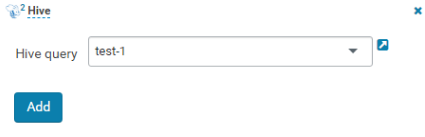
 - In the HiveServer2 Script dialog box that is displayed, select the saved Hive script. For details about how to save the Hive script, see Using Hue to Execute HiveQL. Select a script and click Add.
- Configure the Job XML, for example, to the HDFS path /user/admin/examples/apps/hive2/hive-site.xml. For details, see Submitting an Oozie Hive2 Job Using Hue.
- Click
 in the upper right corner of the Oozie editor.
 - After the configuration is saved, click
 , and submit the job.
 After the job is submitted, you can view the related contents of the job, such as the detailed information, logs, and processes, on Hue.
Parent topic: Using Hue to Submit an Oozie Job
What is your overall rating for this page?
0
1
2
3
4
5
6
7
8
9
10
Very dissatisfiedVery satisfied
Thank you very much for your feedback. We will continue working to improve the documentation.
The system is busy. Please try again later.


