

What Can I Do If a GPU Card Is Unavailable on a GPU Node?
Symptom
A GPU card on a GPU node is unavailable. The possible causes include:
- The CCE AI Suite (NVIDIA GPU) add-on is not ready or malfunctioning.
- The node driver is not ready.
- The GPU card is abnormal.
Solution
Check whether the driver is faulty. Then, check the device-plugin component of the CCE AI Suite (NVIDIA GPU) add-on. Finally, check the GPU card.
Handling a Driver Fault
- Check the nvidia-driver-installer pod status. Log in to the CCE console and click the cluster name to access the cluster Overview page. In the navigation pane, choose Nodes. In the right pane, click the Nodes tab. Locate the row containing the target node, choose More > Pods in the Operation column, and check whether the nvidia-driver-installer pod runs on the node. If the nvidia-driver-installer pod is present and is:
- In the Running state: The pod is functioning properly. Proceed to 2 to verify whether the driver was installed.
- Not in the Running state for an extended period: Check the pod events for any abnormalities and troubleshoot based on the reported error information.
The name of the nvidia-driver-installer pod varies depending on the OS. The details are listed in the table below.
Table 1 Names of the nvidia-driver-installer pod OS
Pod Name
Huawei Cloud EulerOS 2.0
hce20-nvidia-driver-installer
Ubuntu
ubuntu22-nvidia-driver-installer
Others
nvidia-driver-installer
- Check whether the GPU driver has been installed.
- In the node list, click the name of the target node. In the dialog box displayed, click OK. On the node details page, click Remote Login in the upper right corner.
- Check the driver installation directory.
- Check whether the directory exists. If it is present, run the below command to go to the driver installation directory. If it is not present, skip this step and go to 3 to check whether there is an error during the driver installation.
cd <Driver installation directory>
The driver installation directory varies depending on the CCE AI Suite (NVIDIA GPU) add-on version. The details are as follows:- If the CCE AI Suite (NVIDIA GPU) add-on version is later than 2.0.0, the driver installation directory is /usr/local/nvidia.
- If the CCE AI Suite (NVIDIA GPU) add-on version is earlier than 2.0.0, the driver installation directory is /opt/cloud/cce/nvidia.
- Run the following command in the driver installation directory to view all files in the directory:
ls -l
The figure below shows a typical file directory. nvidia.run is the driver installation file. nvidia-installer.log is the installation logs generated by the NVIDIA driver. nvidia-uninstall.log, if present, is the corresponding uninstallation logs, though it may not always appear in the directory. If any files are missing, except for nvidia-uninstall.log, go to 3 to check whether there is an error during the driver installation.
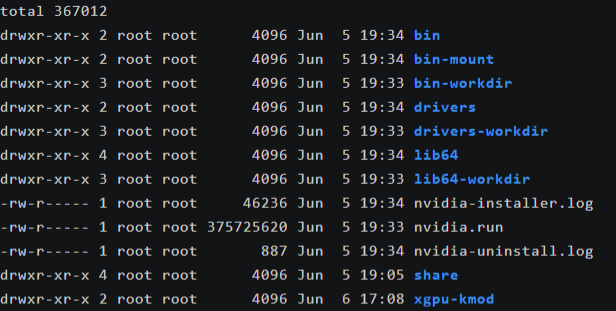
- Run the below command to go to the bin directory of NVIDIA and check whether nvidia-smi is functioning properly. If the add-on version is earlier than 2.0.0, replace the path with opt/cloud/cce/nvidia/bin.
cd /usr/local/nvidia/bin
./nvidia-smi
If information similar to that shown in the figure below is not displayed, go to 3 to check whether there is an error during the driver installation.
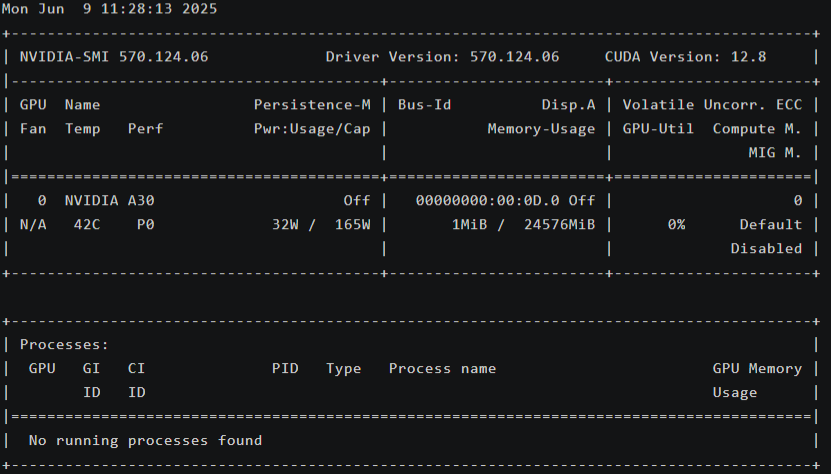
- Check whether the directory exists. If it is present, run the below command to go to the driver installation directory. If it is not present, skip this step and go to 3 to check whether there is an error during the driver installation.
- View the node driver installation logs to check whether there is an error during the driver installation. Run the below command to view the logs of the nvidia-driver-installer pod. If the add-on version is earlier than 2.0.0, replace the path with /opt/cloud/cce/nvidia/nvidia-installer.log.
cat /usr/local/nvidia/nvidia-installer.log
If the command output contains the below information, the driver installation completed without error. Otherwise, an error occurred during the installation.
...
> Installation of the NVIDIA Accelerated Graphics Driver for xxx (version: x.x.x) is now complete.


