
Mounting a File System
Scenarios
You can mount file systems to your function to provide scalable file storage. The function can then read and write data in the file systems as it would do in local file systems. Each file system can be shared by different functions and instances. You only need to specify information such as file systems and function access paths.
FunctionGraph supports the following types of file systems:
- SFS
Scalable File Service (SFS) is a network-attached storage (NAS) service that provides scalable high-performance file storage. With SFS, shared access can be achieved among multiple ECSs, Bare Metal Servers (BMSs), and Cloud Container Engine (CCE) and Cloud Container Instance (CCI) containers. SFS is expandable to petabytes, and provides fully hosted shared file storage. It features high availability and durability, and seamlessly handles data-intensive and bandwidth-intensive applications. SFS is suitable for high-performance computing (HPC), media processing, file sharing, content management, and web services.
- SFS Turbo
SFS Turbo supports the following storage classes: Standard, Standard-Enhanced, Performance, and Performance-Enhanced. SFS Turbo is expandable to 320 TB, and provides fully hosted shared file storage. It features high availability and durability, and supports massive quantities of small files and applications requiring low latency and high input/output operations per second (IOPS). SFS Turbo is suitable for high-performance websites, log storage, compression and decompression, DevOps, enterprise offices, and containerized applications.
- ECS
A directory on an ECS is specified as a shared file system (see Creating an NFS Shared Directory on ECS) by using the network file system (NFS) service. The directory can then be mounted to a function in the same VPC as the ECS so that the function can read and write data in the directory. ECS file systems make it possible for dynamic expansion of compute resources. This type of file system is suitable for low service demand scenarios.
Benefits from using these file systems:
- The execution space of each function can be expanded in addition to the /tmp directory (512 MB).
- A file system can be shared by multiple functions.
- ECS compute resources can be dynamically expanded and existing ECS storage capability can be used to achieve stronger computing performance.
Creating an Agency
Before adding file systems to a function, specify an agency with permissions for accessing the file system services for the function.
There is a limit on the maximum number of agencies you can create, and cloud service agencies cannot be modified. Therefore, you are advised to create an agency with high-level permissions, for example, Tenant Administrator, to allow a function to access all resources in the selected region. For more information, see Creating an Agency.
Mounting an SFS File System
Setting an Agency
On the Configuration tab page, select an agency that has been granted SFS Administrator or Tenant Administrator permissions in the selected region.
If no agencies are available, create one in IAM.
Mounting a File System
On the File Systems tab page, click Mount. If this is your first time to mount a file system to the target function, you need to set the user ID and group ID.

User ID: Enter –1 or an integer from 1 to 65,534, except 1000 and 1002. The default value –1 indicates that the FunctionGraph backend automatically allocates an ID.
Group ID: Enter –1 or an integer from 1 to 65,534, except 1000 and 1002. The default value –1 indicates that the FunctionGraph backend automatically allocates an ID.
For example, an ECS has been mounted with an SFS file system, and the owner of a directory in the file system is test-user. Then you can run the id test-user command to query the uid and gid.

Select an SFS file system and set the access path.
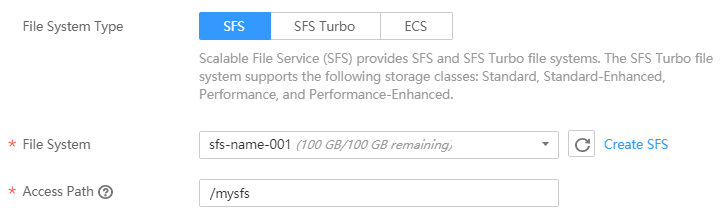
The access path can contain a maximum of two levels. You are advised to set an access path starting with /mnt or /home.
Mounting an SFS Turbo File System
Setting an Agency
Before mounting an SFS Turbo file system to a function, specify an agency that has been granted SFS Administrator and VPC Administrator permissions for the function. If no agencies are available, create one in IAM.
Configuring VPC Access
An SFS Turbo file system is accessible only in the VPC where it has been created. Before mounting such a file system to a function, enable VPC access for the function.
- On the SFS console, obtain the information about the VPC and subnet where a file system is to be mounted to your function. For details, see File System Management.
- On the FunctionGraph console, go to the details page of the function, click the Configuration tab, enable VPC access, and specify the VPC and subnet obtained in 1. Figure 3 Specifying a VPC and subnet

Mounting an SFS Turbo File System
SFS Turbo file systems can be mounted in the same way as SFS file systems. Select a file system and set the access path.

Mounting an ECS Shared Directory
Specifying an Agency
Before mounting an ECS shared directory to a function, specify an agency that has been granted Tenant Guest and VPC Administrator permissions for the function. If no agencies are available, create one in IAM.
Configuring VPC Access
Before adding an ECS shared directory, specify the VPC where the ECS is deployed. View the VPC information on the details page of the ECS. Click the VPC name to go to the VPC details page, and view the subnet.
Set the acquired VPC and subnet for the function.
Mounting an ECS Directory
Enter a shared directory and access path, as shown in the following figure.

Follow-up Operations
A function can read and write data in an access path in the same way as in the mounted file system.
Function logs can be persisted by configuring the log path as a subdirectory in the access path.
Create a function using the "Web-Server-Access-Log-Statistics" template to analyze logs of the web server.

Last Article: Function Templates
Next Article: Using a Custom Runtime

Did this article solve your problem?
Thank you for your score!Your feedback would help us improve the website.