
Using an APIG Trigger
For details about the APIG event source, see Supported Event Sources.
Prerequisites
You have created an API group, for example, APIGroup_test. For details, see Creating an API Group.
Creating an APIG Trigger
- Log in to the FunctionGraph console, and choose Functions > Function List in the navigation pane.
- Click Create Function.
- Set the following parameters:
- Template: Select Create from scratch.
- Function Name: Enter a function name, for example, apig.
- App: Select default.
- Agency: Select Use no agency.
- Description: Enter additional information about the function. This parameter is optional.
- Runtime: Select Python 2.7.
- Handler: Enter index.handler.
- Code Entry Mode: Select Edit code inline and enter the code shown below.
# -*- coding:utf-8 -*-
import json
def handler (event, context):
    body = "<html><title>Functiongraph Demo</title><body><p>Hello, FunctionGraph!</p></body></html>"
    print(body)
    return {
        "statusCode":200,
        "body":body,
        "headers": {
            "Content-Type": "text/html",
        },
        "isBase64Encoded": False
    }
- Click Create Now.
- On the Triggers tab page, click Create Trigger.
- Configure the trigger information.
Table 1 Trigger information Parameter
Description
Trigger Type
Select API Gateway (APIG).
API Name
Enter an API name, for example, API_apig.
API Group
An API group is a collection of APIs. You can manage APIs by API group.
Select APIGroup_test.
Environment
An API can be called in different environments, such as production, test, and development environments. API Gateway provides the environment management function, which allows you to define different request paths for an API in different environments.
To ensure that the API can be called, select RELEASE.
Security Authentication
There are three authentication modes:
- App: AppKey and AppSecret high security authentication. This authentication mode is recommended. For details, see App Authentication.
- IAM: IAM medium security authentication. This mode grants access to public cloud users only. For details, see IAM Authentication.
- None: No authentication. Access is granted to all users.
Select None.
Protocol
There are two types of protocols:
- HTTP
- HTTPS
Select HTTPS.
Timeout (ms)
Enter 5000.
- Click OK. Figure 1 APIG trigger
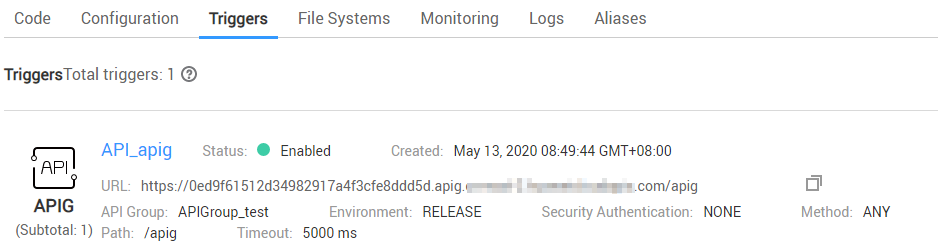

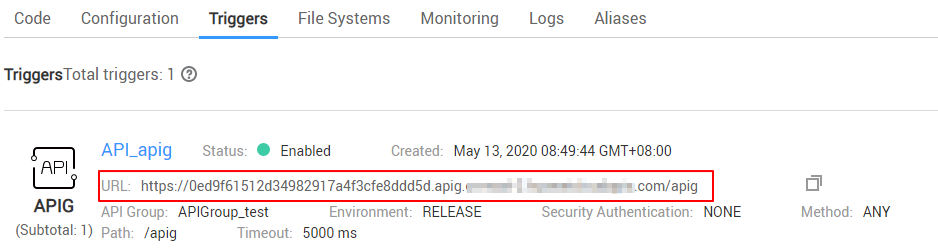
- The URL of the APIG trigger is https://0ed9f61512d34982917a4f3cfe8ddd5d.apig.xxx.xxx.com/apig.
- After the APIG trigger is created, an API named API_apig is generated on the API Gateway console. You can click the API name in the trigger list to go to the API Gateway console.
Invoking the Function

Viewing the Execution Result
- Log in to the FunctionGraph console, and choose Functions > Function List in the navigation pane.
- Click the name of the apig function.
- On the displayed function details page, click the Logs tab to query the function running logs.
- Click View Context in the same row as a log to view log details.
Last Article: Using a DMS Trigger
Next Article: Using an OBS Trigger

Did this article solve your problem?
Thank you for your score!Your feedback would help us improve the website.