
Microsoft SQL Server Publication and Subscription
Microsoft SQL Server provides the release and subscription functions. The replication technology is used to implement data synchronization. The release and subscription functions provided by Microsoft SQL Server can be used to separate data read and write and synchronize offline and online data.
Constraints
- HUAWEI CLOUD SQL Server can only be used as a subscription and cannot be released or distributed.
- There are no restrictions on the types of databases that can be subscribed to by RDS for SQL Server.
- After an active/standby switchover is performed due to a cloud instance fault or a manual active/standby switchover is performed, the original subscription still exists and is valid. However, the new subscription takes effect only after the new server name is changed.
Preparations
Lab Environment Overview
- Local environment: Windows, Microsoft SQL Server 2014 SE standard edition.
- Online environment:
- A single-node Microsoft SQL Server 2014 SE instance with 2 vCPUs and 16 GB memory is bound to an EIP.
- A master/standby Microsoft SQL Server 2014 SE instance of 4 vCPUs | 8 GB is bound to an EIP.
Setting Up the Environment
- Publisher: A server that writes data to the source, maintains the source data, and distributes specific data to the distributor. In this example, it is the server built in the local environment.
- Use SQL Server Management Studio (SSMS) to configure the publishing server and log in to the local database as user sa. Right-click Replication and choose Configure Distribution from the shortcut menu. You can configure your own server as the distribution server or configure another server as the distribution server. Click Next.

- sa is the administrator account.
- The login account must have the sysadmin permission. Otherwise, release and subscription cannot be configured.
Figure 1 Configuring the Publish Server
- Specify and record the root location of the snapshot folder, and click Next.

To release a folder, you need to configure the related proxy permission so that the proxy account has the permission to operate the folder. Otherwise, the release will fail.
Figure 2 Snapshot folder
- Select the names and locations of the distribution database and log files, and click Next. Figure 3 Configuring the Distribution Wizard

- Enable the server to become a Publisher when using this Distributor, and then click Next.
- Click Finish to complete the configuration. Figure 4 Completing configuration

- Use SQL Server Management Studio (SSMS) to configure the publishing server and log in to the local database as user sa. Right-click Replication and choose Configure Distribution from the shortcut menu. You can configure your own server as the distribution server or configure another server as the distribution server. Click Next.
- Configure the proxy account control file.
- According to the directory address of the snapshot folder, you need to add the agent account to the control attribute of the file. If the account is not added to the file control, the following error is reported:
- Open the local SQL Server configuration manager, right-click the corresponding proxy, choose Properties from the shortcut menu, and copy the account name.
- Return to the directory of the snapshot folder set in. Right-click the folder and choose Properties from the shortcut menu. In the dialog box that is displayed, choose Security > Edit > Add. Set Location to Local and Name to the proxy account name, click OK, and select all permissions.
- Distributor: data distribution source, which is responsible for specifying the subscription server to which the data is sent. Specify both the distribution and sending servers as the local server. That is, the distribution and sending servers are the same server. Therefore, no extra configuration is required. For more information, see the Microsoft official documentation distribution server.
- Subscription server (Subscriber): a data receiving server, which is a data reading source and a receiving end, and is configured to receive specified data sent by a distribution server. Subscription is classified into push subscription and request subscription.
- Push subscription: The Publisher propagates changes to the Subscriber without requiring the Subscriber to make a request, and the data is synchronized continuously or on a schedule that is often repeated.
- Requested subscription: The Subscriber actively requests a subscription, and data is usually synchronized on demand or on schedule, rather than continuously. HUAWEI CLOUD instances do not support subscription requests. Therefore, you need to set this parameter to Push subscription on the sending server.
Before the subscription, ensure that the servers can communicate with each other and access the instance on the cloud from the local server.
- Sets an alias for the Subscriber on the local server. The subscription service does not support IP address-based access. Therefore, you need to map the public IP address of the RDS DB instance to an alias. The alias cannot be changed. You need to log in to the RDS DB instance and run the following SQL statement:

- After obtaining the alias name, open the local SQL Server configuration manager, right-click Native Client, and choose Aliases > New Aliases from the shortcut menu.
- Enter related information and click OK.
Table 1 Parameter description Parameter
Description
Alias Name
Alias set in.
Port No
Port number of the corresponding instance.
Server
Specifies the bound public IP address.
- Configure a local host. In C:\Windows\System32\drivers\etc, open the host file and add a mapping.


Publish
- Create and release
Expand the Copy node under the server, right-click Local Publish, and choose New Publish from the shortcut menu.

- Select a transaction release.
- Select the table as the release object.

- Add filtering objects for personalized release.

- The transaction launch creates a snapshot to replicate the current state of the table. You can also set up the Snapshot Agent to execute the plan.

- Set the proxy security. Set the login account to the local sa account.
- Set the publish name and click Finish.


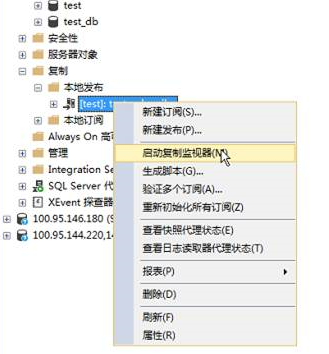
- After the creation is complete, you can check whether the publishing is successful by using the replication monitor.

[Azure] Subscribe
- Right-click the release and choose New Subscription from the shortcut menu.

- Create a publish for the subscription and click Next. Figure 5 Create and release

- Select Push Subscription and click Next. Figure 6 Distribution Agent Location

- Select Add Subscription Server. Microsoft SQL Server and non-SQL Server can be used as subscription servers. The HUAWEI CLOUD instance that is purchased and configured based on the preceding steps is used as a subscription server.

- Select a database as the subscription object. Figure 7 Selecting the database to be subscribed to

- Configure the connection between the and the subscription server. Figure 8 Configure connections.

- Use a database account that is valid for a long time to ensure that the subscription is valid for a long time. You can set the account to the database account for logging in to the HUAWEI CLOUD instance and click OK.

- The subscription is created successfully.

- Move the cursor to the publish configuration to view the corresponding subscription information. Figure 9 View Subscription


Did this article solve your problem?
Thank you for your score!Your feedback would help us improve the website.