

Help Center/ Edge Security/ User Guide/ Protection Policy/ Creating or Managing Protection Policies/ Creating a Protection Policy
Updated on 2026-08-17 GMT+08:00
Creating a Protection Policy
A protection policy can be applied to multiple protected domain names, but a protected domain name can have only one protection policy. This section describes how to add a protection policy.
Constraints
- A protected domain name can use only one policy.
- A maximum of 3,000 protection policies can be added.
Procedure
- Log in to the EdgeSec console.
- In the navigation pane on the left, choose . The My Policies tab page is displayed.
- In the upper left corner, click Add Policy. Figure 1 Adding a protection policy

- In the dialog box that is displayed, enter a policy name and click confirm. Figure 2 Add Policy
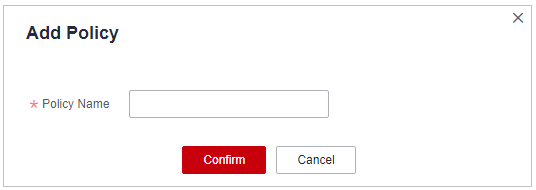
- The added policy is displayed in the policy list.
- In the Policy Name column, click the policy name. On the displayed page, add rules to the policy by referring to Configuring Protection Rules.
Other Operations
- To copy the policy, click Copy in the Operation column of the target policy. In the displayed dialog box, enter a new policy name and click OK.
- To change the policy name, click Edit in the Operation column of the target policy. In the displayed dialog box, change the policy name and click OK.
- To delete a rule, click More > Delete in the Operation column.
What is your overall rating for this page?
0
1
2
3
4
5
6
7
8
9
10
Very dissatisfiedVery satisfied
Thank you very much for your feedback. We will continue working to improve the documentation.See the reply and handling status in My Cloud VOC.
The system is busy. Please try again later.
For any further questions, feel free to contact us through the chatbot.
Chatbot


