

Encrypting and Decrypting Small-size Data Online Using a Custom Key
This section describes how to use the online tool on the key management page to securely encrypt or decrypt small data assets (up to 4 KB). Whether you need to temporarily encrypt sensitive configurations, quickly protect small log fragments, or verify custom key logic in a test environment, you can import your key and complete the process within minutes.
Prerequisites
The custom key is in Enabled status.
Constraints
- The online tool cannot encrypt or decrypt small-size data using the default key.
- The online tool cannot encrypt or decrypt small-size data using an asymmetric key.
Encrypting Data
- Log in to the DEW console.
- Click
 in the upper left corner and select a region or project.
 - Click the name of the target custom key to access the key details page. Click the Tool tab.
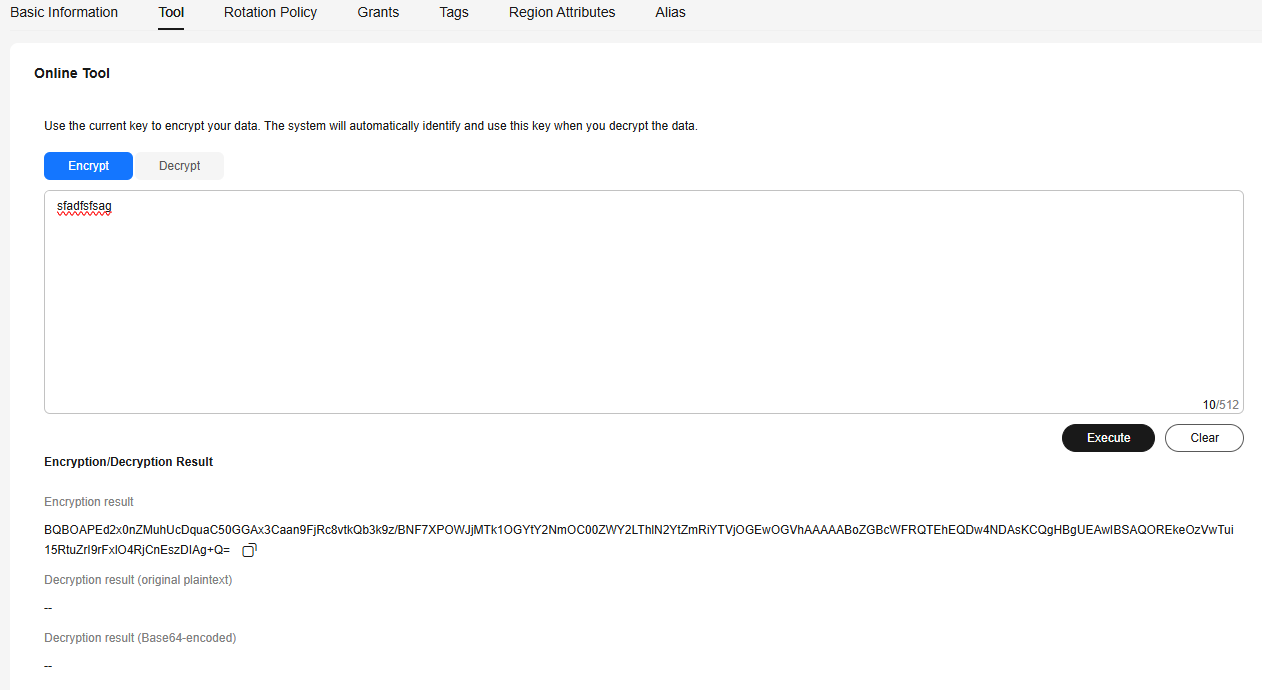
- Click Encrypt. In the text box on the left, enter the data to be encrypted, as shown in Figure 1.
- Click Execute. The encrypted data is displayed in the Encryption/Decryption Result area.

Use the current CMK to encrypt the data.
Decrypting Data
- Click any non-default key in the Enabled state and go to the Tool tab.
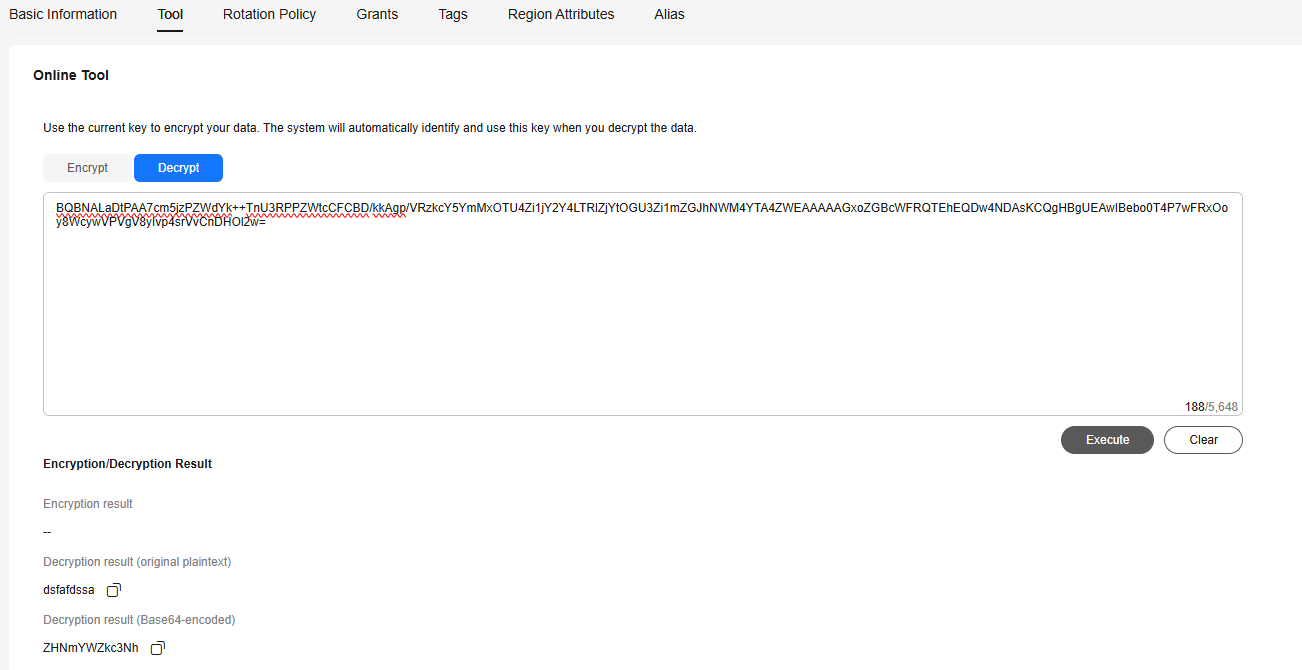
- Click Decrypt and enter the data to be decrypted in the text box, as shown in Figure 2.
- The tool will identify the original encryption CMK and use it to decrypt the data.
- If the key has been deleted, the decryption will fail.
- Click Execute. The decrypted data is displayed in the Encryption/Decryption Result area.
-
The information to be encrypted using commands or APIs cannot contain special characters. Otherwise, the decryption result may fail to be displayed on the console.
- Plaintext entered on the console is encrypted and output as a Base64-encoded string.
Because decryption results returned via the API are similarly Base64-encoded, you must perform Base64 decoding to retrieve the original plaintext.
- You can call APIs to use a default master key to encrypt or decrypt small-volume data. For details, see Data Encryption Workshop API Reference.
- Data encrypted via the API cannot be decrypted using the online tool.
-
Related Operations
- Clearing the entered data: In the lower right corner of the encryption area, click Clear.
- Copying the ciphertext generated after encryption: In the Encryption result area, click Copy to Clipboard, and paste and save it to a local file.
- Copying the plaintext generated after decryption: In the Decryption result area, click Copy to Clipboard, and paste and save it to a local file.
What is your overall rating for this page?
Thank you very much for your feedback. We will continue working to improve the documentation.See the reply and handling status in My Cloud VOC.
For any further questions, feel free to contact us through the chatbot.
Chatbot


