

Creating IIS Site
What Is IIS?
IIS is short for Internet Information Services.
It is a service and a component of the Windows 2000 Server series. Different from common applications, IIS is a part of the operating system like a driver. It is started when the system is started.
Creating an IIS Site on a Windows Host
- Create an application by referring to Creating an Application.
- On the Deployment Actions page, add this deployment action based on the service scenario.
- Configure the action using the parameters described in the table below.
Table 1 Parameters Parameter
Description
Action Name
Custom action name. Enter 1 to 128 characters. Do not start or end with a space. Use letters, digits, spaces, and these special characters: -_,;:./()
Environment
Deployment object. Select an environment whose resource type is host cluster.
Application Pool
Application pool of IIS.
.Net CLR Version
Version of .Net CLR.
Website Name
Name of the website.
Port
The (listening) port that is bound.
Physical Path
Physical path of the application.
Log Path
Log path of the IIS running site.
Action Control
Whether to enable the settings.
- Keep running on failure: Continue the task even if this action fails.
Procedure
- Select a Windows environment for the application.
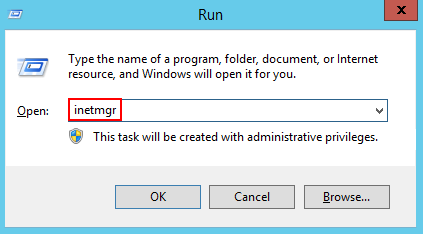
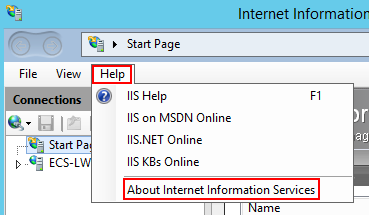
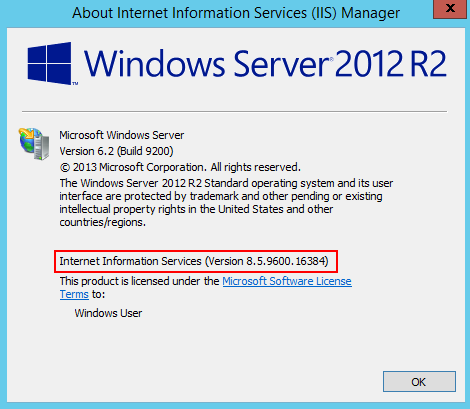
- Check whether the IIS version on the target Windows host is higher than 7.0. If the version is 7.0 or lower, upgrade it.
The check procedure is as follows:
- Enter the physical path and log path of the application.
- Enter the .Net CLR Version of the target Windows host.
- Find clever.exe in C:\Program Files\Microsoft SDKs\Windows\v7.0A\bin or C:\Program Files\Microsoft SDKs\Windows\v8.0A\bin\NETFX 4.0 Tools.
If clever.exe cannot be found, download and install it.
- Run the program in the cmd window to obtain the version supported by the .NET CLR.
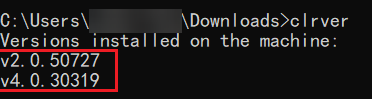
- Find clever.exe in C:\Program Files\Microsoft SDKs\Windows\v7.0A\bin or C:\Program Files\Microsoft SDKs\Windows\v8.0A\bin\NETFX 4.0 Tools.
- Enter the application pool name and website name.
- Specify a port (the port bound) and deploy the application.
Helpful Links
If you encounter any problem during deployment, see Creating an IIS Site.
What is your overall rating for this page?
Thank you very much for your feedback. We will continue working to improve the documentation.See the reply and handling status in My Cloud VOC.
For any further questions, feel free to contact us through the chatbot.
Chatbot


