

Why Cannot I View Application Logs and System Logs?
To enable edge nodes to report application logs and system logs to AOM, you must enable the log function and ensure that the NTP configurations on the edge nodes are the same as those in Huawei Cloud.
If logs are unavailable on AOM, the possible causes are as follows:
- The log function is disabled.
Log in to the IEF console. In the navigation pane, choose Managed Resources > Edge Nodes and click the node name to go to its details page. On the Configuration tab, find Log Configuration and enable Save Logs to AOM for both System Logs and Application Logs.
Figure 1 Log configuration of the edge node

- The time zone of the edge node is incorrect.
Modify the NTP server settings of the edge node to be the same as those in Huawei Cloud. For details, see Does Huawei Cloud Provide the NTP Server and How Can I Configure It?
- The log storage usage exceeds the free quota (500 MB).
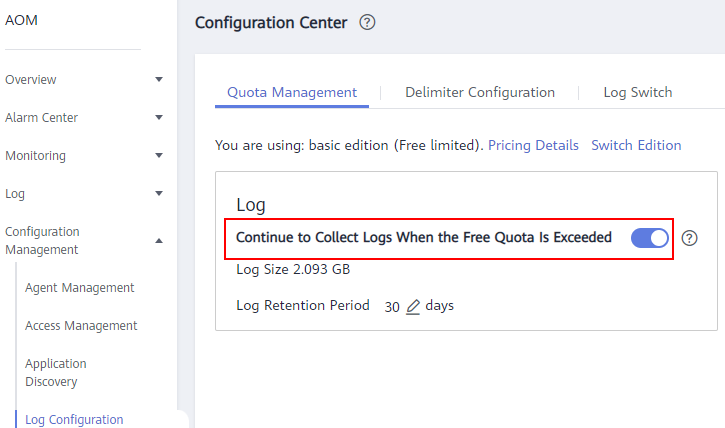
AOM offers 500 MB log storage for free every month. If the quota is exceeded, you need to enable Continue to Collect Logs When the Free Quota Is Exceeded to view the logs. The excess logs will be billed on a pay-per-use basis. The procedure is as follows:
Log in to the AOM console. In the navigation pane, choose Configuration Management > Log Configuration. On the Quota Management tab, enable Continue Collect Logs When the Free Quota Is Exceeded.
Figure 2 AOM log settings
What is your overall rating for this page?
Thank you very much for your feedback. We will continue working to improve the documentation.See the reply and handling status in My Cloud VOC.
For any further questions, feel free to contact us through the chatbot.
Chatbot


