

Configuring Power BI to Connect to DLI for Data Query and Analysis
Power BI provides capabilities such as data integration, warehousing, reporting, and visualization. It can transform complex data into intuitive and interactive charts and dashboards, helping enterprises make data-driven decisions.
Connecting Power BI to DLI for data query and analysis simplifies data access workflows and provides unified data management and analytics capabilities, enabling deeper data insights.
This section describes the steps to connect Power BI to DLI to access and analyze data in DLI.
Preparations
- Environment requirements:
Ensure your system environment meets the following requirements:
- Operating system: Only Windows 10 and Windows 11 (64-bit) are supported.
- Power BI does not support parsing complex field types: Map, Struct, and Array.
- Toolkits:
- DLI ODBC driver: dli-odbc-xxx-setup-x64.exe
- Power BI installation package: Power BI installation package. Select the installation package for Windows (64-bit).
- Preparing connection information
Table 1 Connection information Item
Description
How to Obtain
DLI's AK/SK
AK/SK-based authentication uses an AK/SK pair to sign requests for identity authentication.
DLI endpoint address
Endpoint of a cloud service in a region.
DLI project ID
Project ID used for resource isolation.
DLI region information
Region to which DLI belongs.
Step 1: Configure ODBC
- Install the ODBC driver.
- Obtain the ODBC installation package by referring to Preparations.
- Double-click dli-odbc-xxx-setup-x64.exe to install the ODBC driver.
After installation, a Path environment variable is automatically created. Do not delete this environment variable.

- Configure ODBC to connect to DLI.
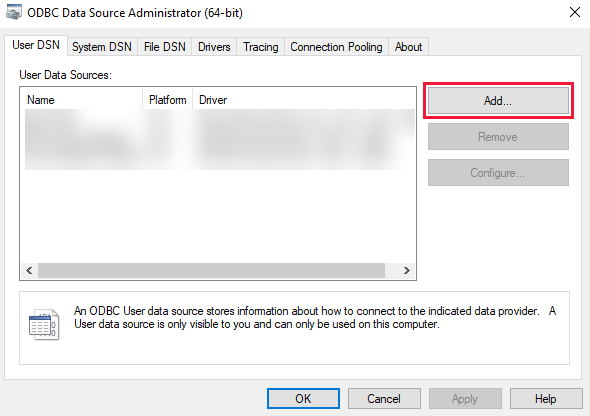
- In Windows, open Control Panel > Administrative Tools > ODBC Data Source (64-bit).
- Configure an ODBC data source.
- In ODBC, click User DSN.
- Click Add to create a data source.
- Select Huawei Cloud DLI Driver (64-bit) and click OK.
Figure 1 Creating an ODBC data source connection
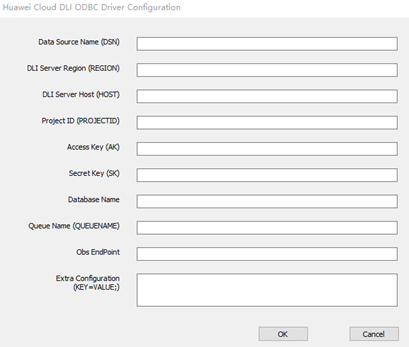
- In the dialog box that appears, enter the connection details for ODBC-to-DLI.
Table 2 Power BI-to-DLI parameter description Parameter
Mandatory
Description
Example Value
Data Source Name (DSN)
Yes
Custom DSN name.
-
DLI Server Region (REGION)
Yes
DLI region ID.
cn-north-4
DLI Server Host (HOST)
Yes
DLI endpoint address.
dli. {REGION}.{domainName}
dli.cn-north-4.myhuaweicloud.com
Project ID (PROJECTID)
Yes
Project ID where DLI resources are located.
0b33ea2a7e0010802fe4c009bb05076d
Access Key (AK)
Yes
AK/SK credentials.
-
Secret Key (SK)
Yes
AK/SK credentials.
-
Database Name (DATABASE)
Yes
DLI database name.
dli
Queue Name (QUEUENAME)
Yes
DLI service queue name (only Spark SQL engine queues are currently supported).
dli_test
Obs EndPoint (OBSENDPOINT)
Yes
OBS endpoint address.
obs.{REGION}.{domainName}
obs.cn-north-4.myhuaweicloud.com
Extra Configuration (KEY=VALUE;)
No
Other parameters:
For example:
- JOBTIMEOUT specifies the maximum SQL runtime. The job is canceled on timeout (default: 3,600 seconds if not set).
- spark.sql.shuffle.partitions is a Spark runtime parameter.
JOBTIMEOUT=3600; spark.sql.shuffle.partitions=100;
Figure 2 ODBC data source connection parameters
- Click Test to check whether the data source connection is successful. If successful, click OK to save the connection.
Step 2: Configure Power BI to Use ODBC to Connect to DLI
- Click and install Power BI. Obtain the Power BI installation package. Select the installation package for Windows (64-bit).
- Open Power BI Desktop.
- On the Home tab, click Get data.
- Click More... to view additional data source options.
- Select ODBC from the list as the data source type and click Connect.
- In the ODBC Driver Manager window that appears, select the ODBC data source configured in Step 1: Configure ODBC and click OK.
Power BI will use ODBC to connect to DLI and allow you to preview and select tables and views in the database.

When previewing database tables, select limit. Otherwise, all partitioned tables are scanned.
What is your overall rating for this page?
Thank you very much for your feedback. We will continue working to improve the documentation.See the reply and handling status in My Cloud VOC.
For any further questions, feel free to contact us through the chatbot.
Chatbot


