

Importing Cloud Resource Details
MgC supports direct import of CSV-formatted resource details from Alibaba Cloud, Azure, or AWS. Once imported, you can review resource details on the MgC console and receive recommendations for compatible Huawei Cloud resources.
- Sign in to the Alibaba Cloud Resource Management console.
- In the navigation pane on the left, choose Resource Center > Advanced Search.
- In the search box on the right of the page, enter SQL statements in the Temporary Query 1 box. Alternatively, click the plus sign (+) to open a new tab and write query statements. Use the following SQL statements for query:
SELECT
  resource_type,
  resource_id,
  resource_name,
  region_id,
  zone_id,
  create_time,
  resource_group_id,
  tags,
  ip_addresses,
  vpc_id,
  v_switch_id,
  properties
FROM
  resources
ORDER BY
  region_id,
  resource_type,
  resource_id
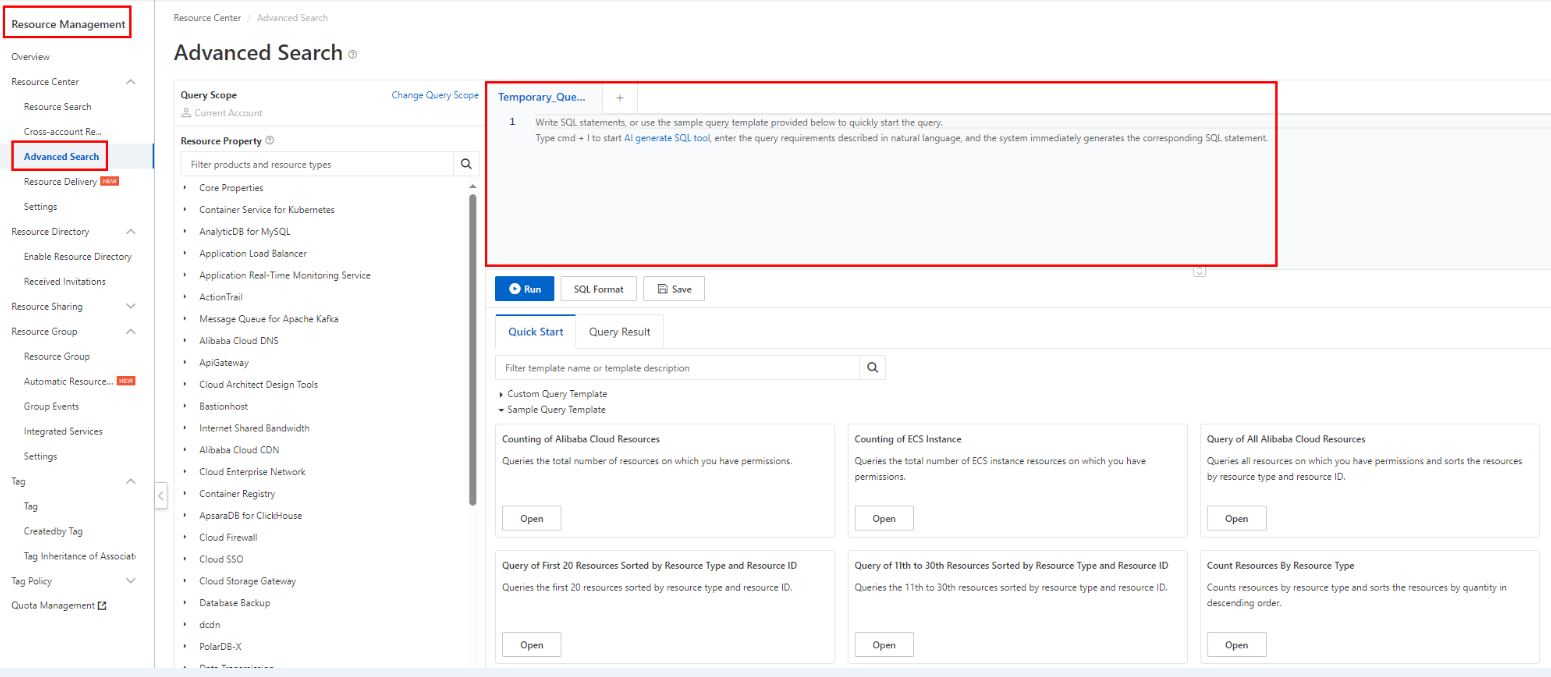
- Click Run.
- Click the Query Result tab to view the query results.
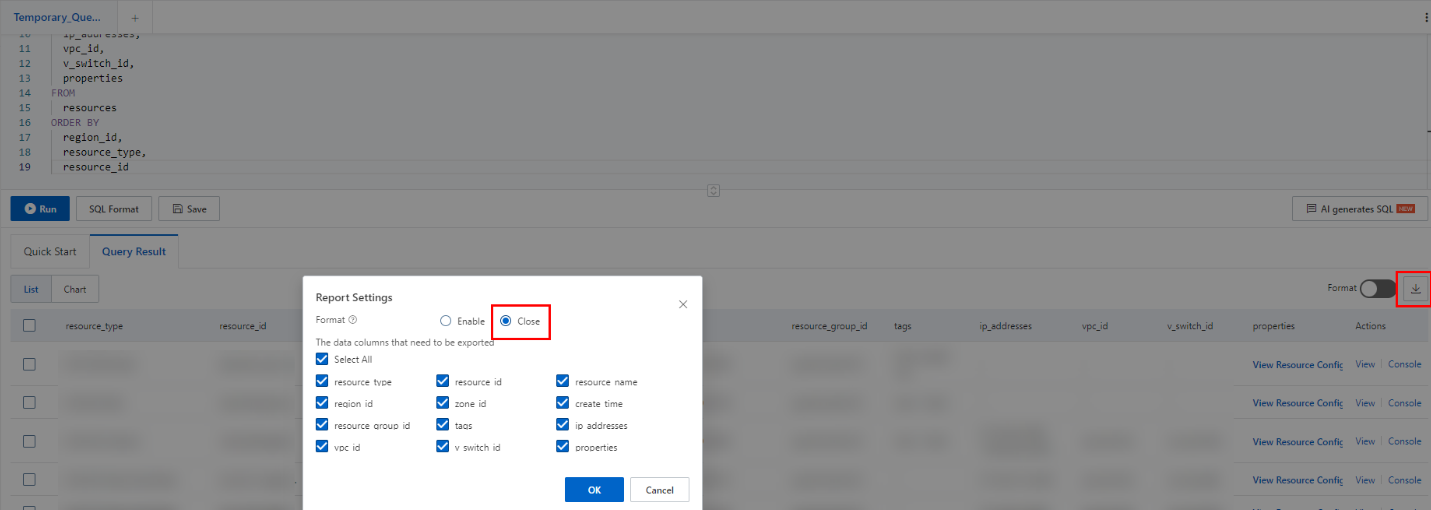
- Export the query results to a CSV file and save the file to the local PC. Click the download button on the right and set Format to Close on the Report Settings page.
- Sign in to the Azure portal.
- Search for and select Resource Graph using the search box at the top of the page.
- In the query window on the page, click New query to create a query. On the new tab page, enter the following query statement:
resources

- Click Run query.
- Click the Results tab to view the query results.
- Turn on the Formatted results switch on the right.

- Click Download as CSV to export the query results as a CSV to the local PC.

- Log in to the AWS console.
- Enter AWS Config in the search box in the upper part of the page and click AWS Config.
- On the AWS Config page, select Advanced queries, click New query in the upper right corner, and enter the following query statement:
SELECT * , configuration

- Export the results.
- If there are fewer than 500 records, click Export as on the right to export a JSON file.

- If there are 500 or more records, export the results to a JSON file using the following method:
- Click CloudShell in the lower left corner and enter the following statement:
aws configservice select-resource-config --expression "SELECT *, configuration" --region {region} --output json > result-{region}.jsonReplace {region} with the actual region code, for example, us-east-1.
- Execute the code and choose Actions > Download file on the right.

- On the Download file page, paste the file name in the command line to the Individual file path text box and click Download.

- Click CloudShell in the lower left corner and enter the following statement:
- If there are fewer than 500 records, click Export as on the right to export a JSON file.
Importing Data Exported from Resource Management
- Sign in to the MgC console. In the navigation pane, under Project, select your application migration project from the drop-down list.
- In the navigation pane, click Resource Survey.
- Click the Import tab. Then click the Import card. Figure 1 Import

- Click the Cloud resources option, select the source cloud platform, choose the resource type to be imported from the Resource Type drop-down list, and upload the corresponding resource list.

Only CSV files encoded in UTF-8 format and with English table headers can be imported. The size of a single file cannot exceed 50 MB. For details about how to convert the encoding format of a CSV file to UTF-8, see How Do I Convert the Encoding Format of a CSV File to UTF-8?
Resource Type
Procedure
Remarks
All
Click Add under Resource List and upload the exported Alibaba Cloud resource list or Azure resource list.
- Supported Alibaba Cloud resources include ECS instances and cloud disks, RDS database instances, PolarDB database instances, and lightweight application servers.
- Supported Azure resources include Virtual Machines, Azure Database for MariaDB, Azure Database for MySQL, Azure Database for PostgreSQL, Azure SQL, Azure SQL Database (based on Microsoft SQL Server), and Azure SQL Managed Instance.
- Click OK to return to the Resource Survey page. After the upload is successful, check the imported resources in the task list.
What is your overall rating for this page?
Thank you very much for your feedback. We will continue working to improve the documentation.See the reply and handling status in My Cloud VOC.
For any further questions, feel free to contact us through the chatbot.
Chatbot


