

Enabling Key Rotation
KMS allows you to periodically rotate keys to enhance security for keys and service data. This section describes how keys are rotated in KMS and how to configure key rotation.
By default, automatic key rotation is disabled for a custom key. Every time you enable key rotation, KMS automatically rotates custom keys based on the rotation period you set. Once key rotation is enabled, certain fees will be charged. For details, see How Is Rotation Charged for a CMK?
Key Rotation Methods
You can use either of the following key rotation methods:
- Manual key rotation
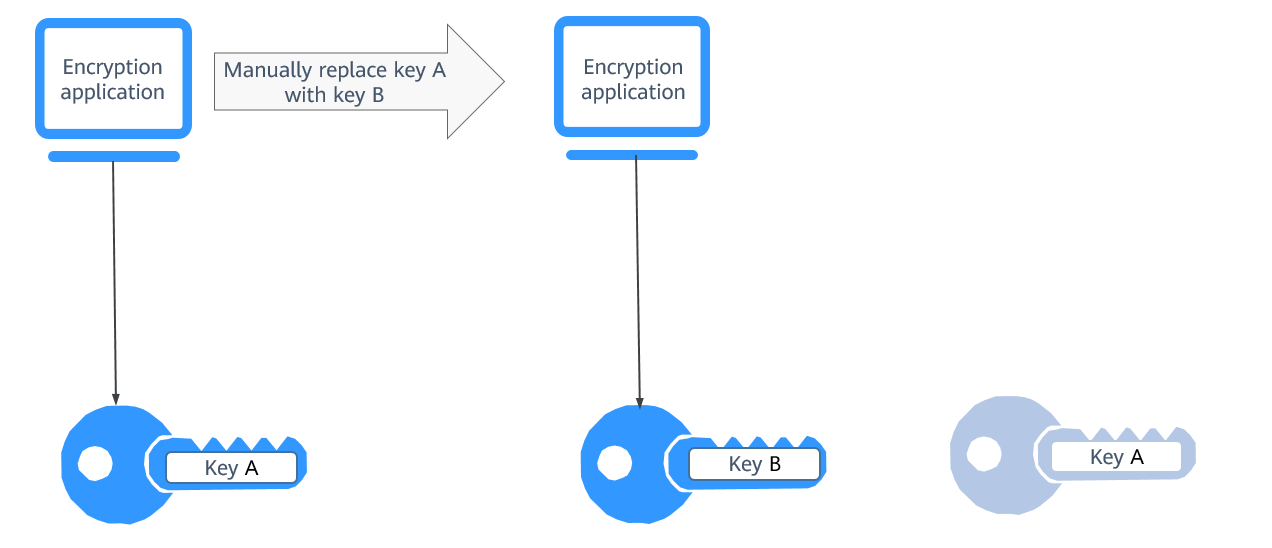
Method 1: Create a key B to replace the currently used key A.
Method 2: Modify the key A and use it.
An example command is provided as follows:
Take OBS as an example. To manually rotate a key, create a custom key on the KMS console. Replace the original custom key with the new one on the OBS console.
Figure 1 Manual key rotation
- Automatic key rotation
KMS automatically rotates keys based on the configured rotation period (365 days by default). The system automatically generates a new key to replace the key in use. Automatic key rotation only changes the key material of a CMK. The logical attributes of the key will not change, including its key ID, alias, description, and permissions.
Automatic key rotation has the following characteristics:
- Enable rotation for an existing custom key. KMS will automatically generate new key materials for the custom key.
- Data is not re-encrypted in an automatic key rotation. The DEK generated using the CMK is not automatically rotated, and data that has been encrypted using the CMK will not be encrypted again. If a DEK has been leaked, automatic rotation cannot contain the impact of the leakage.
Figure 2 Key rotation
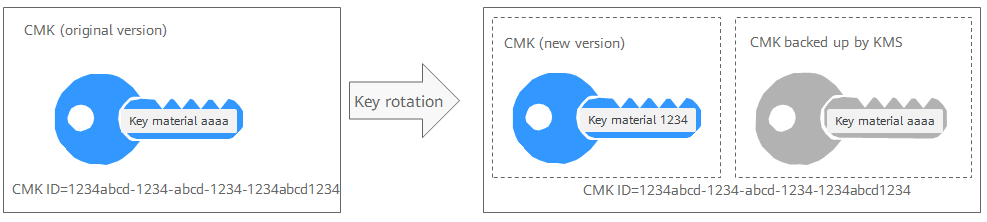
 KMS retains all versions of a custom key, so that you can decrypt any ciphertext encrypted using the custom key.
- KMS uses the latest version of the custom key to encrypt data.
- When decrypting data, KMS uses the custom key version that was used to encrypt the data.
The advantages and disadvantages of the two methods are as follows.
Table 1 Advantages and disadvantages Feature
Manual Key Rotation
Automatic key rotation
Flexibility
High. You can rotate keys at any time based on immediate operational needs.
Moderate. Rotation is scheduled based on a predefined rotation policy.
Controllability
High. Administrators have direct, manual control over when a key is rotated.
Hands-off. The system manages rotation automatically according to your policy.
Operation
Complex
Easy
Security
Lower. It is prone to human error, oversight, or delayed rotations.
Higher. It minimizes the window of exposure for compromised keys through consistent rotation.
In summary, automatic key rotation is ideal for large-scale or complex environments seeking robust security with minimal administrative overhead. Conversely, manual key rotation is better suited for specialized workflows that demand flexibility and precise control over the timing and conditions of a rotation. Select the method that best aligns with your security policies and operational resources. You can also combine both methods to maximize security while keeping management overhead low.
Rotation Modes
| Key Type | Rotation Mode |
|---|---|
| Default key | Cannot be rotated. |
| Custom key | Keys can be rotated automatically or manually, depending on the key algorithm type.
|
| External key | Keys can be manually rotated, depending on the key algorithm type. |
| Disabled CMK | Disabled CMKs are not rotated. KMS keeps their rotation status unchanged. After a custom key is enabled, if it has been used for longer than the rotation period, KMS will immediately rotate keys. If the custom key has been used for shorter than the rotation period, KMS will implement the original rotation plan. |
| CMKs in pending deletion state | KMS does not rotate CMKs in pending deletion status. After you cancel the deletion of a CMK, the previous key rotation status will be restored. If the custom key has been used for longer than the rotation period, KMS will immediately rotate keys. If the CMK has been used for shorter than the rotation period, KMS will implement the original rotation plan. |
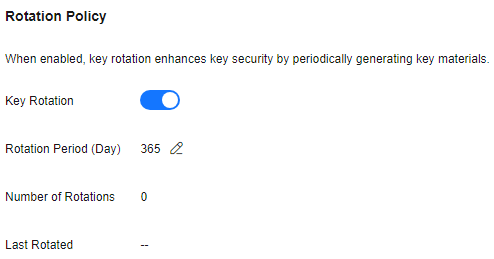
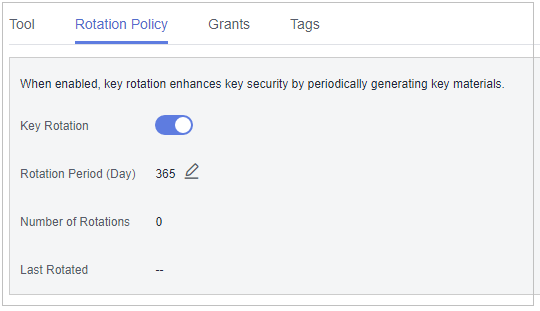
You can check the rotation details on the Rotation Policy page, including the last rotation time and number of rotations.
Constraints
- A disabled custom key is never rotated, even if rotation is enabled for it.
KMS resumes rotation when this custom key is enabled. If you enable this custom key after one rotation period has passed, KMS will rotate it within 24 hours.
- Only CMKs can be rotated.
- Only symmetric keys can be rotated.
- Key rotation is supported only for enabled keys with KMS-generated key materials.
- Enabling key rotation for a custom key may incur additional fees. For details, see Billing Description.
- A key material can be rotated for at most 100 times.
Enabling Key Rotation
For keys created on KMS, see Enabling Key Rotation for a Custom Key. For imported external key materials, see Rotating Key Materials of an External Key.
To enable key rotation for a custom key whose Status is Enabled, Management Type is Platform-managed, and Key Algorithm is a symmetric algorithm, perform the following steps.

Enabling key rotation incurs charges for each new key material. Choose a rotation period that balances your security compliance needs with your budget. You can set the system to automatically rotate keys every 90, 180, 270, or 365 days.
- Log in to the DEW console.
- Click
 in the upper left corner and select a region or project.
- Click the custom key name to access its details page.
- Click the Rotation Policy tab. The rotation switch is displayed.
- Click
 to enable key rotation.
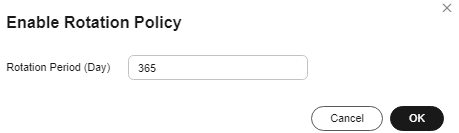
 - Configure the rotation period and click OK, as shown in Figure 3. For more information, see Table 3.
Table 3 Key rotation parameters Parameter
Description
Key rotation
Rotation switch. The default status is
 .
. : disabled
 : enabled
After rotation is enabled, the key will be rotated based on your set period.
NOTE:- A disabled custom key is never rotated, even if rotation is enabled for it.
- KMS resumes rotation when this custom key is enabled. If you enable this custom key after one rotation period has passed, KMS will rotate it within 24 hours.
Rotation Period (day)
Rotation period (day). The value is an integer ranging from 30 to 365. The default value is 365.
Configure the period based on how often a custom key is used. If it is frequently used, configure a short period. Otherwise, set a long one.
- Check rotation details, as shown in the following figure. Figure 4 Key rotation details
You can click
 to change the rotation period. After the period is changed, KMS rotates the key by the new period.
To enable key rotation for an external key whose Status is Enabled, Management Type is Platform-managed, and Key Algorithm is a symmetric algorithm, perform the following steps.
- Log in to the DEW console.
- Click in the upper left corner and select a region or project.
- Import new key materials.
- Locate the enabled external key and choose More > Import Key Material in the Operation column.
- In the Download the Import Items area, select a key wrapping algorithm based on Table 4. Figure 5 Obtaining the wrapping key and import token

Table 4 Key wrapping algorithms Algorithm
Description
Configuration
RSAES_OAEP_SHA_256
RSA algorithm that uses OAEP and has the SHA-256 hash function
Select an algorithm based on your HSM functions.
If the HSMs support the RSAES_OAEP_SHA_256 algorithm, use it to encrypt key materials.
Import key materials using either of the following ways:
- Method 1: Use APIs to obtain the wrapping key and import token. Select Use Existing Key Material, and click Next. In the Import Key Material step, enter the key material content. Obtain the key materials by referring to Downloading the Wrapping Key By Calling APIs and Symmetric Keys. Figure 6 Importing key materials

- Method 2: Select Download Key Material to download key materials to the local PC.
The import token will be automatically imported. You only need to use the downloaded wrapping key to obtain the key material from your device. Do not close this dialog box, or the token will become invalid.
Click Next. In the Import Key Material step, click Add to import local key materials.
Figure 7 Importing key materials

- Method 1: Use APIs to obtain the wrapping key and import token. Select Use Existing Key Material, and click Next. In the Import Key Material step, enter the key material content. Obtain the key materials by referring to Downloading the Wrapping Key By Calling APIs and Symmetric Keys.
- Click Next to go to the Import Key Token step. Configure the parameters by referring to Table 5. Figure 8 Importing a key token

- Click OK.
- Enable key rotation.
- Locate the enabled external key and choose More > Rotate Now in the Operation column.
- In the displayed dialog box, click OK.
Disabling Key Rotation for a Custom Key
External keys can only be manually rotated.
- Click the custom key name to access its details page.
- Click the Rotation Policy tab.
- Click
 to disable key rotation.
 - In the displayed confirmation dialog box, click OK.
Viewing Rotation Logs
You can view details about the key materials of symmetric keys.
Key material details are only available for symmetric keys.
- Click a key name to view its details.
- Click the Rotation Policy tab. The rotation switch is displayed.
- View the key material details, as shown in Figure 9.

Related Operations
For details about how to enable key rotation using an API, see Enabling Key Rotation.
What is your overall rating for this page?
Thank you very much for your feedback. We will continue working to improve the documentation.See the reply and handling status in My Cloud VOC.
For any further questions, feel free to contact us through the chatbot.
Chatbot


