

Configuring the Maintenance Window
Scenarios
A maintenance window is a scheduled time period during which Huawei Cloud O&M personnel are authorized to perform maintenance tasks. To prevent unexpected interruptions during maintenance, set the maintenance window to off-peak hours. The default maintenance window is 02:00–06:00 and you can adjust it as required.
Precautions
- Before maintenance is performed, DDS will send SMS and email notifications to the contact person you specified in the Huawei Cloud account.
- During the maintenance window, the DB instance may be intermittently disconnected once or twice. Ensure that your applications can reconnect to the database if the connection is interrupted.
- During DB instance maintenance, operations for service changes (such as upgrade and restart) are unavailable except account management, database management, and security group adding. When a DB instance is in maintenance, data access and query operations on the database are not affected.
- Changing the maintenance window does not affect the execution of tasks that have been scheduled.
- You can configure a maintenance window only for restarting a DB instance, changing an instance class, or upgrading the minor version of a DB instance.
- You can cancel a scheduled task to be executed on the Task Center page.
- The maintenance window cannot overlap the time window configured for backups. Otherwise, scheduled tasks may fail.
- Tasks delivered near the end of the maintenance window may fail to be scanned. In this case, the execution is canceled.
Procedure
- Log in to the management console.
- Click
 in the upper left corner and select a region and a project.
 - Click
 in the upper left corner of the page and choose Databases > Document Database Service.
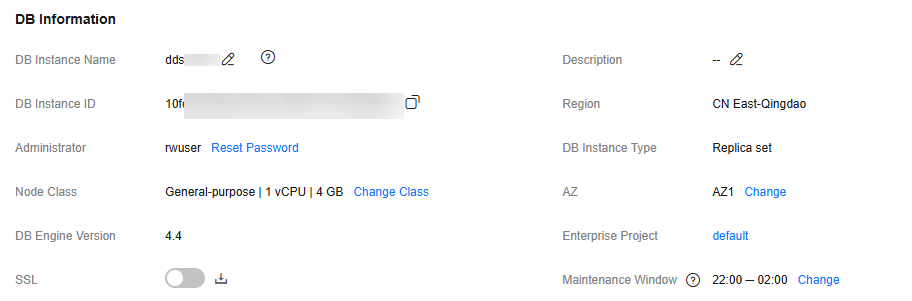
 - On the Instances page, click the instance name. In the DB Information area on the Basic Information page, click Change in the Maintenance Window field. Figure 1 Changing the maintenance window
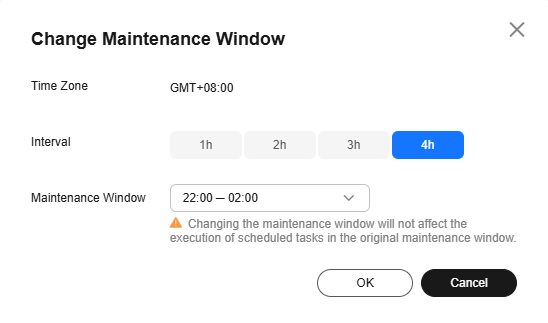
- In the displayed dialog box, select an interval and a maintenance window, and click OK. Figure 2 Changing the maintenance window
- Log in to the management console.
- Click
 in the upper left corner and select a region and a project.
 - Click
 in the upper left corner of the page and choose Databases > Document Database Service.
 - Click the Scheduled Tasks tab on the Task Center page, locate a scheduled task, and click Cancel in the Operation column. Figure 3 Canceling a task

- View the result.
You can view the result on the Task Center > Scheduled Tasks page. When the task is cancelled, its status changes to Cancelled.
Related APIs
| API | Description |
|---|---|
| Modifies the allowed time window for executing tasks that may affect database operations. |
What is your overall rating for this page?
Thank you very much for your feedback. We will continue working to improve the documentation.See the reply and handling status in My Cloud VOC.
For any further questions, feel free to contact us through the chatbot.
Chatbot


