

Managing Branches
Branching is the most commonly used method in version management. Branches isolate tasks in a project to prevent them from affecting each other, and can be merged for version release.
When you create a CodeArts Repo or Git repository, a master branch is generated by default and used as the branch of the latest version. You can create custom branches at any time for personalized scenarios.
Creating a Branch on the Console
- Access the repository list.
- Click a repository to go to the details page.
- Click the Code and Branches tabs. The branch list page is displayed.
- Click Create Branch. In the displayed dialog box, select the branch or tag based on which the new branch is created, or enter a commit ID to create a branch based on the ID.
- Enter a branch name. It cannot start with -, ., refs/heads/, refs/remotes/, or /. It cannot contain spaces, special characters (such as [\<~^:?*!()'"|$&), two consecutive dots (..), or sequences @{. It cannot end with ., /, or .lock.
Note: The name cannot be the same as another branch or tag name.
- You can set Description for the new branch and select CodeArts Req Work Items to associate with. For details about the work item types that can be associated with, see E2E Settings.
- Click OK. The branch is created.
Managing Branches on the Console

- You can download the compressed package of source code on the page only for hosts that have configured IP address whitelists.
- If you delete a branch by mistake, submit a service ticket to contact technical support.
You can perform the following operations in the branch list:
- Filtering branches
- All: displays all branches. The default branch is displayed on the top. Other branches are sorted by the last commit time in descending order. The latest committed branch is displayed at the top.
- My: displays all branches created by you. The branches are sorted by the latest commit time in descending order.
- Active: displays the branches that have been developing in the last month. Branches are sorted by the last commit time in descending order.
- Inactive: displays the branches that have not been developed in the last month. Branches are sorted by the last commit time in descending order.
- You can click a branch name to go to the Files tab page of the branch and view its content and history.
- You can click a commit ID to view the content latest committed on the details page.
- Select branches and click Batch Delete to delete branches in batches.
- You can click
 to associate work items with the branch.
 - You can click
 to go to the Comparison tab page and compare the current branch with another branch.
 - You can click
 to download its compressed package.
 - You can click
 to access the Merge Requests tab page and create a merge request.
 - You can click
 to go to the repository settings page and set the branch as protected.
 - You can click
 to delete a branch as prompted.
Common Git Commands for Branches
- Creating a branch
git branch <branch_name> # Create a branch based on the current working directory in the local repository.
Example:git branch branch001 # Create a branch named branch001 based on the current working directory in the local repository.
If no command output is displayed, the creation is successful. If the branch name already exists, as shown in the following figure, create a branch with another name.

- Switching a branch Switching a branch is to check out the branch file content to the current working directory.
git checkout <branch_name> # Switch to a specified branch.
Example:
git checkout branch002 # Switch to branch002.
The following information shows that the switch is successful.

- Switching to a new branch
You can run the following command to create a branch and switch to the new branch directly.
git checkout -b <branch_name> # Create a branch based on the current working directory in the local repository and directly switch to the branch.
Example:
git checkout -b branch002 # Create a branch named branch002 based on the current working directory in the local repository and directly switch to the branch.
The following information shows that the command is successfully executed.

- Viewing a branch
You can run the corresponding command to view the local repository branch, the remote repository branch, or all branches. These commands only list branch names. You can switch to a branch to view specific files in a branch.
git branch # View the local repository branch.
git branch -r # View the remote repository branch.
git branch -a # View the branches of the local and remote repositories.
The following figure shows the execution result of the three commands in sequence. Git displays the branches of the local and remote repositories in different formats. (Remote repository branches are displayed in the format of remote/<remote_repository_alias>/<branch_name>.)

- Merging a branch
When a development task on a branch is complete, the branch needs to be merged into another branch to synchronize the latest changes.
git merge <name_of_the_branch_merged_to_the_current_branch> # Merge a branch into the current branch.
Before merging a branch, you need to switch to the target branch. The following describes how to merge branch002 into the master branch.git checkout master # Switch to the master branch. git merge branch002 # Merge branch002 into the master branch.
The following figure shows the execution result of the preceding command. The merge is successful, and three lines are added to a file.
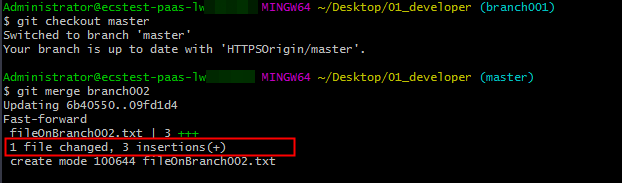

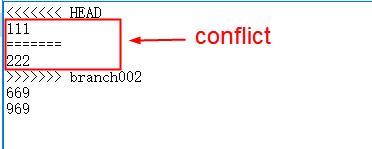
The system may prompt that a merge conflict occurs. The following shows that a conflict occurs in the fileOnBranch002.txt file.

To resolve the conflict, open the conflicting file, manually edit the conflicting code (as shown in the following figure), and save the file. Then run the add and commit commands again to save the result to the local repository.
- Deleting a local branch
git branch -d <branch_name>
Example:
git branch -d branch002 # Delete branch002 from the local repository. The following information shows that the operation is successful.

- Deleting a branch from the remote repository
git push <remote_repository_address_or_alias> -d <branch_name>
Example:
git push HTTPSOrigin -d branch002 # Delete branch002 from the remote repository whose alias is HTTPSOrigin. The following information shows that the deletion is successful.

- Pushing a new local branch to the remote repository
git push <remote_repository_address_or_alias> <branch_name>
Example:
git push HTTPSOrigin branch002 # Push the local branch branch002 to the remote repository whose alias is HTTPSOrigin. The following information shows that the push is successful.
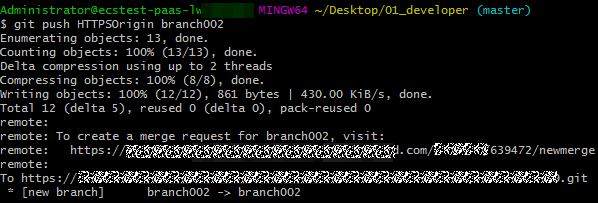
If the push fails, check the connectivity.
Check whether your network can access CodeArts Repo.
1 | ssh -vT git@********.com |
If the returned information contains connect to host **********.com port 22: Connection timed out, your network is restricted and you cannot access CodeArts Repo. In this case, contact your local network administrator.
What is your overall rating for this page?
Thank you very much for your feedback. We will continue working to improve the documentation.See the reply and handling status in My Cloud VOC.
For any further questions, feel free to contact us through the chatbot.
Chatbot


