

Failed to Connect to the Development Environment Via VS Code
If the VS Code fails to connect to the development environment, perform the following steps:
Network Link Check
- On the ModelArts console, check that the notebook instance is normal.
- Run the following command on the VS Code terminal to check whether the SSH command is available:
ssh -i <Relative path for the key> -p <Port> ma-user@<Domain name/IP address>
If the SSH command is unavailable, run the following command to check whether the port is normal:curl -kv telnet://<Domain name/IP address>:<Port>
If the port is abnormal, contact the environment administrator. If the IP address or domain name and port are normal but the SSH command fails, perform the troubleshooting by referring to SSH Faults.
Figure 1 Example of a normal port

Local Check
- Check the key permission and ensure that the key file does not contain Chinese characters.
For example, in Windows, the key is usually stored in the C:\Users\<username>\ directory.
- Check whether the local SSH configuration file is correct.
Open the config file for review. Here is a sample of the standard configuration format. Place the Host on the first line of each group as its unique ID. Keep the order correct, and ensure each Host value is unique.
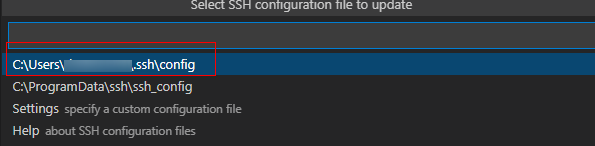
Example configuration format:
HOST remote-dev
     hostname <instance connection host>
     port <instance connection port>
     user ma-user
     IdentityFile ~/.ssh/test.pem
     StrictHostKeyChecking no
     UserKnownHostsFile /dev/null
     ForwardAgent yes
Configuration example:
Host ModelArts-Instance-Name
HostName dev-modelarts.cn-southwest-2.huaweicloud.com
Port 31375
User ma-user
IdentityFile c:\Users\<userID>\keypair.pem
StrictHostKeyChecking no
UserKnownHostsFile /dev/null
ForwardAgent yes
If the SSH config file has too much content and you need to check if it is causing problems, back up and delete the file, and reopen VS Code from the notebook page.
- If the config file is correct, proceed with the subsequent steps.
- If they are not, correct them according to the preceding format.
- Check the third-party plugins of the local VS Code.
- If there is a Chinese plugin for VS Code, uninstall the plugin, restart the notebook instance, and open VS Code again.
- Check whether the plugin package is of a compatible version. Search for the plugin in extensions and check whether it needs to be upgraded. Check whether the Remote-SSH third-party plugin is compatible.
- Check whether the local VS Code is of the latest version. The latest version may have bugs. VS Code 1.86 and VS Code 1.109.5 are recommended. For details about the restrictions on the VS Code version, see Installing VS Code.
If the fault persists, contact technical support.

What is your overall rating for this page?
Thank you very much for your feedback. We will continue working to improve the documentation.See the reply and handling status in My Cloud VOC.
For any further questions, feel free to contact us through the chatbot.
Chatbot


