

Manually Connecting to a Notebook Instance Through VS Code
A local IDE supports VS Code. You can use PyCharm or VS Code to remotely connect the local IDE to the target notebook instance on ModelArts for running and debugging code.
This section describes how to use VS Code to access a notebook instance.
Prerequisites
- You have installed the recommended VS Code version and met the constraints. For details, see Installing VS Code.
- Python has been installed on your local PC or server. For details, see VS Code official documentation.
- You have created an account key pair or private key pair on the DEW console and saved the key file to the directories below. For details, see Creating a Key Pair.
- Windows: C:\Users\{{user}}
- macOS/Linux: ~
If you choose I agree to host the private key of the key pair when creating a key pair, you can download the key again by clicking Export Private Key on the Account Key Pairs or Private Key Pairs page. If you do not choose this option, the key will only be available for download once, during creation. Keep your key safe.Figure 1 I agree to host the private key of the key pair

- Remote SSH has been enabled for the notebook instance (select the created account key pair or private key pair), and the instance is in the Running state.
- For details about how to create a notebook instance, see Creating a Notebook Instance.
- For details about how to enable remote SSH for an existing notebook instance, see Enabling Remote SSH.
- On the notebook instance details page, obtain the address for remote SSH development from the basic information tab. For details, see Viewing details about a notebook instance. Figure 2 Instance details page

Step 1: Adding the Remote-SSH Extension
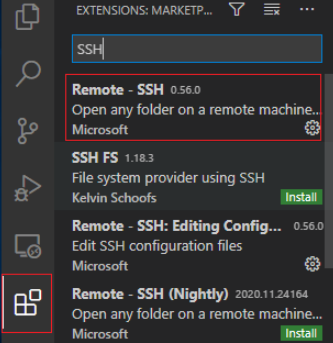
In the local VS Code development environment, click  , enter SSH in the search box, and click install of Remote-SSH to install it.
Step 2: Configuring SSH
- In the local VS Code development environment, click
 on the left, select SSH Targets from the drop-down list box, and click
  . The SSH configuration file path is displayed. Figure 4 Configuring SSH Targets
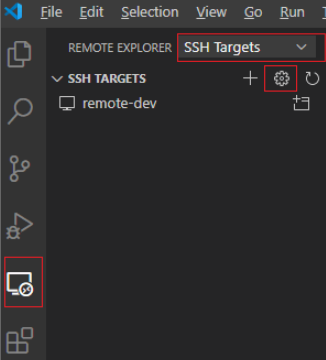
- Click the SSH configuration path and configure the config file. Figure 5 SSH configuration file path
 The following is an example of the configuration format of the config file:
HOST remote-dev hostname <Instance connection host> port <Instance connection port> user <instance connection user> IdentityFile <instance connection IdentityFile> UserKnownHostsFile=/dev/null StrictHostKeyChecking no ForwardAgent yes- The running user is ma-user/ma-group. Assume that the remote SSH development address is ssh -o StrictHostKeyChecking=no -i KeyPair-1234-test.pem ma-user@authoring-ssh-modelarts-*****.huawei.com -p 31092, where authoring-ssh-modelarts-*****.huawei.com is the host name, 31092 is the port number, and ma-user is the user. Obtain the remote SSH development address from Prerequisites. Configuration example:
HOST remote-dev hostname authoring-ssh-modelarts-*****.huawei.com port 31092 user ma-user IdentityFile C:\Users\Administrator\KeyPair-1234-test.pem UserKnownHostsFile=/dev/null StrictHostKeyChecking no ForwardAgent yes - The running user is root/root. Assume that the remote SSH development address is ssh -o StrictHostKeyChecking=no -i KeyPair-1234-test.pem root@authoring-ssh-modelarts-*****.huawei.com -p 31092, where authoring-ssh-modelarts-*****.huawei.com is the host name, 31092 is the port number, and root is the user. Obtain the remote SSH development address from Prerequisites. Configuration example:
HOST remote-dev
     hostname authoring-ssh-modelarts-*****.huawei.com
     port 31092
     user root
     IdentityFile C:\Users\Administrator\KeyPair-1234-test.pem
     UserKnownHostsFile=/dev/null
     StrictHostKeyChecking no
     ForwardAgent yes
Table 1 Parameters in the config file Parameter
Description
HOST
Custom connection configuration name.
hostname
Access address of the cloud development environment, obtained from the remote SSH development address in the Prerequisites.
port
Port of the cloud development environment, obtained from the remote SSH development address in the Prerequisites.
user
Username used to connect to the cloud development environment, obtained from the remote SSH development address in the Prerequisites.
IdentityFile
Private key file of the cloud development environment stored locally, which is the key pair stored in the specified directory as mentioned in the prerequisites.
UserKnownHostsFile
Path to the known hosts file.
StrictHostKeyChecking
Specifies whether to strictly check the public key of the cloud development environment. Setting it to no means the connection will continue even if the public key of the cloud development environment does not match.
ForwardAgent
Supports SSH passwordless connection to third-party remote servers.
- The running user is ma-user/ma-group. Assume that the remote SSH development address is ssh -o StrictHostKeyChecking=no -i KeyPair-1234-test.pem ma-user@authoring-ssh-modelarts-*****.huawei.com -p 31092, where authoring-ssh-modelarts-*****.huawei.com is the host name, 31092 is the port number, and ma-user is the user. Obtain the remote SSH development address from Prerequisites. Configuration example:
- Return to the SSH Targets page, locate the target remote development environment, and click
 on the right to connect to host in a new window. Figure 6 Opening the development environment

On the displayed page, click Linux.
Figure 7 Selecting a notebook running environment
 Figure 8 Remote connection succeeded

Step 3: Installing the Cloud Python Extension
On the displayed VS Code page, click  on the left, enter Python in the search box, and click Install.
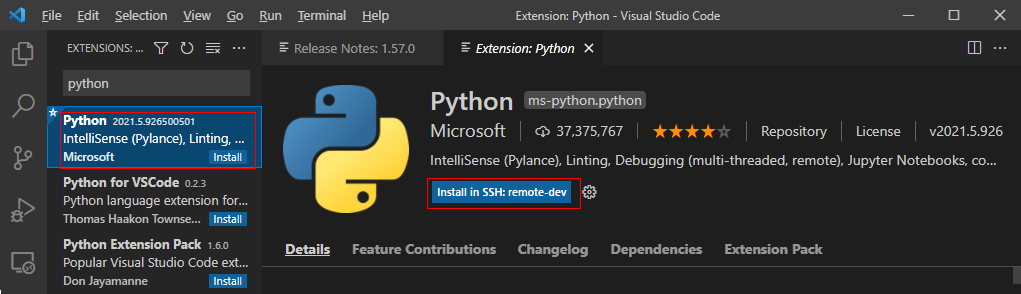
If the remote Python extension fails to be installed, you are advised to install it using an offline package.
Step 4: Installing the Dependency Library for the Cloud Environment
After accessing the container environment, you can use different virtual environments, such as TensorFlow and PyTorch. However, in actual development, you need to install dependency packages. Then, you can access the environment through the terminal to perform operations.
- In VS Code, press Ctrl+Shift+P.
- Search for Python: Select Interpreter and select the target Python.
- Choose . The CLI of the remote container is displayed.
- Run the following command to install the dependency package:
pip install spacy
What is your overall rating for this page?
Thank you very much for your feedback. We will continue working to improve the documentation.See the reply and handling status in My Cloud VOC.
For any further questions, feel free to contact us through the chatbot.
Chatbot


