

Logging In to a Linux FlexusL Instance Using an SSH Password
Scenarios
This section describes how to remotely log in to a Linux instance using an SSH password in Windows and Linux.
Prerequisites
- The cloud server is in the running state.
- Port 22 has been allowed in the inbound direction of the security group that the cloud server belongs to. For details, see Configuring Security Group Rules for a FlexusL Instance.
- The network connection between the login tool (PuTTY) and the target cloud server is normal. For example, the default port 22 is not blocked by the firewall.
- FlexusL instance servers do not have login passwords by default. When you log in to the server for the first time, set a password by referring to Resetting the Password for a FlexusL Instance.
Logging In to the Linux Instance from a Local Windows Server
To log in to the Linux instance from a local Windows server, perform the following operations
Method 1: Use PuTTY to log in to the instance.
The following operations use PuTTY as an example to log in to the ECS:
- Visit the following website and download PuTTY and PuTTYgen:
https://www.chiark.greenend.org.uk/~sgtatham/putty/latest.html
- Run PuTTY.
- Choose Session.
- Host Name (or IP address): Enter the EIP bound to the cloud server.
- Port: Enter 22.
- Connection type: Click SSH.
- Saved Sessions: Enter the task name, which can be clicked for remote connection when you use PuTTY next time. Figure 1 Session
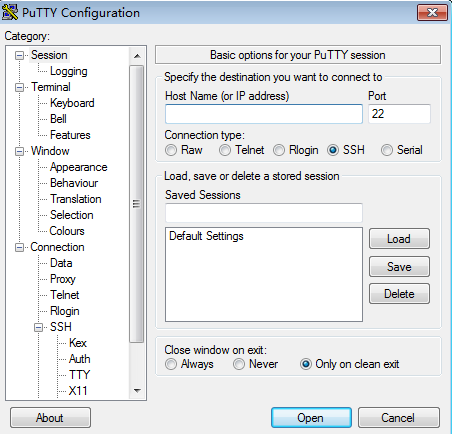
- Choose Window. Then, select UTF-8 for Received data assumed to be in which character set: in Translation.
- Click Open.
If you log in to the cloud server for the first time, PuTTY displays a security warning dialog box, asking you whether to accept the cloud server security certificate. Click Yes to save the certificate to your local registry.
- After the SSH connection to the cloud server is set up, enter the username and password as prompted to log in to the cloud server.
- User Name: Enter root.
- Password: Enter the password of the cloud server.
If you forget the password, reset it by referring to Resetting the Password for a FlexusL Instance.
Method 2: Use Xshell to log in to the cloud server.
- Start the Xshell tool.
- In the displayed window, click New or choose File > New from the menu bar. Figure 2 New connection

- Set connection parameters.
Choose Connection from the left navigation tree and set required parameters.
Figure 3 Setting connection parameters

- Name: Enter a name that is easy to identify.
- Protocol: Select SSH.
- Host: Enter the EIP bound to the cloud server.
- Port Number: Retain the default number 22.
- Set authentication parameters.
Choose Authentication from the left navigation tree and set required parameters.
Figure 4 Setting authentication parameters

- User Name: Enter root.
- Password: Enter the password of the cloud server. If you forget the password, reset it by referring to Resetting the Password for a FlexusL Instance.
- Method: Select Password.
- After the preceding settings are complete, click Connect.
- (Optional) During the first connection, if the system displays the SSH Security Warning dialog box, click Accept & Save.
- If the following command prompt is displayed, the connection to the cloud server is successful. Figure 5 Successful connection

Logging In to the Linux Instance from a Local Linux Server
To log in to a Linux instance from a local Linux server, perform the following operations:
- On the Linux CLI, run the following command to log in to the cloud server:

xx.xx.xx.xx indicates the EIP bound to the cloud server.
- Verify the SSH fingerprint of the cloud server and enter yes.
The authenticity of host 'xx.xx.xx.xx (xx.xx.xx.xx)' can't be established.
ECDSA key fingerprint is SHA256:rnKuzrUSYS03MCoaxxxxxxxxxxxxxxxxxxxxxxxxxxx.
ECDSA key fingerprint is MD5:cf:64:5b:5e:74:30:xx:xx:xx:xx:xx:xx:xx:xx:xx:xx.
Are you sure you want to continue connecting (yes/no)? yes
Warning: Permanently added 'xx.xx.xx.xx' (ECDSA) to the list of known hosts.
- Enter the password for logging in to the cloud server. If you forget the password, reset it by referring to Resetting the Password for a FlexusL Instance.
root@xx.xx.xx.xx's password:

        Welcome to Huawei Cloud Service
What is your overall rating for this page?
Thank you very much for your feedback. We will continue working to improve the documentation.See the reply and handling status in My Cloud VOC.
For any further questions, feel free to contact us through the chatbot.
Chatbot


