

Solution design
In the architecture design phase, partner architects complete the integration architecture design and resource list configuration.

The architecture diagram must be consistent with the architecture in the OBP material.
- Creating A Technical Architecture
- On the Architecture Design page, click [Create Architecture]. In the displayed dialog box, new architectures can be created and existing architectures can be copied(Creating a new architecture is used as an example.).enter the architecture name, select a deployment environment, and click [OK].Figure 1 Architecture Design Entry

- Design architecture
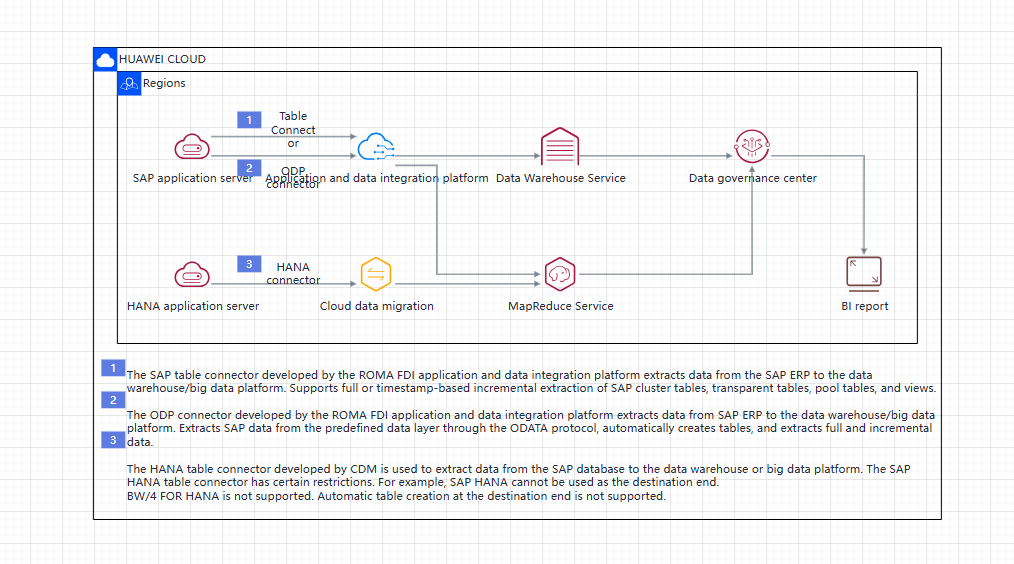
- Template recommend:Click [Template Recommendation]. A dialog box is displayed. In the dialog box, you can search for or filter architecture templates. After finding the schema template, click [Reference Template] to load the template to the canvas. Figure 2 Design Architecture

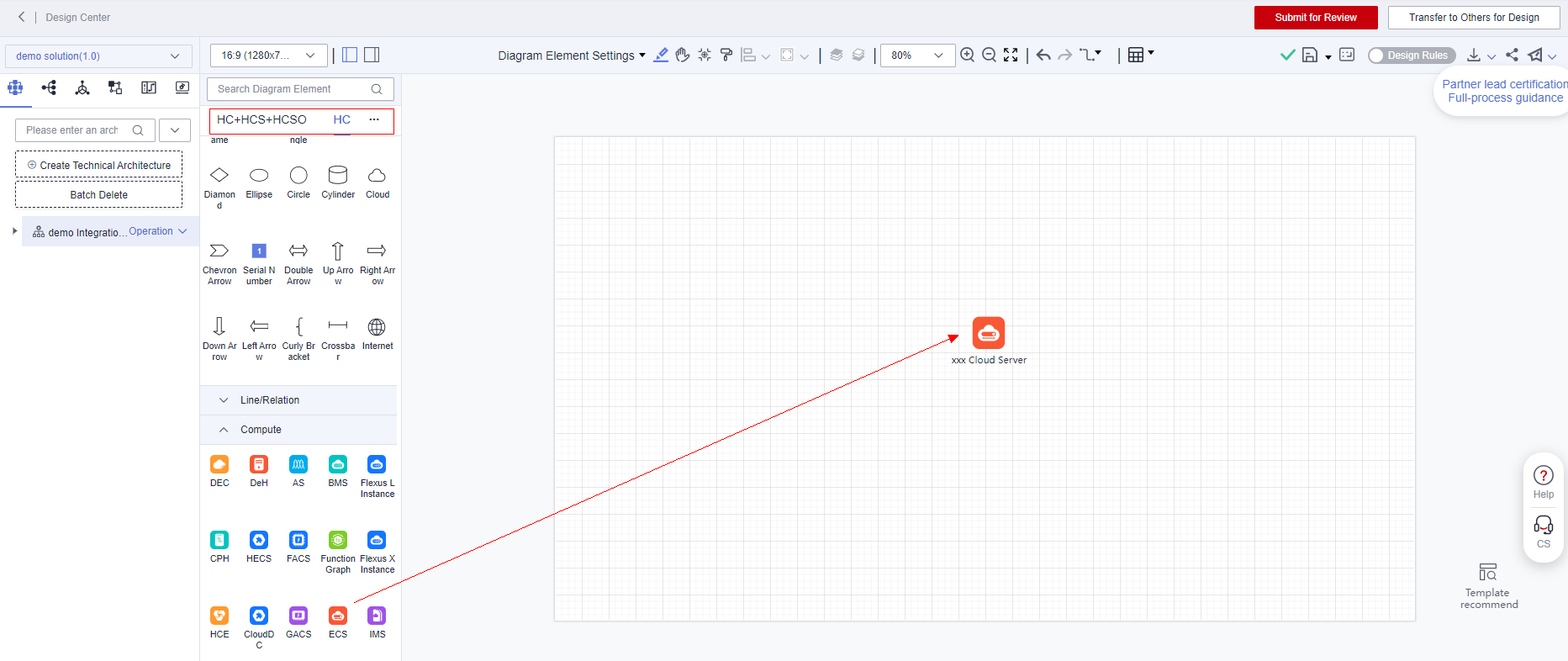
- Drag diagram elements:select a diagram element in the diagram element library, and then drag the diagram element to the canvas(The deployment environment can be switched on the element library.). Figure 3 Drag Diagram Elements
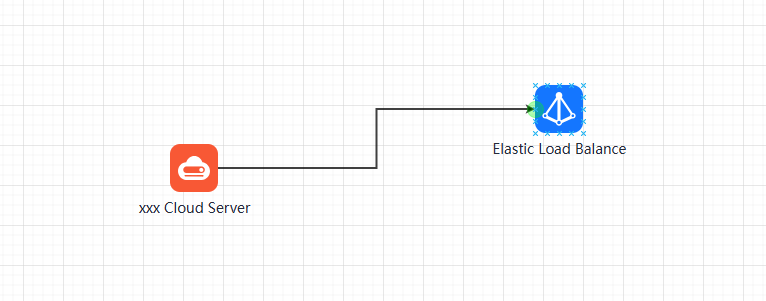
- Diagram element association:move the cursor to a diagram element (without clicking it). Connection anchor points are displayed around the diagram element. Select an anchor point, hold down the left mouse button, and drag it to another diagram element anchor point to complete the connection. Figure 4 Diagram Element Association
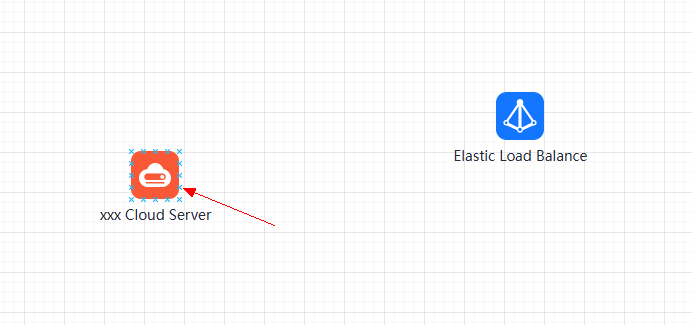 Figure 5 Design Center
- Template recommend:Click [Template Recommendation]. A dialog box is displayed. In the dialog box, you can search for or filter architecture templates. After finding the schema template, click [Reference Template] to load the template to the canvas.
- Design The Configuration List
During subsequent verification tests, the system will automatically identify cloud services in the configuration list and generate required integration cases.
- After the integration architecture design is complete, return to the architecture design page. Select the configuration list and click [New]. In the dialog box that is displayed, enter the configuration list name and select the associated integration architecture. Figure 7 Design Center

- Click a diagram element in the deployment architecture canvas,the Price Calculator dialog box is displayed. Select the specifications and click [Save]. Figure 8 Deployment Architecture
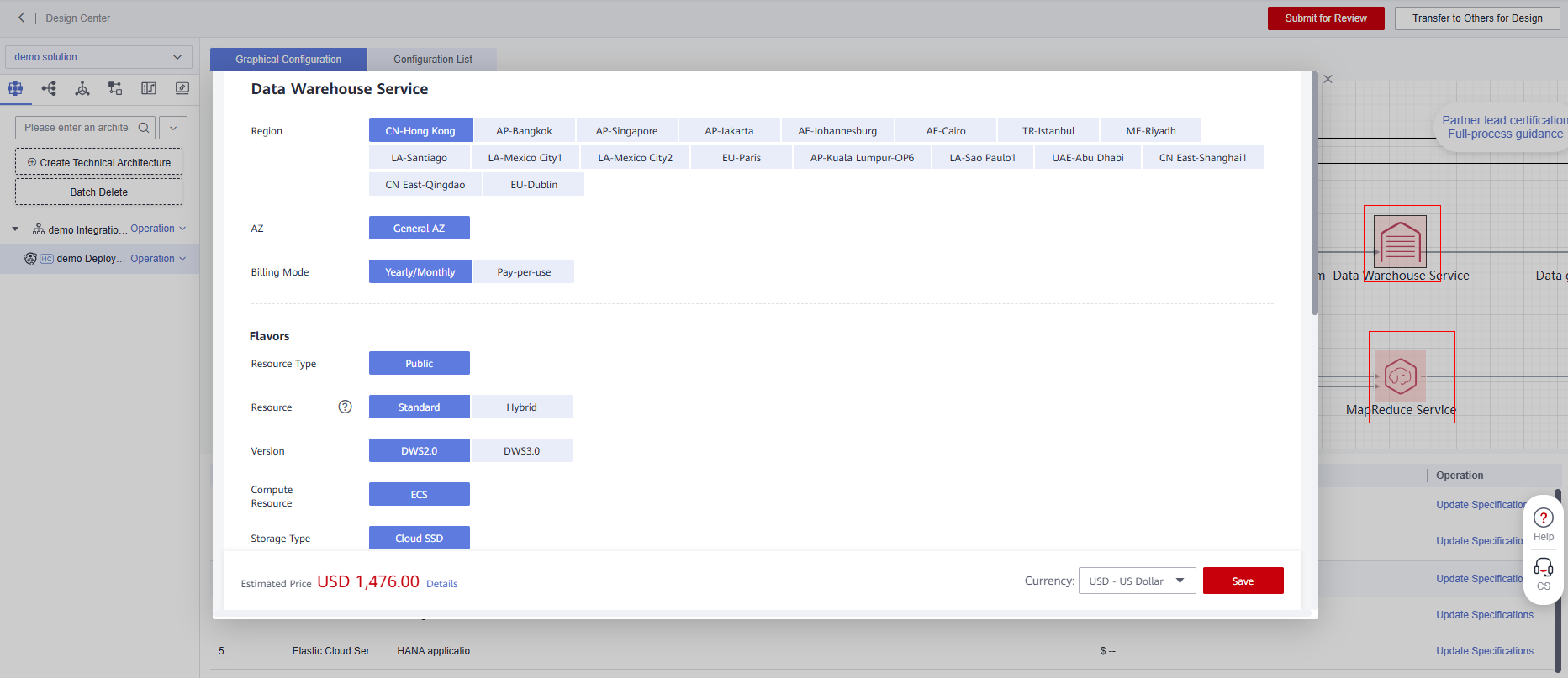
- Click the [Configuration list] to view the saved configuration specifications.
If the service does not support the price calculator, click [Add Configuration Item], select a custom service and manually enter the configuration.
Figure 9 Configuration List

- After the design is complete, click [Complete the design and go to Solution Review]. Figure 10 Complete the design and go to Solution Review

- Select the architecture and configuration list to be submitted for review, select the default approver, and click [Submit for Review]. Figure 11

- The reviewer generates a to-do task. Click the [Handle] button to go to the review page. Figure 12 to-do

- The reviewer clicks the [Review] button of the architecture and configuration list to review the architecture and configuration list. If the architecture is rejected, the architecture returns to the to-be-submitted phase and needs to be modified and submitted for review again. Figure 13 Review


There is no charge for generating Configuration list, but for configuring specifications and generating reference prices.
What is your overall rating for this page?
Thank you very much for your feedback. We will continue working to improve the documentation.See the reply and handling status in My Cloud VOC.
For any further questions, feel free to contact us through the chatbot.
Chatbot


