

Configuring Index-Level Monitoring
When maintaining large-scale OpenSearch clusters, operations teams frequently encounter a critical visibility gap: while cluster-wide metrics (such as CPU and memory) indicate a healthy state, specific workloads or services experience long read/write latency. Traditional cluster-level monitoring often relies on aggregated averages and fails to identify the specific indexes causing the problem. As a result, root-cause analysis is often time-consuming and labor-intensive. CSS supports index-level monitoring. It automatically collects real-time read/write traffic, latency, and storage changes for each index, and visualizes the data using a built-in OpenSearch Dashboards dashboard. This helps you quickly identify abnormal indexes without writing any complex script. You can then make necessary adjustments to optimize performance and ensure service stability.
How the Feature Works
Index monitoring tracks the status and performance of each index in an OpenSearch cluster in real time, helping operations teams promptly detect and resolve performance issues. The feature works as follows:
- Collection: A background task periodically (every 10 seconds by default, configurable) collects statistics about each target index, including the number of documents, storage size, and shard status.
- Storage: The collected data is written to a dedicated monitoring index named monitoring-eye-css-[yyyy-mm-dd].
- Visualization: OpenSearch Dashboards reads data from the monitoring index and visualizes it through preset dashboards or custom visualizations, enabling time series analysis, trend comparison, and fault detection.
Constraints
- Index-level monitoring is supported only in OpenSearch 2.19.0 and 3.4.0 (image version 3.4.0_26.6.0_xxx or later).
- Do not create regular indexes with their names starting with monitoring-eye-css-*. Doing so may interfere with the collection of index monitoring data.
- Do not delete the monitoring-eye-css-[yyyy-mm-dd] index or its associated index pattern. Otherwise, index monitoring data will be unavailable.
Logging In to OpenSearch Dashboards
Log in to OpenSearch Dashboards and go to the command execution page. OpenSearch clusters support multiple access methods. This topic uses OpenSearch Dashboards as an example to describe the operation procedures.
- Log in to the CSS management console.
- In the navigation pane on the left, choose Clusters > OpenSearch.
- In the cluster list, find the target cluster, and click Dashboards in the Operation column to log in to OpenSearch Dashboards.
- In the left navigation pane, choose Dev Tools.
The left part of the console is the command input box, and the triangle icon in its upper-right corner is the execution button. The right part shows the execution result.
Enabling Index Monitoring
- Run the following command to enable monitoring for all indexes in the current cluster:
PUT _cluster/settings { "persistent": { "css.monitoring.index.enabled": "true" } } - Run the following command to enable monitoring for specified high-priority indexes:
PUT _cluster/settings
{
  "persistent": {
    "css.monitoring.index.enabled": "true",
    "css.monitoring.index.interval": "30s",
    "css.monitoring.index.indices": ["index_name"],
    "css.monitoring.history.duration": "3d"
  }
}
| Parameter | Type | Default Value | Description |
|---|---|---|---|
| css.monitoring.index.enabled | Boolean | false | To enable or disable index monitoring. The value can be:
|
| css.monitoring.index.indices | String | * (indicating that all indexes will be monitored) | The names of the indexes you want to monitor.
By default, all indexes are monitored. If you have a large number of indexes, consider monitoring only high-priority ones. |
| css.monitoring.index.interval | Time | 10s | Index monitoring data collection interval. Value format: number + unit
Minimum value: 1s Set an appropriate data collection interval based on your monitoring needs and cluster load. Collecting monitoring data too frequently can impact performance. |
| css.monitoring.history.duration | Time | 7d | Retention duration of index monitoring data, that is, the data in the monitoring-eye-css-[yyyy-mm-dd] index. Upon expiration, data will be deleted automatically and permanently. Value format: number + unit
Minimum value: 1d Set an appropriate data retention duration to balance your monitoring needs with storage costs. A longer retention duration increases storage costs. |
Checking the Read and Write Traffic of Indexes
When index monitoring is enabled for a cluster, you can use an API to query the real-time read and write traffic of indexes.

System indexes (those starting with .) contain internal management and maintenance information. To ensure system security, their read and write traffic cannot be queried.
- Run the following command to query the real-time read and write traffic information of all indexes in the cluster:
GET /_cat/monitoring
- Run the following command to query the real-time read and write traffic of specified indexes in the cluster:
GET /_cat/monitoring/{index_name} - Run the following command to query the read/write traffic of indexes in a specified period:
GET _cat/monitoring?begin=1650099461000
GET _cat/monitoring?begin=2022-04-16T08:57:41
GET _cat/monitoring?begin=2022-04-16T08:57:41&end=2022-04-17T08:57:41
| Parameter | Type | Default Value | Description |
|---|---|---|---|
| index_name | String | N/A | Specifies one or more indexes.
|
| begin | String | Last 5 minutes | Start time of the monitoring period. Use the UTC time. Supported formats:
|
| end | String | Current time | End time of the monitoring period. Use the UTC time. Supported formats:
|
Example response:
index   begin               end                 status pri rep init unassign docs.count docs.deleted store.size pri.store.size delete.rate indexing.rate search.rate
test 2022-03-25T09:46:53.765Z 2022-03-25T09:51:43.767Z yellow  1   1  0    1     9         0      5.9kb        5.9kb         0/s           0/s         0/s
| Parameter | Description |
|---|---|
| index | Index name. |
| begin | Start time of the monitoring data you queried. |
| end | End time of the monitoring data you queried. |
| status | Index status within the queried period. |
| pri | The number of primary shards within the queried period. |
| rep | The number of replica shards within the queried period. |
| init | The number of initialized indexes within the queried period. |
| unassign | The number of unallocated indexes within the queried period. |
| docs.count | The number of documents within the queried period. |
| docs.deleted | The number of deleted documents within the queried period. |
| store.size | Index storage size within the queried period. |
| pri.store.size | Size of a primary index shard within the queried period. |
| delete.rate | Number of indexes deleted per second within the queried period. |
| indexing.rate | Number of indexes written per second within the queried period. |
| search.rate | Number of indexes queried per second within the queried period. |
Visualizing and Analyzing Index Monitoring Data in OpenSearch Dashboards
OpenSearch Dashboards enables efficient analysis of index monitoring data, including time series analysis, trend comparison, and fault detection.
CSS provides a pre-built dashboard that allows you to quickly view index monitoring information. You can also create custom visualizations in OpenSearch Dashboards for more flexible monitoring.
- Check index monitoring results in the pre-built dashboard.
- In the OpenSearch Dashboards console, click the menu button in the upper-left corner, and click Dashboard.
- Find and click [Monitoring] Index monitoring Dashboard to view the index monitoring results.
The pre-built dashboard displays the number of read and write operations per second in the cluster, as well as the top 10 indexes by read and write requests.
Figure 1 Preconfigured dashboards
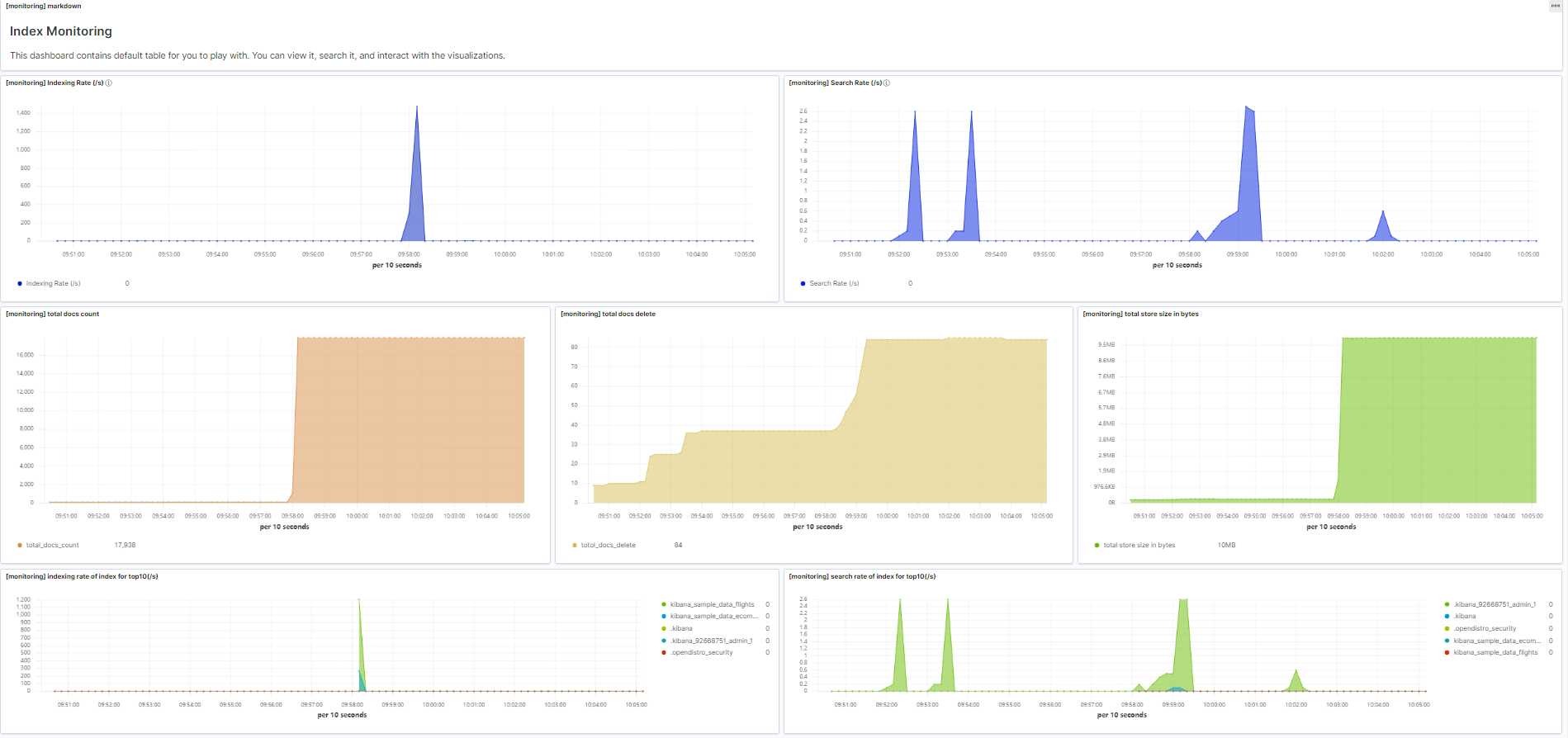
Table 4 Preconfigured charts Chart Name
Description
[monitoring] markdown
Markdown chart, which briefly describes the dashboard content.
[monitoring] Indexing Rate (/s)
Number of documents written to a cluster per second.
[monitoring] Search Rate (/s)
Average number of queries per second in a cluster.
[monitoring] indexing rate of index for top10
Top 10 indexes with the most documents written per second.
[monitoring] search rate of index for top10
Top 10 indexes with the most queries per second.
[monitoring] total docs count
Total number of documents in a cluster.
[monitoring] total docs delete
Total number of deleted documents in a cluster.
[monitoring] total store size in bytes
Total storage space occupied by documents in a cluster.
[monitoring] indices store_size for top10
Top 10 indexes that occupy the largest storage space.
[monitoring] indices docs_count for top10
Top 10 indexes that store the largest number of documents.
[monitoring] indexing time in millis of index for top10(ms)
Top 10 indexes with the longest document write latency in a unit time (ms).
[monitoring] search query time in millis of index for top10(ms)
Top 10 indexes with the longest index query time in a unit time (ms).
[monitoring] segment count of index for top10
Top 10 indexes with the largest number of index segments.
[monitoring] segment memory in bytes of index for top10
Top 10 indexes with the largest heap memory usage of index segments.
- Check index monitoring results in custom visualizations.
The following procedure describes how to create a custom visualization to monitor the changes in the document counts of indexes.
- Click Visualize in the upper-left menu of the OpenSearch Dashboards console.
- Click Create visualization and select TSVB.
- Set the chart parameters.
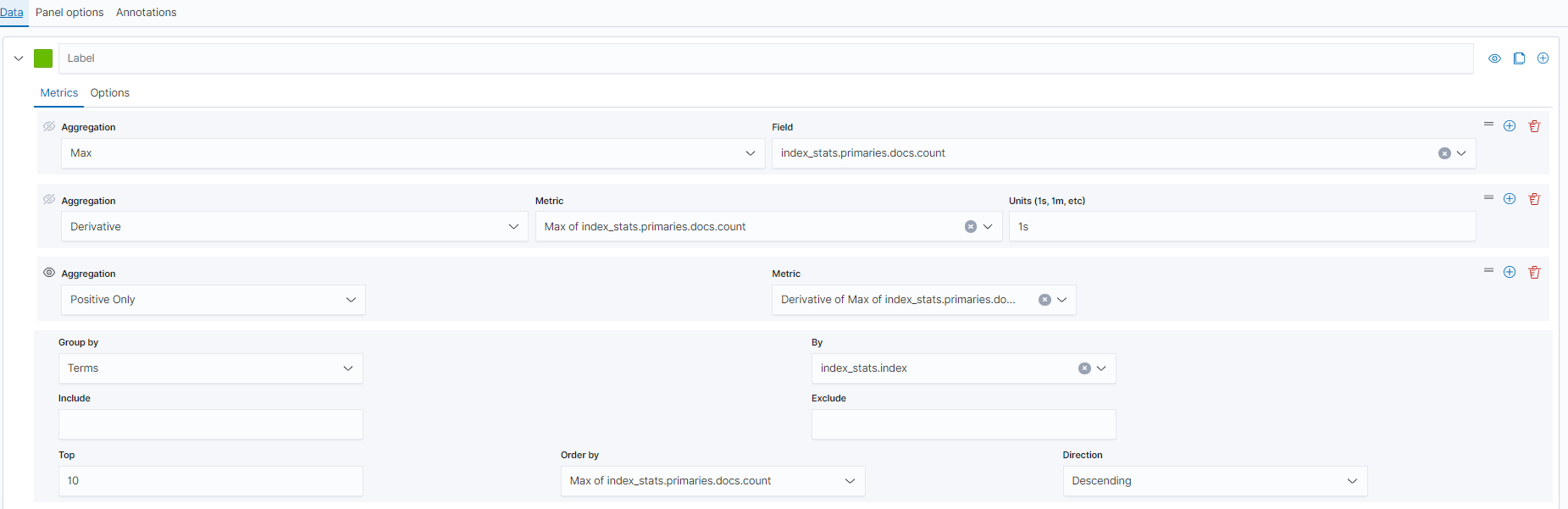
On the Data tab of the page shown in Figure 2, set the parameters as needed.
- Select Max for Aggregation, and select index_stats.primaries.docs.count in Field, indicating the number of documents in a primary shard.
- Select Derivative from Aggregation to indicate differences between aggregation buckets. Set Units to 1s to visualize network rates as "per second".
- Set Aggregation to Positive Only to prevent negative numbers after resetting.
- To show statistics by index, set Group by to Terms and By to index_stats.index. Statistics will be grouped by index name.
To view data in different time segments, set the aggregation interval, or the displayed data will be incomplete. On the page shown in Figure 3, select the Panel options tab, and set Interval to 1m or 30m to adjust the granularity of timestamp.

FAQ: What Do I Do If Index Monitoring Charts Are Not Displayed?
Symptom: The cluster's preset dashboards and visualizations are not displayed.
Solution:
- In the cluster list, check whether the security mode is enabled for the cluster. Figure 4 Checking whether the security mode is enabled

- If Security Mode is Enabled, switch to the Global space.
On OpenSearch Dashboards, click the username in the upper right corner and choose Switch tenants. On the Select your tenant page, switch the space and click Confirm. Then, check whether the charts are now displayed properly. If they are still not, go to the next step.
- If Security Mode is Disabled, go to the next step.
- If Security Mode is Enabled, switch to the Global space.
- In the cluster list, check whether the image version of the cluster is 2.19.0_25.9.0_xxx or later.
- If the cluster image version is 2.19.0_25.9.0_xxx or later, go to the next step to restart index monitoring.
- If the cluster image version is earlier than 2.19.0_25.9.0_xxx, restart all cluster nodes and then restart index monitoring. For details, see Restarting a Cluster.
- Restart index monitoring. Set css.monitoring.index.enabled to false and then to true. Wait for approximately 5 minutes. The index monitoring charts will be automatically displayed.
PUT _cluster/settings
{
  "persistent": {
    "css.monitoring.index.enabled": "true"
  }
}
If the problem persists, contact technical support.
What is your overall rating for this page?
Thank you very much for your feedback. We will continue working to improve the documentation.See the reply and handling status in My Cloud VOC.
For any further questions, feel free to contact us through the chatbot.
Chatbot


