

Help Center/
Data Replication Service/
Real-Time Synchronization/
Task Management/
Task Life Cycle/
Importing Tasks in Batches
Updated on 2025-12-12 GMT+08:00
Importing Tasks in Batches
DRS allows you to import an Excel file to create synchronization tasks in batches. You need to fill in a template with basic task information, source and destination database information, and objects to be synchronized, and then import the template.
Constraints
- Only synchronization tasks with the following DB engines are supported: from PostgreSQL to PostgreSQL (to-the-cloud and out-of-the-cloud), MySQL to MySQL (to-the-cloud and out-of-the-cloud), and MySQL to TaurusDB (to-the-cloud). Two-way synchronization from MySQL to MySQL is not supported.
- When specifying the source and destination databases, you can set only mandatory parameters. You need to ensure that the subnets of the source and destination databases can communicate with each other.
- The import template is designed based on the API and GUI information. You need to set the parameters based on the description and ensure the parameter accuracy.
- After the import template is uploaded, the system applies for creating DRS instances. Some parameters cannot be modified. Exercise caution when performing this operation.
- After the import template is uploaded, the system automatically saves all parameters for the task and performs steps such as connection test, object selection, and pre-check. After the pre-check is successful, the task is in the Configuration state. You can click Start Now to start the task.
- You cannot configure the scheduled start time in the template for tasks created by importing a template.
- If the pre-check of a task created by importing a template fails, you can click the hyperlink to go to the pre-check page. You cannot click Previous. You can only perform the pre-check again or click Next. If the task fails in other phases or the configuration parameters of the created task need to be modified, you need to adjust the template based on the error information or use the latest configuration parameters to create a template and import the template again.
- For a task created by importing a template, if you edit the task again, the imported configuration information is not saved and the task can be started only by manually selecting configuration parameters on the page. Otherwise, you need to import the template again.
- If the billing mode is set to Yearly/Monthly in the imported template, fees will be automatically paid when you click Start Now. Ensure that you have a top-up account with a sufficient balance or have a valid payment method configured.
- If the billing mode is set to Yearly/Monthly in the exported template, the default value of Enable Auto-Renewal is reset to 0 (manual renewal).
Procedure
- On the Data Synchronization Management page, click Batch Import Tasks in the upper left corner.
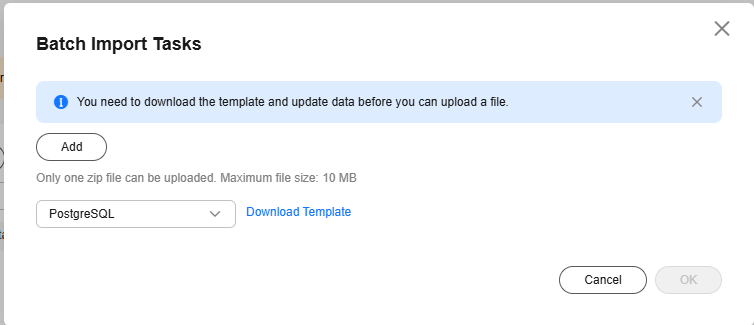
- On the Batch Import Tasks dialog box, click Download Template.
Figure 1 Batch Import Tasks
- Edit the downloaded Excel template and enter task information as required.
- Alternatively, select an existing task and click Export Template.
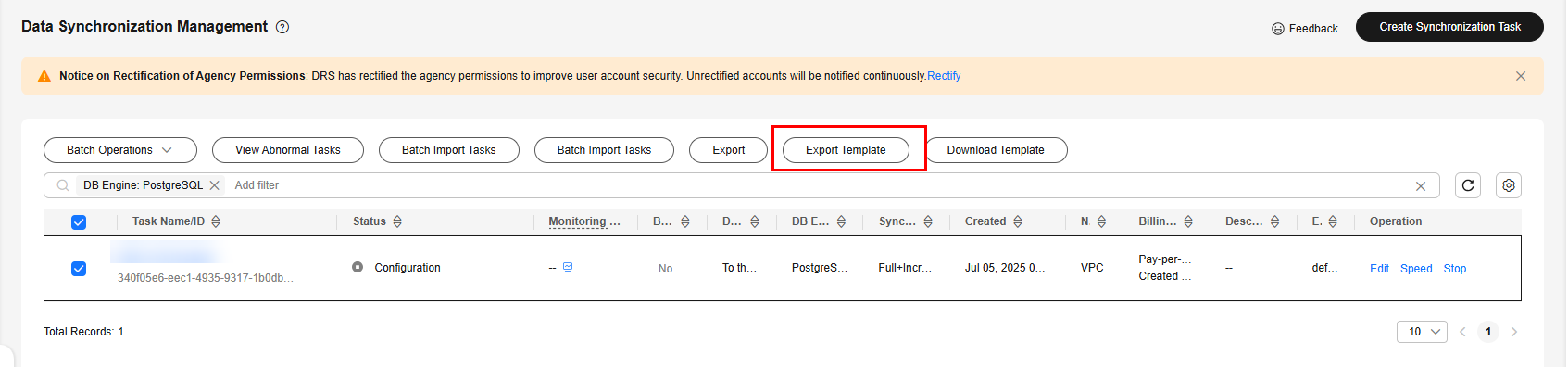
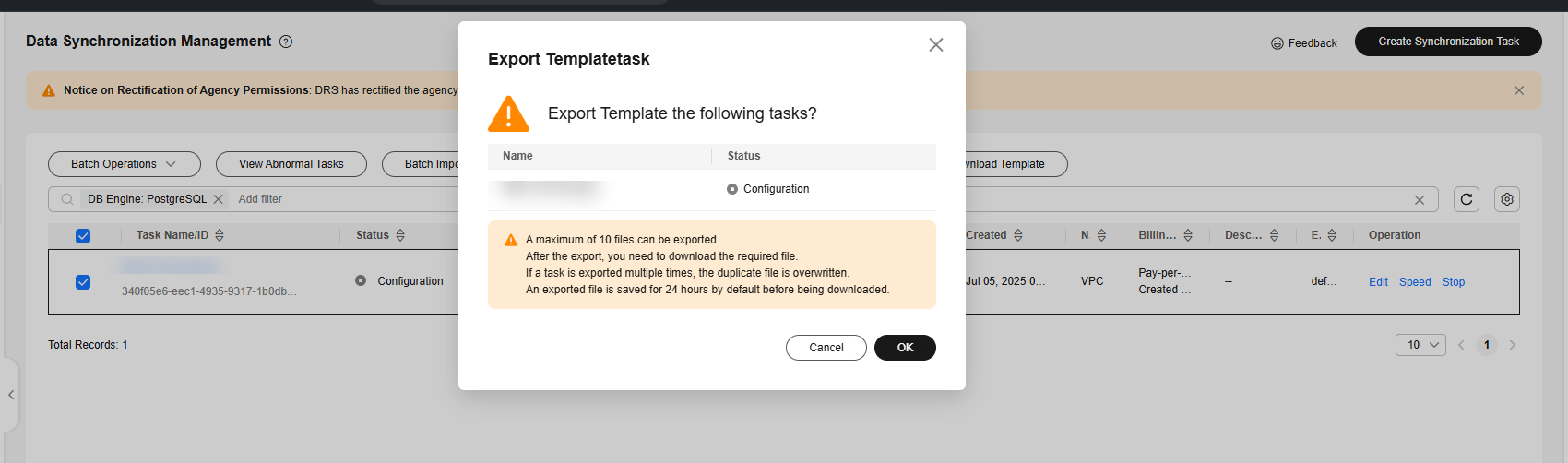
- In the task list, select the exported task and click Download Template.
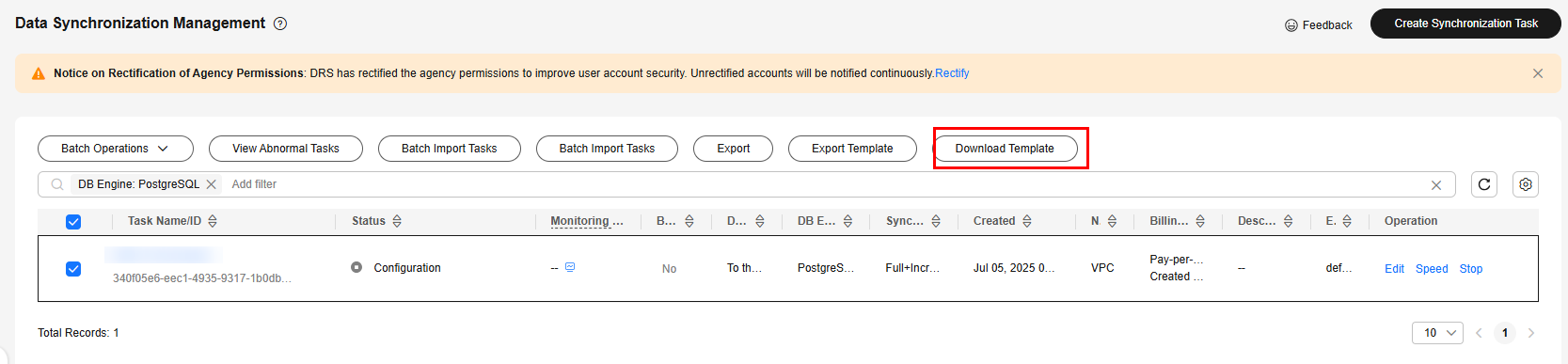
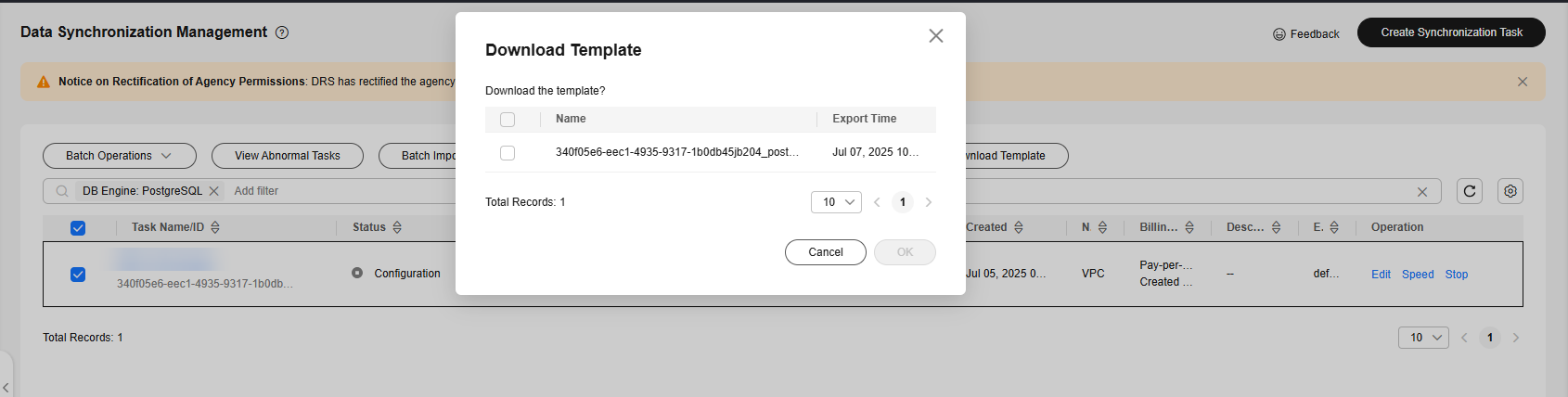
- Alternatively, select an existing task and click Export Template.
- Click Add to upload the template.
- After the upload and verification are successful, click Confirm to create tasks in batches.

- DRS does not save the uploaded Excel file and only parses the content in the file.
- The IP addresses, domain names, usernames, and passwords of the source and destination databases are encrypted and stored in the system until a task is deleted.
Parent topic: Task Life Cycle
Feedback
Was this page helpful?
Provide feedbackThank you very much for your feedback. We will continue working to improve the documentation.See the reply and handling status in My Cloud VOC.
The system is busy. Please try again later.
For any further questions, feel free to contact us through the chatbot.
Chatbot


