

Help Center/ GeminiDB/ GeminiDB DynamoDB-Compatible API/ Working with GeminiDB DynamoDB-Compatible API/ Instance Connection and Management/ Connection Information Management/ Changing the IP Address of a Load Balancer Connected to a GeminiDB DynamoDB-Compatible Instance
Updated on 2026-09-23 GMT+08:00
Changing the IP Address of a Load Balancer Connected to a GeminiDB DynamoDB-Compatible Instance
Scenarios
If the existing load balancer private IP address does not meet your current network planning or application connection requirements, you can change it for GeminiDB DynamoDB-Compatible instances on the console or by calling an API.
Usage Notes
- If no load balancer address is available, submit a service ticket on the console to contact the customer service.
- Changing the load balancer IP address will interrupt all client connections.
Procedure
- Log in to the GeminiDB console.
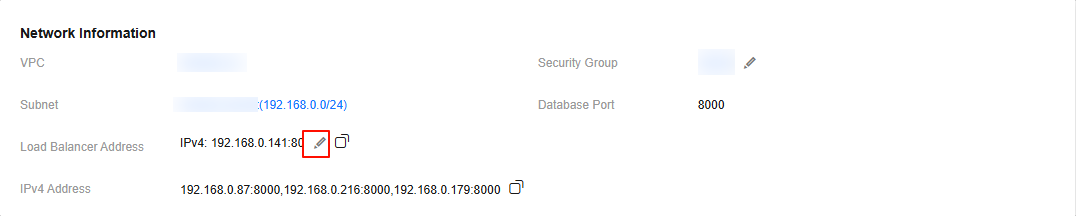
- In the Network Information area on the Basic Information page, click
 next to Load Balancer Address. Figure 1 Load balancer IP address
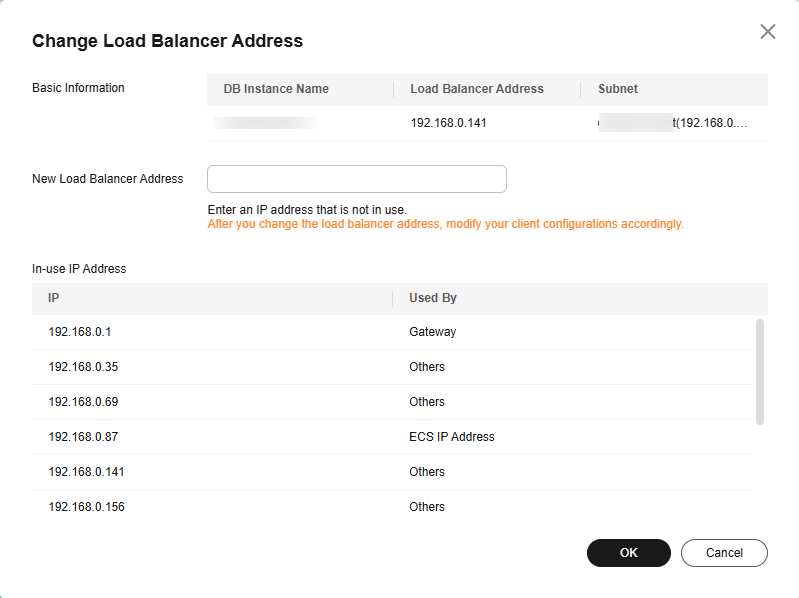
- Enter an unused IP address in the dialog box. Figure 2 Changing a load balancer address
- Check the result in the Network Information area on the Basic Information page.
What is your overall rating for this page?
0
1
2
3
4
5
6
7
8
9
10
Very dissatisfiedVery satisfied
Thank you very much for your feedback. We will continue working to improve the documentation.See the reply and handling status in My Cloud VOC.
The system is busy. Please try again later.
For any further questions, feel free to contact us through the chatbot.
Chatbot


