

Configuring HPA for Auto Scaling
Overview
CCI 2.0 allows you to configure HorizontalPodAutoscaler (HPA) to automatically scale Deployments.
HPA periodically scales Deployments to match observed metrics, such as average vCPU usage, average memory usage, or any custom metrics you specify.
Procedure
- Log in to the CCI 2.0 console.
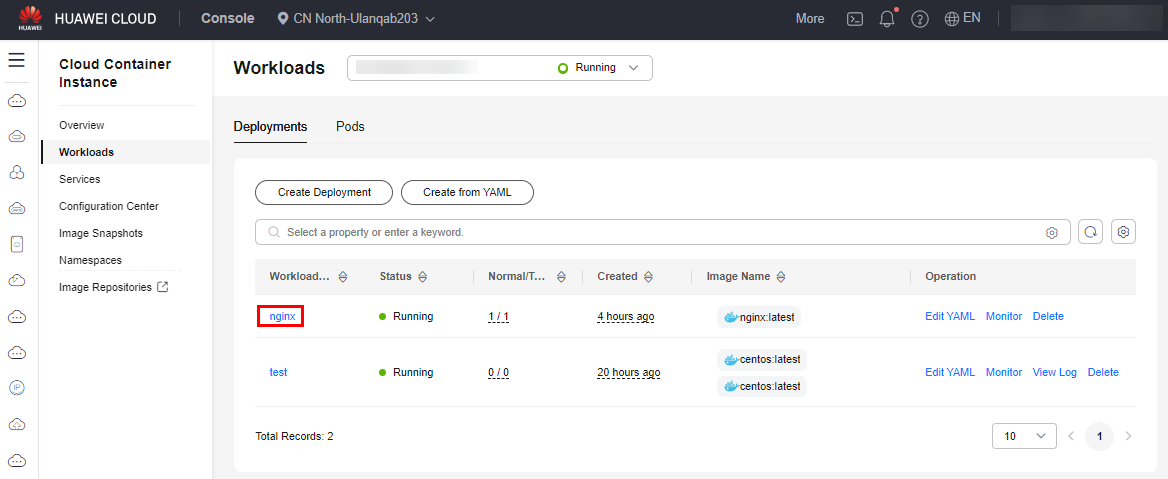
- In the navigation pane, choose Workloads. On the Deployments tab, click the name of a Deployment to go to the details page.
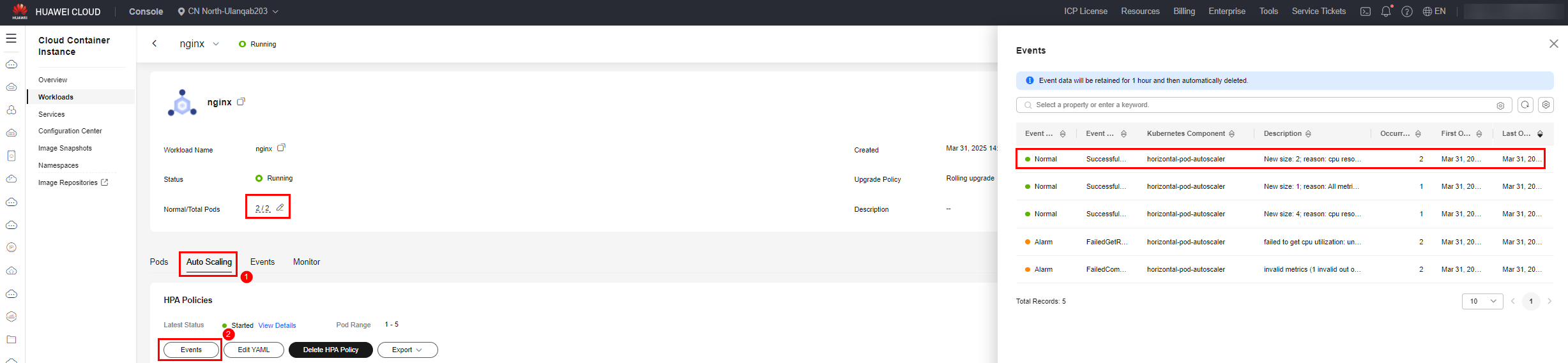
- Click the Auto Scaling tab.
- You can create an HPA policy using either of the following methods:
- Method 1: Create an HPA policy on the console.
- Click Create HPA Policy and supplement related information as prompted. For details about the parameters, see Table 1.
Table 1 Parameters for creating an HPA policy Parameter
Description
Name
Enter an HPA policy name.
Namespace
Select a namespace. If you need to create a namespace, click Create Namespace.
Workload
CCI automatically matches the associated workload.
Pod Range
Enter the maximum and minimum numbers of pods that can be scaled by HPA.
Scaling Behavior
- Default
Workloads will be scaled using the Kubernetes default behavior.
- Custom
Workloads will be scaled using custom policies such as the stabilization window, steps, and priorities. Unspecified parameters use the values recommended by Kubernetes.
System Policies
- Metric: the metric type that triggers auto scaling. You can select CPU usage or memory usage.
NOTE:Calculation method: Usage = Current CPU or memory usage by pods /Requested CPUs or memory
- Desired Value: the ideal resource utilization for the workload. This value serves as the baseline for calculating the desired number of pods using the formula: Round up (Current metric value/Desired value × Current number of pods).
Example: Assume that the current number of pods is 2 and the desired value is 50%. If the actual metric value increases to 85%, the system rounds up the value calculated using the formula (85%/50% × 2) = (3.4) to 4. In this case, the number of pods needs to be scaled out to 4.
- Tolerance Range: To prevent thrashing (frequent scaling caused by short-term metric fluctuations), a tolerance mechanism is applied. The default tolerance is 0.1 (10%).
- No-scaling range: If the actual metric value falls within [Desired value × (1 – Tolerance), Desired value × (1 + Tolerance)], no scaling action is triggered. The current state is considered acceptable.
- Example: If the desired value is 50% and the tolerance is 0.1, the no-scaling range is 45% to 55%. Scaling calculations are performed only when actual usage stays above 55% (scale-out) or below 45% (scale-in) continuously.
If the metric value remains between the scale-in and scale-out thresholds, no scaling action is taken. This parameter is available only in clusters v1.15 or later.
NOTICE:You can configure multiple system policies.
- Default
- Click Create HPA Policy and supplement related information as prompted. For details about the parameters, see Table 1.
- Method 2: Create an HPA policy using YAML.
- Click Create from YAML.

The following is an example YAML file for creating an HPA policy:
kind: HorizontalPodAutoscaler
apiVersion: cci/v2
metadata:
  name: alpha-test-hpa
  namespace: cci-test              # Namespace
spec:
  scaleTargetRef:
    kind: Deployment
    name: nginx
    apiVersion: cci/v2
  minReplicas: 1                   # Minimum number of replicas
  maxReplicas: 5                   # Maximum number of replicas
  metrics:
    - type: Resource
      resource:
        name: memory               # CPU or memory metrics
        target:
          type: Utilization        # Scaling type
          averageUtilization: 50   # Average resource usage that triggers scaling
    - type: Resource
      resource:
        name: cpu
        target:
          type: Utilization
          averageUtilization: 50
- Click Create from YAML.
- Method 1: Create an HPA policy on the console.
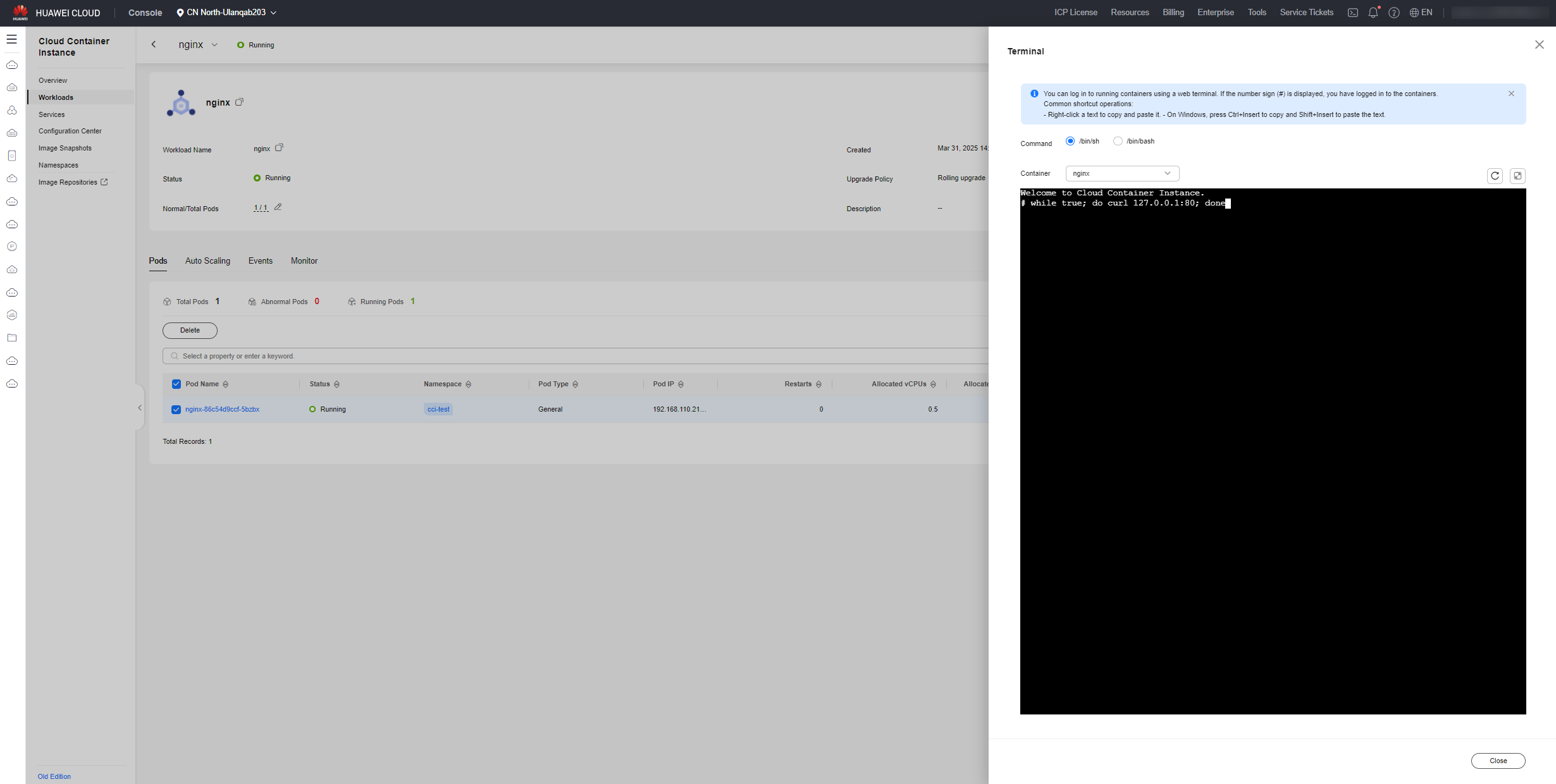
- On the workload details page, select a pod and click View Terminal. Then, run the following command:
while true; do curl 127.0.0.1:80; done
Wait until the HPA is triggered, the workload is scaled out, and an event is reported.
What is your overall rating for this page?
Thank you very much for your feedback. We will continue working to improve the documentation.See the reply and handling status in My Cloud VOC.
For any further questions, feel free to contact us through the chatbot.
Chatbot


