

Using Current Browser
Scenarios
DDS supports backup downloading, giving users greater control over their data. It allows you to manage the backup lifecycle independently while meeting enterprise-level requirements for disaster recovery, migration, and compliance. You can use a browser to download a manual or an automated backup to a local device for backup or restoration.
Precautions
- Cluster backup files cannot be downloaded using a browser.
- Backups downloaded from the DDS console are all full backups.
Procedure
- Log in to the management console.
- Click
 in the upper left corner and select a region and a project.
 - Click
 in the upper left corner of the page and choose Databases > Document Database Service.
 - In the navigation pane on the left, choose Backups.
- On the Backups page, click the Clusters, Replica Sets, or Single Nodes tab, locate the available backup you want to download and click Download in the Operation column.
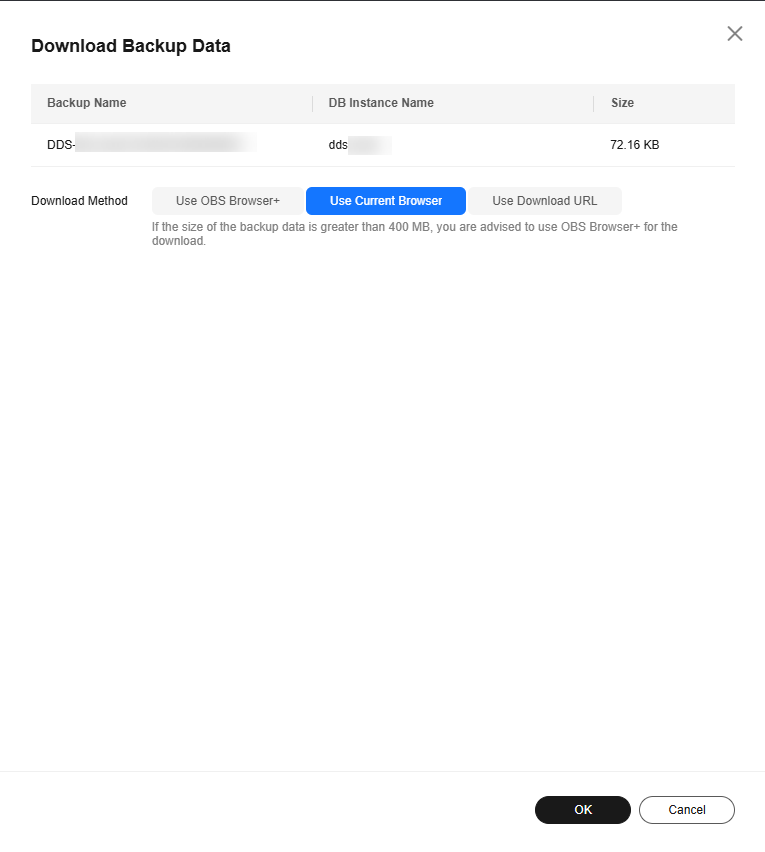
- In the displayed dialog box, select Use Current Browser for Download Method and click OK. Figure 1 Selecting a download method
- After the backup file is downloaded, decompress it using LZ4.
Run the following command to decompress the backup file:
lz4 -d $1 | tar -xC $2
$1: indicates the downloaded backup file.
$2: indicates the directory to which the backup file is decompressed.
- You can restore data locally as required. For details, see the following documentation.
Related APIs
| API | Description |
|---|---|
| Obtains the link for downloading a backup. | |
| Creates a backup download policy. | |
| Updates a backup download policy. | |
| Queries a backup download policy. |
What is your overall rating for this page?
Thank you very much for your feedback. We will continue working to improve the documentation.See the reply and handling status in My Cloud VOC.
For any further questions, feel free to contact us through the chatbot.
Chatbot


