

Analyzing Redis Backup Data Offline
The offline key analysis function on the DCS console allows you to analyze the distribution of big keys within the backup files of an instance or a specified node. It identifies the top 500 big keys by memory, top 500 big keys by quantity, top 500 key prefixes, top 500 never-expiring big keys by memory usage, and top 500 never-expiring big keys by quantity.

This function is disabled by default and is available with restrictions. To use it, submit a service ticket and contact the customer service.
Notes and Constraints
- DCS Redis 4.0 instances and later support offline key analysis.
- Currently, only RDB backup files can be analyzed.
- If any of the following operations is performed on an instance, the backup files generated before the operation cannot be analyzed:
- Instance scale-in/down
- Cluster instance scale-out
- Instance type change (excluding changing from master/standby to read/write splitting)
Procedure
- Log in to the DCS console.
- Click
 in the upper left corner of the console and select the region where your instance is located.
 - In the navigation pane, choose Cache Manager.
- Click a DCS instance name to go to the instance overview page.
- Choose Analysis and Diagnosis > Cache Analysis > Offline Key Analysis.
- Click Start Analysis and select an instance node. Figure 1 Selecting a node
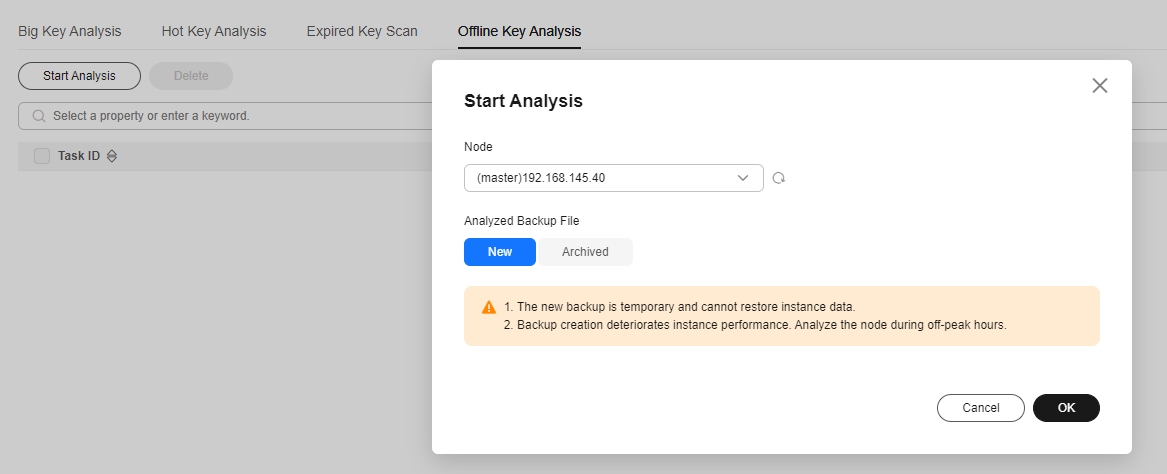 Figure 2 Selecting a node

- Set Analyzed Backup File to New or Archived.
- New: Create a new backup file for the selected node and analyze the file. (The file is used only for this data analysis and is not recorded in the backup records of Backing Up or Restoring Instance Data).
- Archived: Select a backup file from the historical backups of the instance for analysis. Only RDB backups are supported.
If you select the master node for analysis and set Analyzed Backup File to New, the backup process may degrade instance performance. It is best to schedule the analysis during off-peak hours or on a replica.
- Enter the delimiter for analyzing top key prefixes as needed. If you use the default delimiters (:;,_-+@=|#), you do not need to enter them manually.
- Click OK. When the analysis task is in the Successful state, the analysis is complete.
To download or delete an analysis task, click Download or Delete in the Operation column of the task. To batch delete analysis tasks, select the tasks and click Delete above the list.
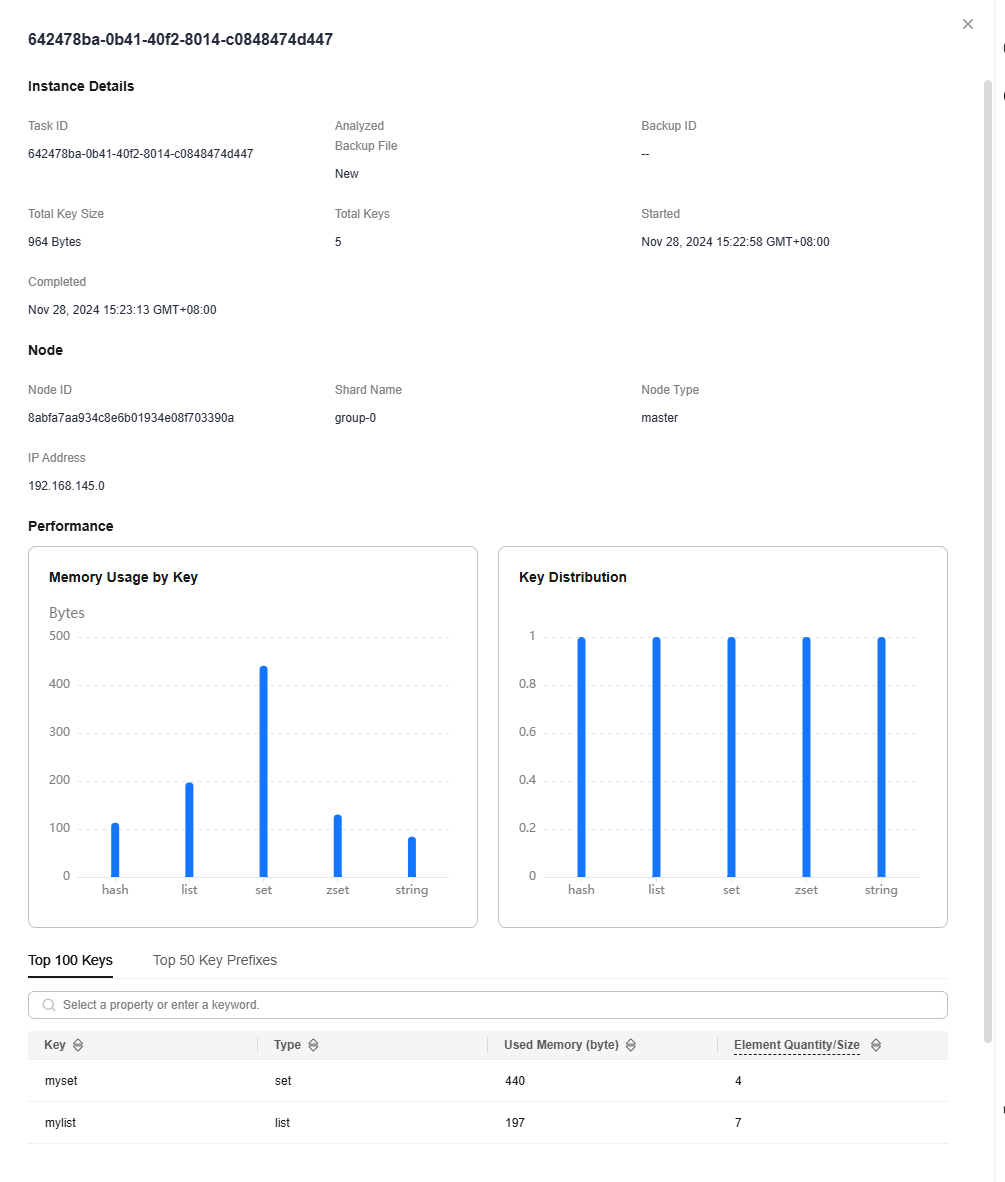
- Click the task ID to view the key analysis result.
The result provides basic information about the instance, node, and keys, as well as performance details on top 500 big keys by memory, top 500 big keys by quantity, top 500 key prefixes, top 500 never-expiring big keys by memory, and top 500 never-expiring big keys by quantity.
Figure 3 Key analysis result
What is your overall rating for this page?
Thank you very much for your feedback. We will continue working to improve the documentation.See the reply and handling status in My Cloud VOC.
For any further questions, feel free to contact us through the chatbot.
Chatbot


