

Help Center/ Customer Engagement Center/ User Guide/ Agent Guide/ Handling Multimedia Chat Businesses/ (WhatsApp) Inviting Another Agent to Join a Group Chat
Updated on 2025-11-07 GMT+08:00
(WhatsApp) Inviting Another Agent to Join a Group Chat
During a text chat with a customer, an agent can invite another agent to join the chat and chat with the customer together.
Prerequisites
- The tenant has an available WhatsApp channel.
- The agent is chatting with the customer.
- The invited multimedia agent or versatile agent has signed in and is not in a group chat.
Context
- Call transfer is not allowed.
- Group chats can be initiated only for online sessions.
- Currently, group chats can be initiated only through the WhatsApp channel.
- If multiple agents are invited to a group chat, only the last invited agent is recorded in the session. Each invited agent has a contact record. Messages are displayed based on the joining and leaving time.
- The call transfer, call reason, and case creation functions are not supported on the workbench page of an invited agent.
- The Agent Assistant card is not displayed on the workbench page of an invited agent.
Procedure
- Establish a session with the customer.
- Invite an agent to join the group chat.
- Click
 and then Invite Agent. The Invite Agent page is displayed. Figure 1 Page for inviting an agent

- Select an agent to be invited by clicking the agent information.
- Click Confirm to send the group chat invitation and wait for the invited agent to respond. Figure 3 Page of an invited agent
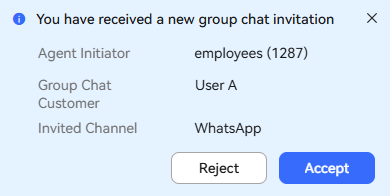
If the invited agent accepts the group chat invitation, the pages of the two agents are displayed as follows.
Figure 4 Page of an invited agent joining a group chat
 Figure 5 Page of an invited agent

If the invited agent rejects the group chat invitation, the page of the agent who sends the invitation is displayed as follows.
Figure 6 Page indicating that an invited agent rejects the group chat invitation

Click Ignore or Re-Invite.
- Click
 to enable the private message function if the invited agent joins the group chat. The two agents can chat in text mode, which is not perceived by the customer.
- Click
- Remove the invited agent.
- Click
 .
. 
- Click Kickout Agent and then the account of the invited agent to remove the agent.

The avatar of the removed agent is dimmed in the session list.
- Click

Parent topic: Handling Multimedia Chat Businesses
What is your overall rating for this page?
0
1
2
3
4
5
6
7
8
9
10
Very dissatisfiedVery satisfied
Thank you very much for your feedback. We will continue working to improve the documentation.See the reply and handling status in My Cloud VOC.
The system is busy. Please try again later.
For any further questions, feel free to contact us through the chatbot.
Chatbot


