

Assigning Permissions to an IAM User
IAM users created without being added to any groups do not have any permissions. The administrator can assign permissions to these IAM users on the IAM console. The IAM users can then use cloud resources as specified by their permissions.
You can assign permissions to IAM users in either of the following ways:
- User group: Add a user to one or more groups, and the user will inherit permissions from these groups.
- Identity policy: Attach one or more identity policies to a user, and the user will have the permissions defined in the identity policies.
Constraints
- You can add a user to a maximum of 10 user groups.
- By default, you can attach a maximum of 10 identity policies to an IAM user. To exceed this limit, submit a service ticket to apply for a quota increase. The quota can be increased to a maximum of 20 identity policies per user.
Assigning Permissions by User Group
- Click Authorize in the row that contains the target user. Figure 1 Authorizing an IAM user

- Select a permission configuration method. In this example, select User group for Assign By.
User group: Add a user to one or more groups, and the user will inherit permissions from these groups.
Select the user groups and add the user to these user groups.
- You can also create a new group and add the user to that group.
- If the user will be an administrator, add the user to the default group admin.
Figure 2 Selecting a configuration mode
- Select the user groups and click OK in the lower right corner.
After the authorization is complete, you can view and modify the permissions of the IAM user on the user details page.
If you add an IAM user to the default group admin, the user becomes an administrator and can perform all operations on all cloud services.
Assigning Permissions by Identity Policy
- Click Authorize in the row that contains the target user. Figure 3 Authorizing an IAM user

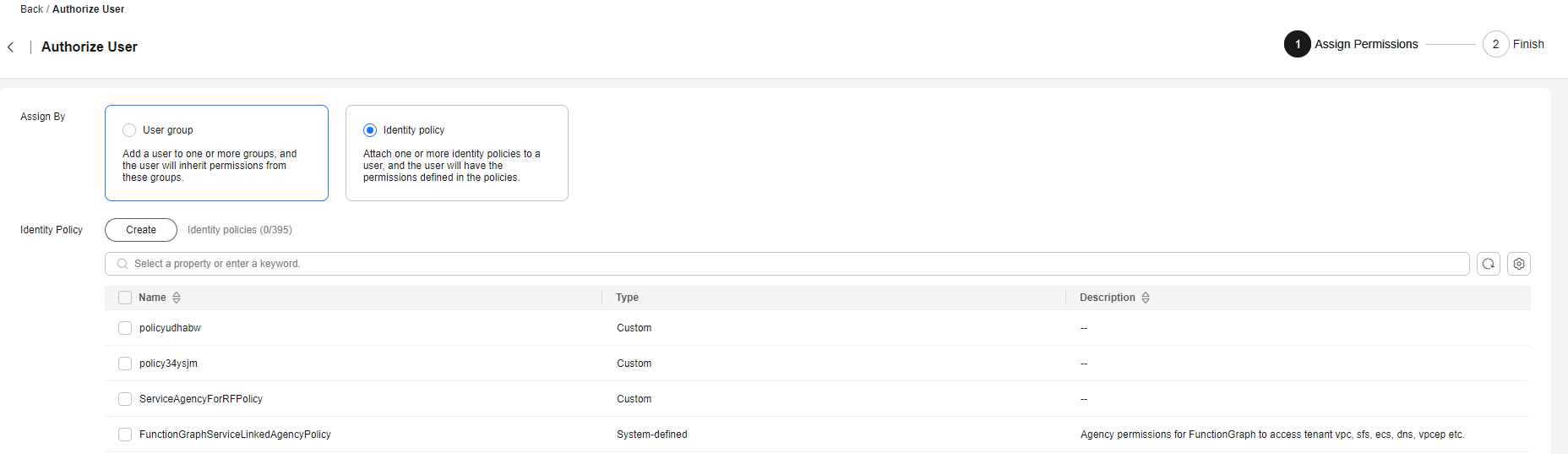
- (Optional) Select a permission configuration method. Select Identity policy for Assign By.
Identity policy: Attach one or more identity policies to a user, and the user will have the permissions defined in the identity policies. There are two types of identity policies:
- System-defined identity policies: Provided by IAM, these policies contain common actions for cloud services. For details about the supported cloud services, see System-defined Identity Policies.
- Custom identity policies: If system-defined identity policies do not meet your requirements, you can create custom identity policies and attach them to user groups for granular access control. Custom identity policies extend and supplement system-defined identity policies. To create a custom identity policy, click Create Custom Identity Policy.
Select the identity policies and attach them directly to the user.
Figure 4 Selecting a configuration mode

- Select the permissions to be assigned and click OK.
After the authorization is complete, you can view and modify the permissions of the IAM user on the user details page.
Due to caching and system latency, the identity policies may take a few minutes to take effect after authorization is complete.
What is your overall rating for this page?
Thank you very much for your feedback. We will continue working to improve the documentation.See the reply and handling status in My Cloud VOC.
For any further questions, feel free to contact us through the chatbot.
Chatbot


