

Custom Models
You can configure a JSON file to connect CodeArts Agent CLI to a third-party large language model.
Constraints
| Category | Description |
|---|---|
| API format | Only the OpenAI Chat Completions format and Anthropic Messages format are supported. |
| Calling tool | Custom models cannot be invoked in the Ask mode. They can be invoked only by built-in system agents, AgentTeam, and custom agents. |
| Credit consumption/Token consumption | When you call custom models, credits or tokens from the CodeArts Agent package are not consumed. However, to minimize inference latency, the code generation function uses dedicated built-in models and does not support custom models. |
| Uniqueness | The provider and model ID combination of each model you add must be unique. |
Prerequisites
- Your account has been added as an enterprise member and assigned a seat.
- If you are using CodeArts Agent professional edition, ensure that the enterprise administrator has enabled model customization for members on the console. For details, see Configuring Custom Models.
Custom Model Configuration
CodeArts Agent CLI allows you to manage custom models using a configuration file. You cannot create, modify, or delete custom models using commands. All configurations must be edited manually in the file.
The configuration file for custom models is codearts_cli.json, which is stored in ~/.codeartsdoer/. The tilde (~) indicates the home directory of the current user. In Windows, it is equivalent to C:\Users\Username\. In macOS, it is equivalent to /Users/Username/. In Linux, it is equivalent to /home/Username/. The following uses Windows as an example.
In the configuration file, provider serves as the top-level key. Each provider ID corresponds to a configuration block.
The complete structure of the custom configuration file is as follows:
{
  "provider": {
    "<Provider ID>": {
      "name": "<Provider name>",
      "npm": "<SDK package name>",
      "api": "<Provider API URL>",
      "env": ["<Environment variable name>", ...],
      "whitelist": ["<Model ID>", ...],
      "blacklist": ["<Model ID>", ...],
      "options": {
        "apiKey": "<API key>",
        "baseURL": "<Base API URL>",
        "useFullUrl": false,
        "enterpriseUrl": "<Enterprise edition URL>",
        "setCacheKey": true,
        "timeout": 300000,
        "chunkTimeout": 60000
      },
      "models": {
        "<Model ID>": {
          "id": "<Model API ID>",
          "name": "<Displayed name>",
          "family": "<Model family>",
          "reasoning": true,
          "attachment": true,
          "temperature": true,
          "tool_call": true,
          "limit": { "context": 128000, "input": 120000, "output": 8000 },
          "cost": {
            "input": 3.0,
            "output": 15.0,
            "cache_read": 0.5,
            "cache_write": 2.0,
            "context_over_200k": {
              "input": 6.0,
              "output": 30.0,
              "cache_read": 1.0,
              "cache_write": 4.0
            }
          },
          "modalities": {
            "input": ["text", "image", "pdf"],
            "output": ["text"]
          },
          "headers": { "X-Custom-Header": "value" },
          "provider": { "npm": "<SDK package name>", "api": "<API URL>" },
          "variants": { ... }
        }
      }
    }
  }
} 
apiKey is your core asset. Do not disclose it. After you configure apiKey and restart the TUI or CLI, apiKey will be automatically encrypted. The ciphertext apiKey will then be displayed in the configuration file.
The provider ID is a top-level key in the configuration file and is used to identify the model source. Table 2 lists common provider IDs. You can also use any custom string (for example, my-server) as the provider ID, as long as the corresponding model supports OpenAI-compatible API formats.
| Provider ID | Description |
|---|---|
| openai | OpenAI |
| deepseek | DeepSeek |
| glm | glm |
| kimi | kimi |
| Field | Type | Mandatory | Description |
|---|---|---|---|
| provider.<Provider ID>.name | String | No | Displayed name of the provider. The default value is the provider ID. |
| provider.<Provider ID>.npm | String | No | SDK package name. The default value is @ai-sdk/openai-compatible. |
| provider.<Provider ID>.api | String | No | API URL of the provider. It is similar to options.baseURL. |
| provider.<Provider ID>.env | String array | No | List of environment variable names. CodeArts Agent CLI reads these environment variables in sequence and uses them to roll back the API key. |
| provider.<Provider ID>.whitelist | String array | No | Model whitelist. Only models in the list will be loaded. (This list can be used to filter out unnecessary models for built-in providers.) |
| provider.<Provider ID>.blacklist | String array | No | Model blacklist. Models in the list will not be loaded. |
| provider.<Provider ID>.options.apiKey | String | Yes | API key. When loaded for the first time, the plaintext key is automatically encrypted in enc:v1: format and written back to the configuration file. |
| provider.<Provider ID>.options.baseURL | String | Yes | Base URL of the API, for example, https://your-server.com/v1 |
| provider.<Provider ID>.options.useFullUrl | Boolean | No | Controls whether the system automatically completes the base URL. The default is false.
|
| provider.<Provider ID>.options.enterpriseUrl | String | No | GitHub Enterprise URL, which is only used for the authentication of Copilot providers' enterprise editions |
| provider.<Provider ID>.options.setCacheKey | Boolean | No | Whether to enable promptCacheKey. The default value is false. |
| provider.<Provider ID>.options.timeout | Number or false | No | Request timeout interval, in milliseconds. The default value is 300,000 (5 minutes). If this parameter is set to false, timeout is disabled. |
| provider.<Provider ID>.options.chunkTimeout | Number | No | Timeout interval between blocks in an SSE streaming response, in milliseconds. If no new data block is received within this period, the request is interrupted. |
| provider.<Provider ID>.options.* | Any type | No | Options support any additional fields (catchall). The SDK implementation of the provider may read these custom options. |
| provider.<Provider ID>.models.<Model ID>.id | String | No | API identifier of the model (model ID sent to the provider). By default, it is the configuration key name. |
| provider.<Provider ID>.models.<Model ID>.name | String | No | Model name displayed on the CodeArts Agent CLI client. By default, it is the configuration key name. |
| provider.<Provider ID>.models.<Model ID>.family | String | No | Model family name (such as gpt and claude), which is used for grouping models |
| provider.<Provider ID>.models.<Model ID>.reasoning | Boolean | No | Whether reasoning and thinking capabilities are supported |
| provider.<Provider ID>.models.<Model ID>.attachment | Boolean | No | Whether attachments such as images and PDF files can be uploaded |
| provider.<Provider ID>.models.<Model ID>.temperature | Boolean | No | Whether the temperature can be adjusted |
| provider.<Provider ID>.models.<Model ID>.tool_call | Boolean | No | Whether tools or functions can be called. The default value is true. |
| provider.<Provider ID>.models.<Model ID>.limit.context | Number | No | Maximum context window size (token) |
| provider.<Provider ID>.models.<Model ID>.limit.input | Number | No | Maximum number of input tokens |
| provider.<Provider ID>.models.<Model ID>.limit.output | Number | No | Maximum number of output tokens |
| provider.<Provider ID>.models.<Model ID>.cost.input | Number | No | Unit price of input tokens (price per million tokens) |
| provider.<Provider ID>.models.<Model ID>.cost.output | Number | No | Unit price of output tokens |
| provider.<Provider ID>.models.<Model ID>.cost.cache_read | Number | No | Unit price of cache reading |
| provider.<Provider ID>.models.<Model ID>.cost.cache_write | Number | No | Unit price of cache writing |
| provider.<Provider ID>.models.<Model ID>.cost.context_over_200k | Object | No | Alternative prices when the context has over 200K tokens, including input, output, cache_read, and cache_write |
| provider.<Provider ID>.models.<Model ID>.modalities.input | String array | No | Supported input modalities, including text, audio, image, video, and pdf |
| provider.<Provider ID>.models.<Model ID>.modalities.output | String array | No | Supported output modalities, including text, audio, image, video, and pdf |
| provider.<Provider ID>.models.<Model ID>.headers | String of key-value objects | No | Custom HTTP request header, which is sent with the model request |
| provider.<Provider ID>.models.<Model ID>.provider.npm | String | No | Name of the SDK package used by the model, which overwrites the default value from the provider |
| provider.<Provider ID>.models.<Model ID>.provider.api | String | No | API URL of the model, which overwrites the default value from the provider |
| provider.<Provider ID>.models.<Model ID>.variants | Key-value object | No | Variants |
If you have configured a custom model in another tool (such as CodeArts Agent IDE or Visual Studio Code), you can copy the existing configuration file into CodeArts Agent CLI to quickly reuse your setup.
- Obtain the existing model configuration file codearts.json.
- CodeArts Agent IDE: %USERPROFILE%\.codeartsdoer\codearts-data
- Visual Studio Code: %USERPROFILE%\.codeartsdoer\vscode-data
- JetBrains (PyCharm/IntelliJ IDEA/WebStorm/CLion): %USERPROFILE%\.codeartsdoer\IntelliJIDEA2025.3.4 (Replace IntelliJIDEA2025.3.4 with your IDE version directory.)
- Configure the model file in CodeArts Agent CLI.
- Go to %USERPROFILE%/.codeartsdoer and find and open the codearts_cli.json configuration file.
- Copy the provider field from your codearts.json file obtained in 1 into the codearts_cli.json file, save the file, and exit.
{
  "$schema": "https://opencode.ai/config.json",
  "lsp": false,
  "provider": {
    "MaaS": {
      "name": "MaaS",
      "npm": "@ai-sdk/openai-compatible",
      "options": {
        "apiKey": "enc:v3:aPrf8u1f5M******FdrnKFvwfQu1pcAJgg3r/3q2Vdz",
        "baseURL": "https://api.modelarts-maas.com/v2",
        "glm-5.2": {
          "sourceType": "provider",
          "providerType": "MaaS",
          "provider": "Huawei Cloud MaaS",
          "modelId": "glm-5.2",
          "modelName": "GLM5.2",
          "modelType": "textConversation",
          "modelDesc": "A next-generation flagship model designed for long-horizon tasks, providing stable delivery on complex projects",
          "displayEnabled": true,
          "isCustomModel": true,
          "maxTokens": 0,
          "truncateLength": 0,
          "inputLength": 0,
          "inputContextWindow": 184000,
          "outputContextWindow": 16000,
          "contextWindow": 200000,
          "createdAt": "2026-09-02T02:50:01.197Z",
          "updatedAt": "2026-09-02T02:50:01.197Z"
        }
      },
      "models": {
        "glm-5.2": {
          "id": "glm-5.2",
          "limit": {
            "context": 200000,
            "output": 16000
          }
        }
      }
    }
  }
}
- Check whether the custom model has been added.
- In the CLI, run the following command. If the added model appears in the output list, it has been successfully added.
codearts models
Figure 1 Added models displayed in the model list

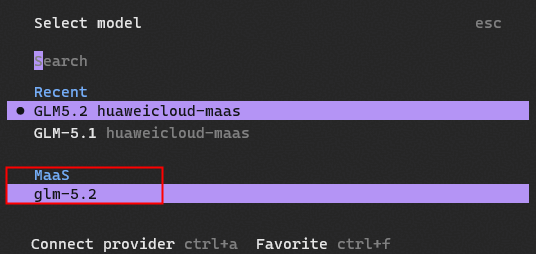
- In the TUI, type the following slash command to open the model selection menu. If the added model appears, it has been successfully added.
/models
Figure 2 Added models displayed during model selection
- In the CLI, run the following command. If the added model appears in the output list, it has been successfully added.
Custom Model Configuration Example
The following steps describe how to customize a model with the minimum configuration in Windows by setting the provider ID, API key, and model.
- Go to %USERPROFILE%/.codeartsdoer and find and open the codearts_cli.json configuration file.
- Add the provider block to the codearts_cli.json file, save the file, and exit.
{
  "$schema": "https://opencode.ai/config.json",
  "provider": {
    "deepseek": {
      "options": {
        "apiKey": "sk-***",
        "baseURL": "https://api.deepseek.com/v1"
      },
      "models": {
        "deepseek-chat": {
          "name": "DeepSeek Chat"
        },
        "deepseek-reasoner": {
          "name": "DeepSeek Reasoner",
          "reasoning": true
        }
      }
    }
  },
  "mcp": {},
  "lsp": false
}
You need to purchase an API key from the DeepSeek official website and then set apiKey.
- Check whether the custom model has been added.
- In the CLI, run the following command. If the added custom model appears in the output list, it has been successfully added.
codearts models
- In the TUI, type the following slash command to open the model selection menu. If the added model appears, it has been successfully added.
/models
- In the CLI, run the following command. If the added custom model appears in the output list, it has been successfully added.
Specifying the Model to Run
In CodeArts Agent CLI, you can specify a model to run your task. In the following command, provider indicates the model provider, and model indicates the model name.
- TUI development environment
- When starting TUI, specify a model using the startup parameter.
codearts --model provider/model
You can also use a short parameter.
codearts -m provider/model
- After entering TUI, run the /models command to switch models at any time.
- When starting TUI, specify a model using the startup parameter.
- CLI development environment
codearts run --model provider/model "your prompt"
What is your overall rating for this page?
Thank you very much for your feedback. We will continue working to improve the documentation.See the reply and handling status in My Cloud VOC.
For any further questions, feel free to contact us through the chatbot.
Chatbot


