

Configuring a Scheduling Policy
This section describes how you can schedule workloads to CCI 2.0 when needed.
You can use either of the following methods to schedule the workloads from a CCE cluster to CCI 2.0:
Constraints
- You can only use ScheduleProfile to manage a workload and schedule it to CCI 2.0 when native labels of the workload are matched by ScheduleProfile. For example, the labels added to a workload through ExtensionProfile cannot be matched by ScheduleProfile. For this reason, the workload cannot be scheduled by ScheduleProfile.
- For unscheduled pods, the ScheduleProfile can only be set to auto or localprefer. It cannot be set to enforce. If you want to set it to enforce, nodeSelector must be added to the pods. However, this field cannot be dynamically modified after the pods are created.
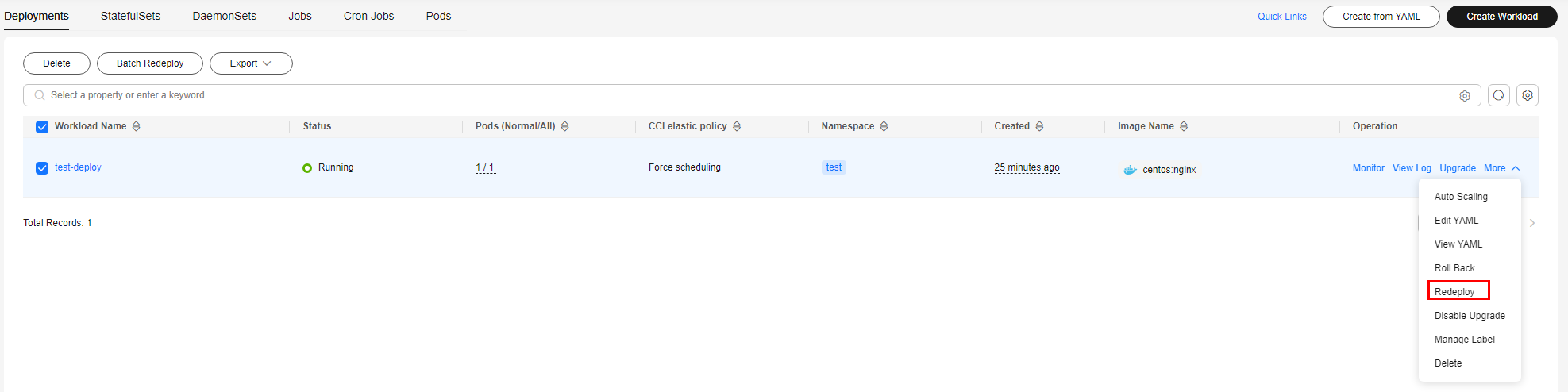
- You can use labels to control pod scheduling to CCI 2.0. You need to add a label before a workload is created. If you add a label to an existing workload, the pods for the workload will not be updated. In this case, you can select the workload and choose More > Redeploy for an update.
- Deviation of the localPrefer policy during a rolling update: If you configure a localPrefer policy in ScheduleProfiles and set local: maxNum, the actual number of local pods may exceed local: maxNum during Deployment rolling updates due to race conditions in the scheduling process. Restoration method: If the number of pods is different from the expected number, you can use either of the following methods to rectify the fault:
- Manual deletion: Manually delete the excess pods scheduled locally to trigger rescheduling.
- Re-update: Trigger a rolling update again.
Prerequisites
- Add-on version: The CCE Cloud Bursting Engine for CCI add-on has been installed. If you use ScheduleProfiles to control pod scheduling to CCI, the add-on version must be 1.3.19 or later.
- Cluster type: If ScheduleProfiles are used to control pod scheduling to CCI, only CCE standard and CCE Turbo clusters that use the VPC network model are supported.
Scheduling Policies
| Scheduling Policy | Policy Diagram | Application Scenario |
|---|---|---|
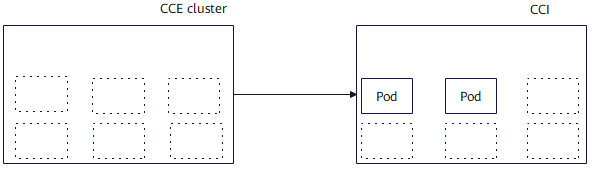
| Forced scheduling (enforce) |
| Workloads will be forcibly scheduled to CCI 2.0. |
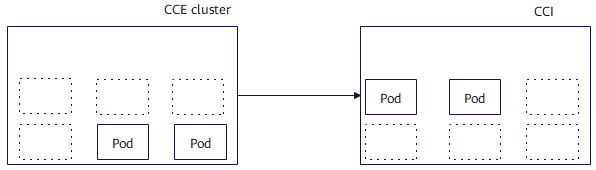
| Automatic scheduling (auto) |
| Workloads will be scheduled to the CCE cluster or CCI 2.0 based on the scoring results provided by the cluster scheduler. |
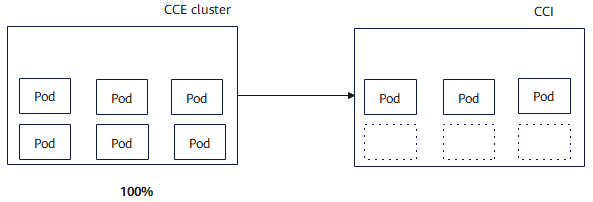
| Local priority scheduling (localPrefer) |
| Workloads will be preferentially scheduled to a CCE cluster. If cluster resources are insufficient, workloads are elastically scheduled to CCI 2.0. |
| Scheduling disabled (off) |
| Workloads will not be scheduled to CCI 2.0. |
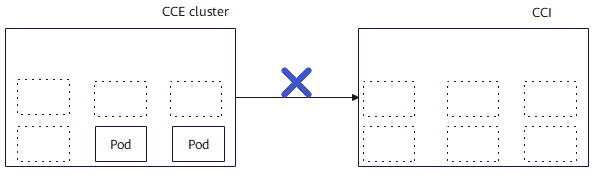
Special Scenarios
| Scenario | How to Schedule |
|---|---|
| Both a label and a ScheduleProfile are used to schedule the workloads to CCI 2.0. | The scheduling priority of the label is higher than that of the profile. For example, if the scheduling policy of the label is off and the scheduling policy of the ScheduleProfile is set to enforce, the workloads will not be scheduled to CCI 2.0.
|
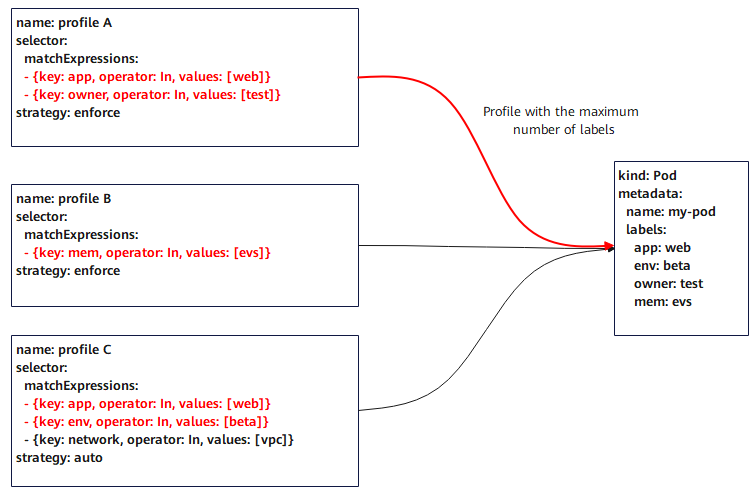
| There are multiple profiles specified for a pod. | A pod can only have one profile. If a pod has multiple profiles, the profile that can associate the maximum of labels is used. If there are multiple profiles that can associate an equal number of labels, the profile whose name has the smallest alphabetical order is used. In this figure, the pod is finally associated with profile A.
|
| Pods are scheduled to CCI due to a rolling upgrade | Symptom: A profile has been created and the maximum number of local pods (local: maxNum) has been configured for a Deployment. However, during the rolling upgrade of the Deployment, some pods are unexpectedly running in CCI. Cause: During the rolling upgrade of the Deployment, the system creates new pods based on the maxSurge value. As a result, the total number of pods reaches the peak value (replicas + maxSurge) in a short period of time. If the total number of pods exceeds the maximum number of local pods (local: maxNum) configured in the profile, the excess pods will be running in CCI. If you do not want these pods to run in CCI during the rolling upgrade, configure the parameters as needed. For details, see Allowing the Number of Pods in the Cluster to Exceed the Limit During a Rolling Upgrade. Note: If you want to strictly control the number of pods, properly plan the maxSurge value or the local resource limits. |
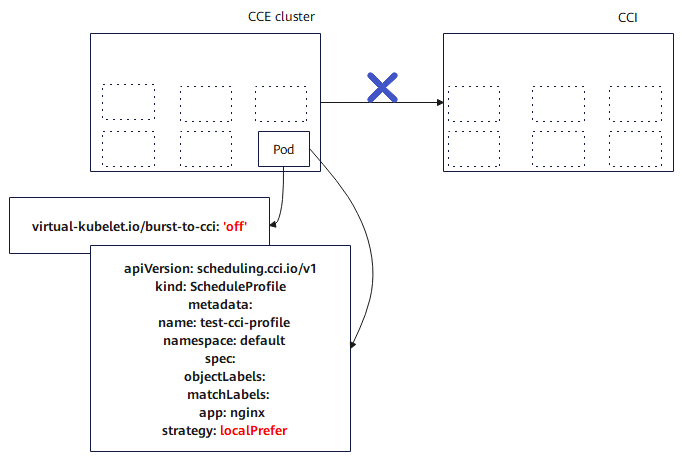
Method 1: Using a Label
You can configure a label to control pod scheduling to CCI using either the console or YAML.
- Log in to the CCE console.
- Click the cluster name to go to the Overview page.
- In the navigation pane, choose Workloads. On the displayed page, click Create Workload.
- In the Basic Info area, select any policy other than Disable scheduling.
- Priority scheduling: Pods will be preferentially scheduled to nodes in your CCE cluster. When the node resources are insufficient, pods will then be burst to CCI.
- Forced scheduling: All pods will be scheduled to CCI.
- Select the required CCI resource pool.
- CCI 2.0 (bursting-node): next-generation serverless resource pool
- CCI 1.0 (virtual-kubelet): existing serverless resource pool, which will be unavailable soon.

When creating a workload on the CCE console, you can select either CCI 2.0 (bursting-node) or CCI 1.0 (virtual-kubelet). If you use CCI 1.0, select CCI 1.0 (virtual-kubelet). If you use CCI 2.0, select CCI 2.0 (bursting-node).
- Create a workload on the CCE console by following the instructions in Creating a Workload. Click OK.
- Log in to the CCE console.
- Click the cluster name to go to the Overview page.
- In the navigation pane, choose Workloads. On the displayed page, click Create from YAML.
- Add the bursting.cci.io/burst-to-cci label to the YAML file of the workload.
apiVersion: apps/v1
kind: Deployment
metadata:
  name: test
  namespace: default
  labels:
    bursting.cci.io/burst-to-cci: 'auto'    # Schedules the workload to CCI.
spec:
  replicas: 2
  selector:
    matchLabels:
      app: test
  template:
    metadata:
      labels:
        app: test
    spec:
      containers:
        - image: 'nginx:perl'
          name: container-0
          resources:
            requests:
              cpu: 250m
              memory: 512Mi
            limits:
              cpu: 250m
              memory: 512Mi
          volumeMounts: []
      imagePullSecrets:
        - name: default-secret
Table 2 Key parameters Parameter
Type
Description
bursting.cci.io/burst-to-cci
String
Policy for automatically scheduling the workload from the CCE cluster to CCI. The options are as follows:- enforce: The workload is forcibly scheduled to CCI 2.0.
- auto: The workload will be scheduled to CCI 2.0 based on the scoring results provided by the cluster scheduler.
- localPrefer: The workload will be preferentially scheduled to a CCE cluster. If cluster resources are insufficient, the workload is elastically scheduled to CCI 2.0.
- off: The workload will not be scheduled to CCI 2.0.
- Click OK.
Method 2: Using a ScheduleProfile
You can configure ScheduleProfiles to control pod scheduling to CCI using either the console or YAML.
- Log in to the CCE console.
- Click the cluster name to go to the Overview page.
- In the navigation pane, choose Policies > CCI Scaling Policies.
- Click Create CCI Scaling Policy and configure the parameters.
Table 3 Parameters for creating a CCI scaling policy Parameter
Description
Policy Name
Enter a policy name.
Namespace
Select the namespace where the scheduling policy applies. You can select an existing namespace or create a namespace. For details, see Creating a Namespace.
Workload
Enter a key and value or reference a workload label.
Scheduling Policy
Select a scheduling policy.
- Priority scheduling: Pods will be preferentially scheduled to nodes in the current CCE cluster. When the node resources are insufficient, pods will be scheduled to CCI.
- Forced scheduling: All pods will be scheduled to CCI.
Scale To
- Local: Set the current CCE cluster.
- CCI: Set the maximum number of pods that can run on CCI.
Maximum Pods
Enter the maximum number of pods that can run in the CCE cluster or on CCI.
CCE Scale-in Priority
Value range: –100 to 100. A larger value indicates a higher priority.
CCI Scale-in Priority
Value range: –100 to 100. A larger value indicates a higher priority.
CCI Resource Pool
- CCI 2.0 (bursting-node): next-generation serverless resource pool
- CCI 1.0 (virtual-kubelet): existing serverless resource pool, which will be unavailable soon.
- Click OK.
- In the navigation pane, choose Workloads. Then click Create Workload. In Advanced Settings > Labels and Annotations, add a pod label. The key and value must be the same as those for the workload in 4. For other parameters, see Creating a Workload.
- Click Create Workload.
- Log in to the CCE console.
- Click the cluster name to go to the Overview page.
- In the navigation pane, choose Policies > CCI Scaling Policies.
- Click Create from YAML to create a ScheduleProfile. Example 1: Configure local: maxNum and scaleDownPriority to limit the maximum number of pods for the workloads that can be scheduled to the CCE cluster.
apiVersion: scheduling.cci.io/v2
kind: ScheduleProfile
metadata:
  name: test-local-profile
  namespace: default
spec:
  objectLabels:
    matchLabels:
      app: nginx
  strategy: localPrefer
  virtualNodes:
    - type: bursting-node
  location:
    local:
      maxNum: 20 # maxNum can be configured either for local or cci.
      scaleDownPriority: 2
    cci:
      scaleDownPriority: 10
Example 2: Configure cci: maxNum and scaleDownPriority to limit the maximum number of pods that are allowed to run in CCI.apiVersion: scheduling.cci.io/v2 kind: ScheduleProfile metadata: name: test-cci-profile namespace: default spec: objectLabels: matchLabels: app: nginx strategy: localPrefer virtualNodes: - type: bursting-node location: local: {} cci: maxNum: 20 # maxNum can be configured either for local or cci. scaleDownPriority: 10Table 4 Key parameters Parameter
Type
Description
strategy
String
Policy for automatically scheduling the workload from a CCE cluster to CCI 2.0. The options are as follows:- enforce: The workload is forcibly scheduled to CCI 2.0.
- auto: The workload is scheduled to CCI 2.0 based on the scoring results provided by the cluster scheduler.
- localPrefer: The workload will be preferentially scheduled to a CCE cluster. If cluster resources are insufficient, the workload is elastically scheduled to CCI 2.0.
maxNum
Integer
Maximum number of pods.
The value ranges from 0 to int32.
scaleDownPriority
Integer
Scale-in priority. The larger the value, the earlier the associated pods are removed.
The value ranges from -100 to 100.
This capability is implemented based on the Pod Deletion Cost mechanism of Kubernetes. The larger the value, the earlier the associated pods are removed. However, the scale-in sequence is not guaranteed due to the cluster status and scheduling mechanism.
- In the location field, configure the local field for CCE and cci for CCI to control the number of pods and scale-in priority.
- maxNum can be configured either for local or cci.
- Scale-in priority is optional. If it is not specified, the default value is set to nil.
- Click OK.
- Create a Deployment, use the selector to select the pods labeled with app: nginx, and associate the pods with the ScheduleProfile.
kind: Deployment apiVersion: apps/v1 metadata: name: nginx spec: replicas: 10 selector: matchLabels: app: nginx template: metadata: labels: app: nginx spec: containers: - name: container-1 image: nginx:latest imagePullPolicy: IfNotPresent resources: requests: cpu: 250m memory: 512Mi limits: cpu: 250m memory: 512Mi imagePullSecrets: - name: default-secret - Click OK.
What is your overall rating for this page?
Thank you very much for your feedback. We will continue working to improve the documentation.See the reply and handling status in My Cloud VOC.
For any further questions, feel free to contact us through the chatbot.
Chatbot


