

Configuring the YARN Permission Control
Scenarios
In the multi-tenant scenario in security mode, a cluster can be shared by multiple users simultaneously, allowing them to submit and run tasks concurrently. Users cannot see each other's data or activities. MRS provides a permission control mechanism to prevent users from accessing the task information of others.
For example, if user B logs in to the system and views the application list when the application submitted by user A is running, user B should not be able to view the application information of user A.
Impact
After the following parameters are enabled, the content returned by RESTful APIs and shell commands contains only the information that can be viewed by the calling user.
Configuring the Permission Control
- Log in to FusionInsight Manager.
For details about how to log in to FusionInsight Manager, see Accessing MRS Manager.
- Choose Cluster > Services > Yarn > Configurations > All Configurations.
- Search for the following parameters and change their values as required.
Table 1 Description Parameter
Description
Default Value
yarn.acl.enable
Whether to enable YARN permission control.
- true: Enable YARN permission verification.
- false: Disable YARN permission verification. In this case, any user can submit tasks and view task information on YARN, which poses security risks. Exercise caution when performing this operation.
true
yarn.webapp.filter-entity-list-by-user
Whether to enable the strict view of ResourceManager.
After this function is enabled, the user can view only the content that is accessible to the user.
- true: Enable the strict view for the ResourceManager. Once this feature is enabled, users can view only the content they are authorized to access.
To enable this function, set yarn.acl.enable to true as well.
- false: Disable the strict view verification of ResourceManager. In this case, the user can view jobs of other users, which poses security risks. Exercise caution when performing this operation.
true
- Choose Cluster > Services > Mapreduce, and click Configurations and then All Configurations.
- Search for the following parameters and change their values as required.
Table 2 Description Parameter
Description
Default Value
mapreduce.cluster.acls.enabled
Whether to enable the MR JobHistoryServer permission control.
This parameter is a client parameter and takes effect after permission control is enabled on the JobHistoryServer server.
- true: Enable the JobHistoryServer permission control.
- false: Disable the JobHistoryServer permission control. In this case, any user can perform operations on JobHistoryServer, which poses security risks. Exercise caution when disabling this function.
true
yarn.webapp.filter-entity-list-by-user
Whether to enable the strict view of MapReduce JobHistoryServer.
- true: Enable the strict view of MapReduce JobHistoryServer. After this function is enabled, the user can view only the content that is accessible to the user.
This parameter is a JobHistoryServer server parameter, indicating that permission control is enabled for JobHistoryServer. Whether to control permission on a specific application is determined by the client parameter mapreduce.cluster.acls.enabled.
- false: Disable the strict view verification of MapReduce JobHistoryServer. In this case, the user can view jobs of other users, which poses security risks. Exercise caution when performing this operation.
true
- Save the settings. Restart the expired service or instance for the configuration to take effect.
- Verify the configuration.
- Install the client. If the client has been installed, skip this step.
For example, if the installation directory is /opt/client. The client directory path used in the following steps is only an example. Replace it with your actual installation directory path.
For details about how to download and install the cluster client, see Installing an MRS Cluster Client.
- Log in to the node where the client is installed as the client installation user.
- Run the following command to go to the client installation directory:
cd /opt/client - Run the following command to configure environment variables:
source bigdata_env
- Authenticate the user. The user must have the YARN task operation permission, for example, user1. You are required to change the password upon the first authentication.
kinit user1 - Submit a YARN task as user user1. For example, run the following command to use the MapReduce sample program provided by Hadoop to calculate the value of Pi (π):
yarn jar HDFS/hadoop/share/hadoop/mapreduce/hadoop-mapreduce-examples-*.jar pi 1 20
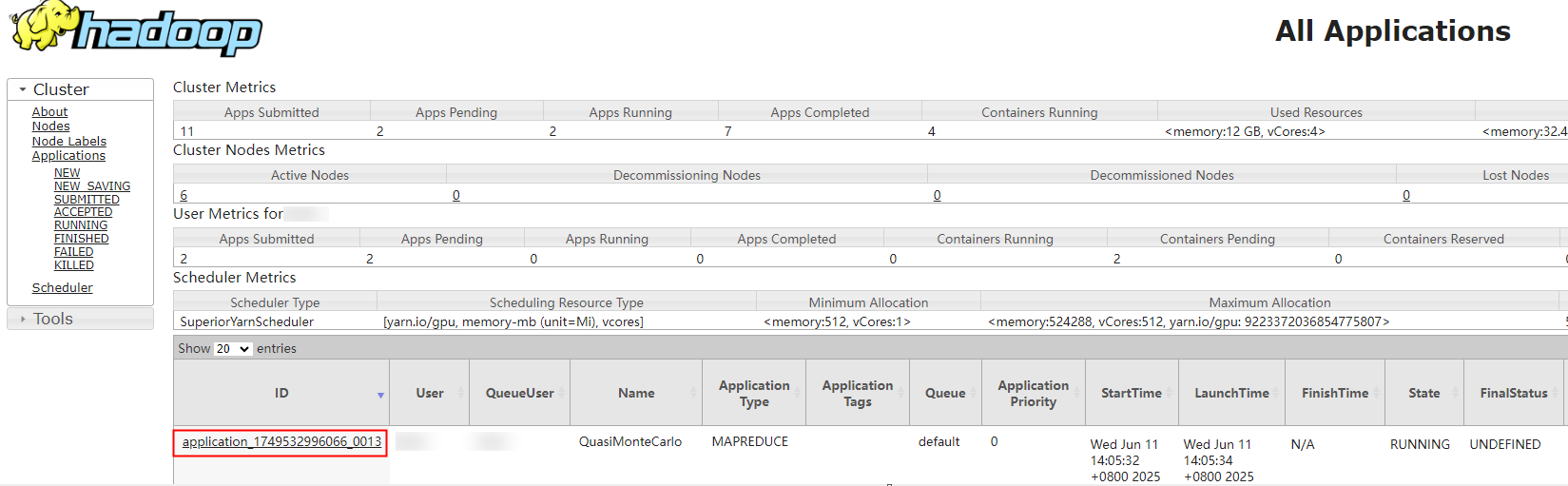
If the following information is displayed, the task is successfully submitted. Record the task ID, for example, application_1749532996066_0013.
Number of Maps  = 1
Samples per Map = 20
...
xxx,917 INFO mapreduce.Job: The url to track the job: https://server-2110082001-0018:26001/proxy/application_1749532996066_0013/
xxx,919 INFO mapreduce.Job: Running job: job_1749532996066_0013
- Log in to Manager as user user1, choose Cluster > Services > Yarn, and click ResourceManager(xxx,Active) to go to the YARN web UI.
Check the submitted Yarn task.
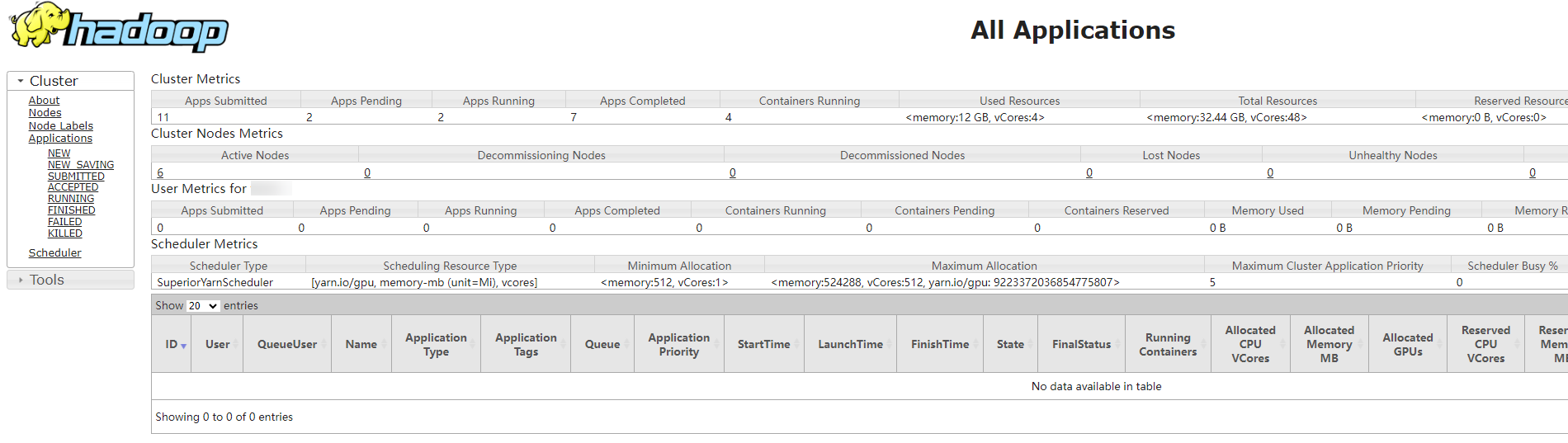
- Log in to Manager as user user2 (who does not have the permission to view Yarn tasks), choose Cluster > Services > Yarn, and click ResourceManager(xxx,Active) to go to the YARN web UI.
If the permission control function is enabled, the YARN task submitted by user user1 is not displayed on the YARN web UI.
- Install the client. If the client has been installed, skip this step.
What is your overall rating for this page?
Thank you very much for your feedback. We will continue working to improve the documentation.See the reply and handling status in My Cloud VOC.
For any further questions, feel free to contact us through the chatbot.
Chatbot


