

Managing General-Purpose File System Permissions
Overview
You can add authorization rules for a general-purpose file system to grant different permissions to different clients.
On the console, each new general-purpose file system has a default rule (Read/Write, no_root_squash, All IP addresses). This rule grants all client users read/write permissions to access the file system and does not map the root user to an unprivileged account. You can edit or delete this rule if needed.
Constraints
An IP address cannot be added to two authorization rules at the same time.
Authorized IP Addresses
You can configure authorized IP addresses using CIDR blocks.
A CIDR block uses a variable-length subnet mask to define how many bits of an IP address belong to the network.
A suffix value is added to the end of an IP address to form a CIDR block. This suffix indicates how many bits of the address are reserved for the network portion. For example, 192.1.1.0/24 is an IPv4 CIDR block where the first 24 bits (192.1.1) are the network address.
The authorization rule configured for 192.1.1.0 will be applied to any IP address whose first 24 bits are the same. 192.1.1.1 and 192.1.1.1/32 will be treated the same.
Types of Permissions
There are read/write permissions and user permissions.
| Permission | Description |
|---|---|
| Read/Write | Client users have the read/write permissions. |
| Read-only | Client users have the read-only permissions. |
| Permission | Description |
|---|---|
| no_root_squash | All client users (including root) access the file system as who they are, instead of being mapped to the nobody user. |
| all_squash | All client users access the file system as the nobody user. |
| root_squash | The root user accesses the file system as the nobody user. |
Adding Authorization Rules
You can add authorization rules on the console for permissions management.
- Log in to the SFS console.
- In the file system list, find the general-purpose file system you want to add authorization and click its name to go to its details page.
- On the Permissions Management tab, click Add Authorization Rule. Figure 1 Add Authorization Rule
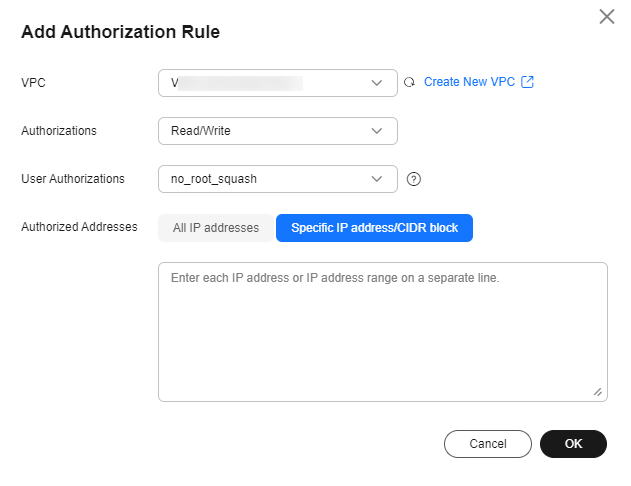
- On the displayed page, add authorization based on Table 3.
Table 3 Parameter description Parameter
Description
VPC
Select the VPC you want to add, for example, vpc-30e0. If no VPC is available, create one.
Authorizations
You can select Read/Write or Read-only. Read/Write is preselected.
User Authorizations
You can select no_root_squash, root_squash, or all_squash.
- no_root_squash allows the root user on the client to access the general-purpose file system as root.
- root_squash allows the root user on the client to access the general-purpose file system as the nobody user.
- all_squash allows any user on the client to access the general-purpose file system as the nobody user, and the user can modify and delete the file system.
Authorized Addresses
You can select All IP addresses or Specific IP address/CIDR block. All IP addresses is preselected.
- Enter a valid IPv4 address or range that is not starting with 0 except 0.0.0.0/0. If you add 0.0.0.0/0, any IP address within this VPC will be authorized to access the file system. Do not enter an IP address or IP address range starting with any number ranging from 224 to 255, for example 224.0.0.1 or 255.255.255.255, because class D and class E IP addresses are not supported. IP addresses starting with 127 are also not supported. If you enter an invalid IP address or IP address range, the rule may fail to be added, or the authorization will not work.
- If you enter an IP address range, enter it in the format of IP address/mask. For example, to specify 192.168.1.0-192.168.1.255, enter 192.168.1.0/24. Do not enter it in any other format, such as 192.168.1.0-255 or 192.168.1.0-192.168.1.255. The number of bits in a subnet mask must be an integer ranging from 0 to 31, and mask value 0 is only valid in 0.0.0.0/0.
- For details about IP address ranges, see Authorized IP Addresses.
NOTE:If you select Specific IP address/CIDR block, you can add multiple IP addresses or CIDR blocks. Enter each one on a separate line.
After the authorized addresses are added, you can click the number shown under Authorized Addresses in the permissions management list to check their information.
- Confirm the information and click OK.
Related Operations
You can click Edit in the Operation column of a rule to modify the read/write permission and user permission, or click Delete to delete a rule.
What is your overall rating for this page?
Thank you very much for your feedback. We will continue working to improve the documentation.See the reply and handling status in My Cloud VOC.
For any further questions, feel free to contact us through the chatbot.
Chatbot


