

Managing Alert Types
Scenarios
A data class is required for a playbook and workflow running for security orchestration and response. The playbook is triggered by data objects. A data object is the specific instance of a data class. Common data classes include alerts, incidents, indicators, and vulnerabilities.
This section describes how to manage alert types. The detailed operations are as follows:
- Viewing Alert Types: describes how to view existing alert types and their details. For details about built-in alert types, see Built-in Alert Types.
- Adding an Alert Type: describes how to add a custom alert type.
- Associating an Alert Type with a Layout: describes how to associate a custom alert type with an existing layout. By default, built-in alert types are associated with existing layouts. You cannot customize their associated layouts.
- Editing an Alert Type: describes how to edit a custom alert type. Currently, built-in alert types cannot be edited.
- Managing an Alert Type: describes how to enable, disable, and delete a custom alert type. Built-in alert types are enabled by default. You do not need to manually enable them. Currently, built-in alert types cannot be disabled or deleted. Currently, built-in alert types cannot be deleted.
Notes and Constraints
- By default, built-in alert types are associated with existing layouts. You cannot customize their associated layouts.
- Built-in alert types are enabled by default and cannot be edited, disabled, or deleted.
- After a customized alert type is added, the Type Name, Type ID, and Subtype ID parameters cannot be modified.
Viewing Alert Types
- Log in to the SecMaster console.
- Click
 in the upper left corner of the management console and select a region or project.
 - In the navigation pane on the left, choose Workspaces > Management. In the workspace list, click the name of the target workspace. Figure 1 Workspace management page

- In the navigation pane, choose . On the displayed page, click the Types tab. Figure 2 Types tab
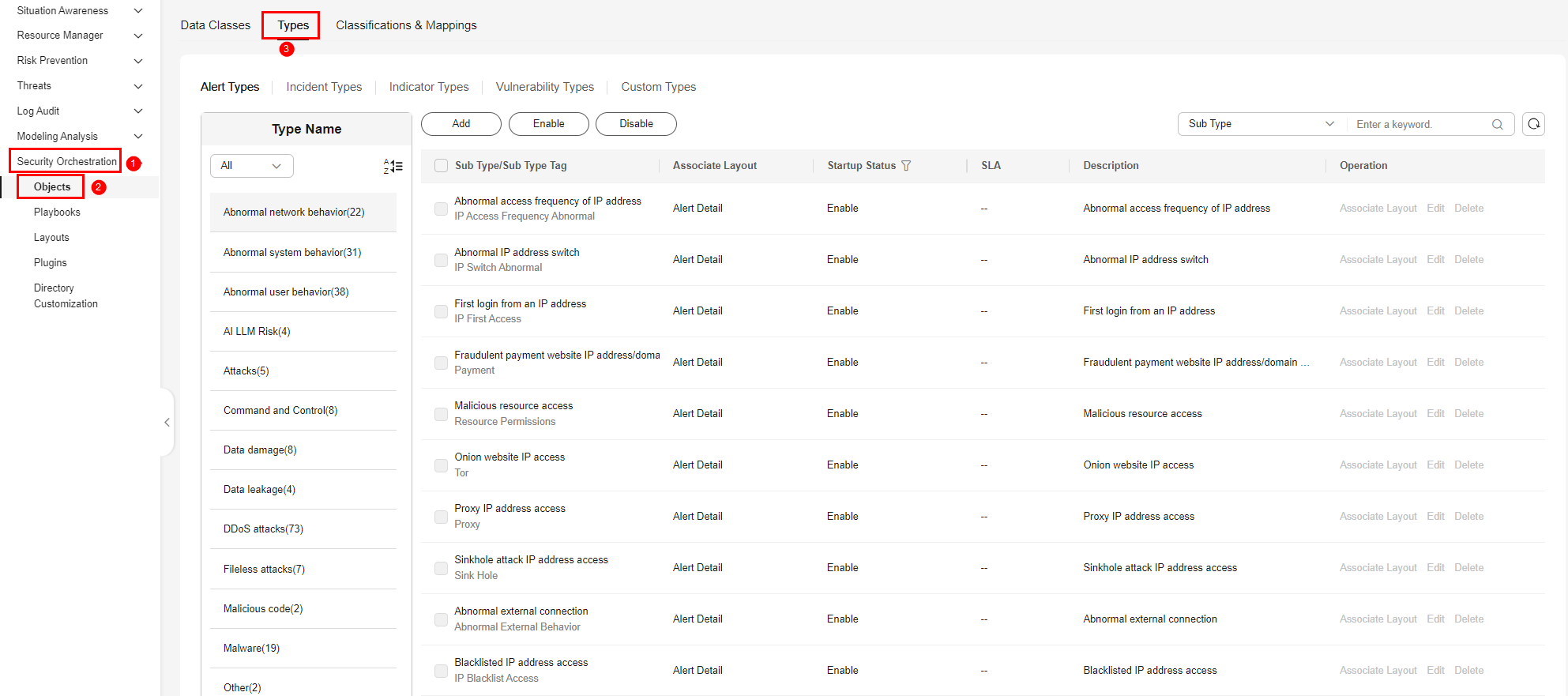
- On the Types tab, click the Alert Types tab.
- On the Alert Types tab, you can view all alert types in the Type Name area on the left.
To view details about subtypes of an alert type, click the target type name in Type Name on the left. Details about all subtypes are displayed on the right. For details about the parameters, see Table 1.
If there are many subtypes, you can select the Sub Type or Associated Layout and enter the corresponding keyword for search.Table 1 Alert type parameters Parameter
Description
Sub Type/Sub Type Tag
Name and tag of an alert subtype.
Associated Layout
Layout associated with the alert type.
Startup Status
Startup status of an alert type.
- Enable: The current type has been enabled.
- Disable: The current type has been disabled.
SLA
SLA processing time of an alert type.
Description
Description of an alert type.
Operation
You can edit or delete an alert type.
Built-in alert types are enabled by default and cannot be edited, disabled, or deleted.
Adding an Alert Type
- Log in to the SecMaster console.
- Click in the upper left corner of the management console and select a region or project.
- In the navigation pane on the left, choose Workspaces > Management. In the workspace list, click the name of the target workspace. Figure 3 Workspace management page
- In the navigation pane, choose . On the displayed page, click the Types tab. Figure 4 Types tab
- On the Types tab, click the Alert Types tab.
- On the Alert Types tab, click Add. On the Add Alert Type slide-out panel, set alert type parameters.
Table 2 Parameters for adding an alert type Parameter
Description
Type Name
Mandatory. Define a name of the new alert type.
- The name must start with an uppercase letter.
- Only letters, digits, periods (.), hyphens (-), and underscores (_) are allowed.
- Periods (.), hyphens (-), underscores (_), and uppercase letters cannot appear consecutively.
- Each uppercase letter must be followed by a lowercase letter.
- The name must contain 2 to 64 characters.
Type Tag
Mandatory. Enter an alert type tag.
- The value can consist of multiple words separated by spaces.
- The value must start with an uppercase letter and end with a lowercase letter.
- The value consists of letters, and uppercase letters cannot appear consecutively.
- The value must contain 2 to 64 characters.
Sub Type
Mandatory. Enter a subtype for the alert type, for example, SubType.
- The value must start with an uppercase letter.
- Only letters, digits, periods (.), hyphens (-), and underscores (_) are allowed.
- Periods (.), hyphens (-), underscores (_), and uppercase letters cannot appear consecutively.
- Each uppercase letter must be followed by a lowercase letter.
- The value must contain 2 to 64 characters.
Sub Type Tag
Mandatory. Enter an alert subtype tag, for example, SubTypeName.
- The value can consist of multiple words separated by spaces.
- The value must start with an uppercase letter and end with a lowercase letter.
- The value consists of letters, and uppercase letters cannot appear consecutively.
- The value must contain 2 to 64 characters.
Startup Status
Mandatory. Set the startup status of the alert type.
SLA
Mandatory. Set the SLA processing time for the alert.
Description
Optional. Enter a description for the alert type.

After a custom alert type is added, its Type Name, Type Tag, and Sub Type Tag fields cannot be modified.
- In the lower right corner of the page, click OK.
After a type is added, you can check it in the Type Name area on the Alert Types tab.
Associating an Alert Type with a Layout
By default, built-in alert types are associated with existing layouts. You cannot customize their associated layouts.
- Log in to the SecMaster console.
- Click in the upper left corner of the management console and select a region or project.
- In the navigation pane on the left, choose Workspaces > Management. In the workspace list, click the name of the target workspace. Figure 5 Workspace management page
- In the navigation pane, choose . On the displayed page, click the Types tab. Figure 6 Types tab
- On the Types tab, click the Alert Types tab.
- On the Alert Types tab, select the type to be associated with a layout and click Associate Layout in the Operation column of the target type.
- In the Associate Layout dialog box, select the target layout and click OK.
- After the configuration is complete, go to the Alert Types tab, click the alert type name, and check the associated layout of the type.
Editing an Alert Type
- Currently, built-in alert types cannot be edited.
- After a custom alert type is added, its Type Name, Type Tag, and Sub Type Tag fields cannot be modified.
- Log in to the SecMaster console.
- Click in the upper left corner of the management console and select a region or project.
- In the navigation pane on the left, choose Workspaces > Management. In the workspace list, click the name of the target workspace. Figure 7 Workspace management page
- In the navigation pane, choose . On the displayed page, click the Types tab. Figure 8 Types tab
- On the Types tab, click the Alert Types tab.
- In the Type Name area on the Alert Types tab, click the name of the custom alert type to be edited. The details about the custom alert type are displayed on the right.
- On the alert list page on the right, locate the row that contains the target type and click Edit in the Operation column.
- On the displayed page, modify the parameters of the alert type.
Table 3 Parameters for editing an alert type Parameter
Description
Type Name
Name of an alert type, which cannot be modified.
Type Tag
Alert type tag, which cannot be modified.
Sub Type
Subtype of the alert type.
- The value must start with an uppercase letter.
- Only letters, digits, periods (.), hyphens (-), and underscores (_) are allowed.
- Periods (.), hyphens (-), underscores (_), and uppercase letters cannot appear consecutively.
- Each uppercase letter must be followed by a lowercase letter.
- The value must contain 2 to 64 characters.
Sub Type Tag
Alert subtype tag, which cannot be modified.
Startup Status
Startup status of the alert type.
SLA
SLA processing time for the alert.
Description
Description of the custom alert type
- In the lower right corner of the page, click OK.
- After the modification is complete, click the name of the alert type on the Alert Types tab and view the details.
Managing an Alert Type
- Log in to the SecMaster console.
- Click in the upper left corner of the management console and select a region or project.
- In the navigation pane on the left, choose Workspaces > Management. In the workspace list, click the name of the target workspace. Figure 9 Workspace management page
- In the navigation pane, choose . On the displayed page, click the Types tab. Figure 10 Types tab
- On the Types tab, click the Alert Types tab.
- On the Alert Types tab, manage alert types.
- Built-in alert types are enabled by default. You do not need to manually enable them.
- Currently, built-in alert types cannot be disabled or deleted.
- Currently, built-in alert types cannot be deleted.
Table 4 Managing an alert type Operation
Description
Enable
- On the Alert Types tab, select the types you want to enable and click Enable.
Alternatively, locate the row containing the alert type you want to enable, and click Disable in the Startup Status column.
- In the displayed dialog box, click OK.
If the system displays a message indicating that the operation is successful and the status of the target type changes to Enable, the target type is enabled successfully.
Disable
- On the Alert Types tab, select the types you want to disable and click Disable.
Alternatively, locate the row containing the alert type to be disabled, and click Enable in the Startup Status column.
- In the displayed dialog box, click OK.
If the system displays a message indicating that the operation is successful and the Startup Status of the target type changes to Disable, the target type is disabled successfully.
Delete
- On the alert type management page, select the type to be deleted and click Delete in the Operation column.
- Scenario 1: MFA Has Been Configured in IAM
In the Delete Alert Type dialog box displayed, confirm the information, enter the credential authentication information, and click OK.
The verification method can be a mobile number, an email address, or a virtual MFA. For more information about MFA, see MFA Overview.
Scenario 2: MFA Is Not Enabled in IAM
In the confirmation dialog box displayed, confirm the information, click Auto Enter to auto-fill DELETE in the text box below, and click OK.
What is your overall rating for this page?
Thank you very much for your feedback. We will continue working to improve the documentation.See the reply and handling status in My Cloud VOC.
For any further questions, feel free to contact us through the chatbot.
Chatbot


