

Help Center/
Relational Database Service_RDS for SQL Server/
User Guide/
Database Usage/
Accounts (Non-Administrator)/
Setting the Maximum Number of Connections for a Database Account
Updated on 2025-12-12 GMT+08:00
Setting the Maximum Number of Connections for a Database Account
Scenarios
RDS for SQL Server allows you to set the maximum number of connections to an instance through a specific database account. This setting is used to limit the number of new connections accessing the instance.
Constraints
- To use this function, submit a service ticket to request required permissions.
- After you set the maximum number of connections, the system does not clean up the sessions that are already connected. It only checks the number of new connections.
Procedure
- Click
 in the upper left corner and select a region.
 - Click
 in the upper left corner of the page and choose Databases > Relational Database Service.
 - On the Instances page, click the target instance name to go to the Overview page.
- In the navigation pane on the left, choose Databases and Accounts and then click the Accounts tab.
- Locate the target account and click Set Max. Connections in the Operation column.
- In the displayed dialog box, set required parameters and click OK.
Figure 1 Setting the maximum number of connections
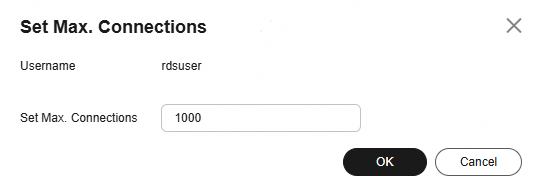
Enter a value from 0 to 32767.
If you set the maximum number of connections to 0, the account cannot create any new connections. To allow unlimited connections, set this parameter to the maximum value.
Feedback
Was this page helpful?
Provide feedbackThank you very much for your feedback. We will continue working to improve the documentation.See the reply and handling status in My Cloud VOC.
The system is busy. Please try again later.
For any further questions, feel free to contact us through the chatbot.
Chatbot


