

Viewing Cluster Information and Modifying Configurations
Scenario
After creating a CDM cluster, you can view its basic information. You can also modify its configurations.
- You can view the following basic cluster information:
- Cluster Information: cluster version, creation time, project ID, instance ID, and cluster ID
- Instance Configuration: cluster flavor, CPU, and memory
- Network
- You can configure alarm metrics.
CDM allows you to configure alarm rules. When an O&M metric exceeds the threshold, an alarm is automatically reported to the OperationCenter platform for quick identification of cluster exceptions.

- DataArts Studio version must be 8.7.0. Currently, this function is supported only by new clusters.
- After the cluster alarm configuration is enabled, it takes about 5 to 15 minutes for the configuration to take effect.
Currently, 14 O&M metrics are supported. After this function is enabled, data is automatically collected every five minutes. The configuration items are as follows:
- Alarm threshold: The upper limit of each metric. If the value exceeds the threshold, it indicates that an exception has occurred. You can set the threshold for each metric separately. For example, you can set the CPU usage threshold to 80%.
- Reporting policy: An alarm is reported only when a metric value exceeds the threshold for multiple consecutive times. This prevents false alarms caused by temporary fluctuations. By default, an alarm is reported when a metric value exceeds the threshold for three consecutive times (it can be adjusted, but not for some non-threshold metrics).
- Automatic clearance: When a metric value returns to the normal range, the alarm is automatically cleared, and no manual intervention is required. Similarly, the alarm is cleared only when the metric value is lower than the threshold for multiple consecutive times. (For some non-threshold metrics, alarms cannot be automatically cleared.)
- Silence period: After an alarm is reported, the same alarm will not be reported repeatedly within a certain period of time. The default value is 2 hours, which can be adjusted.
- You can modify the following cluster configurations:
- Notification: If a CDM migration job (only table/file migration) fails or the EIP is abnormal, CDM sends an SMS or email notification to the user. Notifications generated by this function will not be charged.
- User Isolation: determines whether other users can view and operate the migration jobs and links in the cluster.
- If this function is enabled, migration jobs and links in the cluster are isolated. Other IAM users of the a Huawei Cloud account cannot view or operate the migration jobs and links in the cluster.
Starting jobs by group will run all jobs in the group. If user isolation is enabled, starting jobs by group will still run all jobs in the group even if other IAM users in the a Huawei Cloud account cannot view the jobs in the group. Therefore, you are not advised to start jobs by group in user isolation scenarios.
- If this function is disabled, migration jobs and links in the cluster can be shared with other users. All IAM users with the required permission in the a Huawei Cloud account can view and operate migration jobs and links.
After disabling User Isolation, restart the cluster VM for the settings to take effect.
- If this function is enabled, migration jobs and links in the cluster are isolated. Other IAM users of the a Huawei Cloud account cannot view or operate the migration jobs and links in the cluster.
- Maximum Concurrent Extractors: This parameter specifies the total number of concurrent extractors of a job. If the total number of concurrent extractors of all jobs exceeds the upper limit, the excess extractors will wait in a queue.
The value of this parameter ranges from 1 to 1000. You are advised to set it based on the cluster specifications. For details about the recommended value, see Maximum Concurrent Extractors. If the number of concurrent extractors is too large, memory overflow may occur. Exercise caution when changing the value.
This parameter is also available on the Settings tab page. You can change its value either on this page or the Settings page.
Prerequisites
You have created a CDM cluster.
Viewing Basic Cluster Information
- Log in to the CDM console. In the navigation pane, choose Cluster Management.
Another method: Log in to the DataArts Studio console by following the instructions in Accessing the DataArts Studio Instance Console. On the DataArts Studio console, locate a workspace and click DataArts Migration to access the CDM console.
Figure 1 Cluster list

The Source column is displayed only when you access the DataArts Migration page from the DataArts Studio console.
- Click the cluster name to view its basic information. Figure 2 Basic cluster information

Modifying Cluster Configurations
- Log in to the CDM console. In the navigation pane, choose Cluster Management.
Another method: Log in to the DataArts Studio console by following the instructions in Accessing the DataArts Studio Instance Console. On the DataArts Studio console, locate a workspace and click DataArts Migration to access the CDM console.
Figure 3 Cluster list
The Source column is displayed only when you access the DataArts Migration page from the DataArts Studio console.
- Click the name of a cluster and click the Cluster Configuration tab to modify Notification, User Isolation and Maximum Concurrent Extractors.
- Click Save. The Cluster Management page is displayed.
- If User Isolation is disabled, choose in the Operation column to restart the cluster VM for the settings to take effect. Figure 4 Restarting a cluster
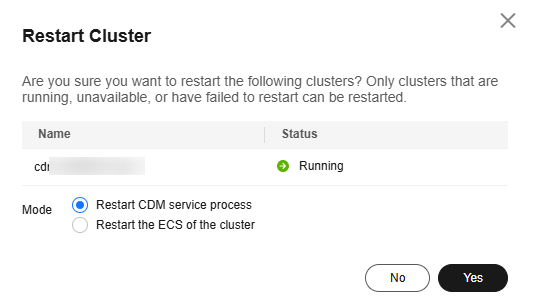
- Restart CDM service process: Only the CDM service process is restarted. The cluster VM will not be restarted.
- VM restart: The service process will be interrupted and VMs in the cluster will be restarted.
- Select VM restart and click Yes.
What is your overall rating for this page?
Thank you very much for your feedback. We will continue working to improve the documentation.See the reply and handling status in My Cloud VOC.
For any further questions, feel free to contact us through the chatbot.
Chatbot


